
Integrating barcode scanners with Microsoft Excel can revolutionize data entry, dramatically boosting accuracy and efficiency for businesses. This guide provides a comprehensive walkthrough to set up your barcode scanner with Excel, transforming your data capture and organization processes.
Barcode scanners are invaluable tools for rapidly capturing data, streamlining operations, and minimizing errors. By leveraging their capabilities within Microsoft Excel, you can create a powerful system for managing information, from inventory tracking to sales data.
Understanding the Integration Process
Before diving into the setup, it’s essential to grasp how barcode scanners interact with Excel. Most scanners function as “keyboard wedges.” This means that when you scan a barcode, the scanner transmits the data as if it were being typed directly by a keyboard. Excel, recognizing this input, will then populate the active cell with the scanned information.
Step 1: Choosing the Right Barcode Scanner
The first crucial step is selecting a barcode scanner compatible with your computer. Most modern scanners support USB or Bluetooth connectivity, making them easy to integrate. Before purchasing, ensure the scanner explicitly states its compatibility with PC systems and its keyboard wedge functionality. For those already owning a scanner, consult its manual to confirm these capabilities.
Step 2: Preparing Your Excel Spreadsheet
Open Microsoft Excel. You can either start a new blank workbook or utilize an existing one where you intend to input scanned data. It is highly recommended to designate a specific column for barcode entries. This organizational practice ensures clarity and simplifies data management and analysis later on.
Step 3: Enabling Data Entry in Excel
Navigate to the designated cell or column within your Excel spreadsheet where you want the barcode data to appear. Ensure that this cell is actively selected, meaning the cursor is present and ready to receive input. This is where the scanned data will be populated.
Step 4: Configuring Your Barcode Scanner
Connect your chosen barcode scanner to your computer using either a USB cable or Bluetooth. Typically, barcode scanners do not require separate software installation due to their keyboard wedge emulation. However, always refer to the manufacturer’s specific instructions provided with your device to ensure correct setup and any unique configuration requirements.
Step 5: Testing the Scanner’s Functionality
To verify the scanner is working correctly, open a basic text editor application, such as Notepad. Scan a barcode using your device. The sequence of characters representing the barcode should appear in the Notepad window as if you had typed it manually. This confirms the scanner’s ability to transmit data accurately.
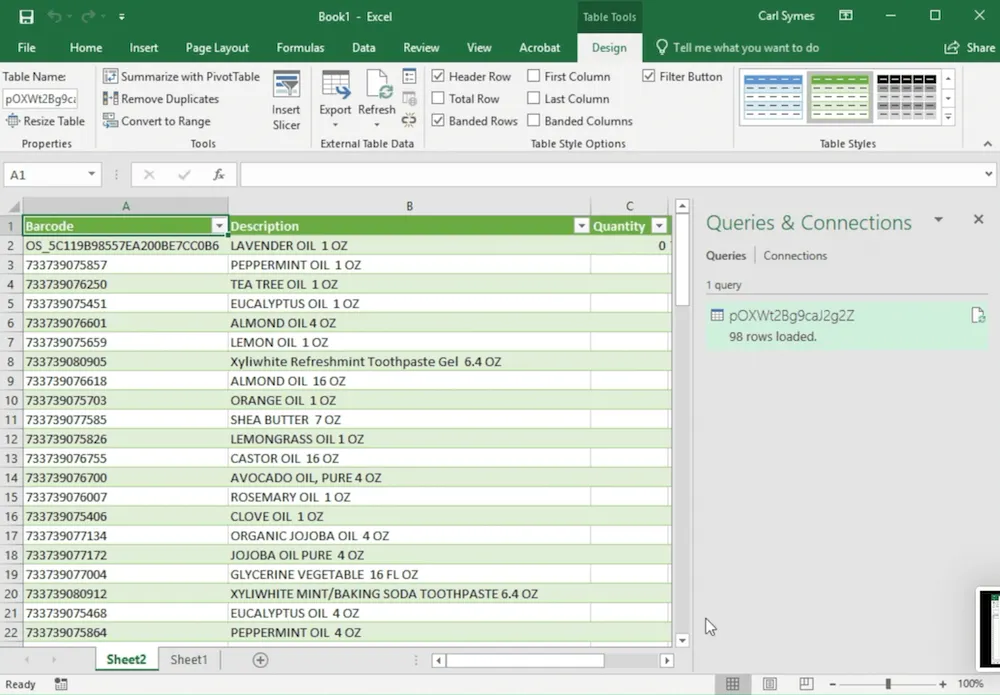
Step 6: Scanning Barcodes Directly into Excel
Once you’ve confirmed the scanner’s functionality, switch back to your prepared Excel spreadsheet. With the correct cell selected, begin scanning your barcodes. Each scan will input the corresponding data directly into the active cell in Excel. Continue this process for all the barcodes you need to record.
Step 7: Formatting Your Scanned Data
After all barcode data has been entered into Excel, you can enhance its presentation. Apply standard Excel formatting options, such as adjusting font styles, adding cell borders, or implementing conditional formatting rules. Proper formatting makes the data more readable, visually appealing, and easier to interpret.
Step 8: Validating and Analyzing Your Data
Leverage Excel’s powerful built-in tools for data validation to ensure the accuracy and consistency of your scanned entries. Furthermore, utilize Excel’s extensive data analysis features—like pivot tables, charts, and formulas—to derive meaningful insights, generate reports, and make informed business decisions based on your captured barcode data. This step transforms raw data into actionable intelligence.
By meticulously following these steps, you can successfully integrate barcode scanning capabilities into your Microsoft Excel workflow. This powerful combination streamlines data entry, enhances accuracy, and saves considerable time, ultimately leading to more efficient business operations and robust data management. Embrace the synergy of barcode scanners and Excel to unlock unprecedented levels of productivity.