
Calculating the duration between two specific times is a common task in Excel, whether you’re tracking employee work hours, analyzing operational efficiency, or managing project timelines. Fortunately, Excel offers several straightforward methods to achieve this, allowing you to present the results in various formats. This guide will walk you through the most effective techniques for calculating time differences in Excel, ensuring accuracy and clarity in your reports.
Presenting Time Differences in Standard Format
To display the difference between two times in the standard hours:minutes:seconds format, you can leverage Excel’s built-in formatting options or the TEXT function.
Applying Custom Number Formats
One of the primary ways to show the time difference is by applying a custom format to the cell containing your formula.
- Select the cell that contains the formula for your time difference.
- Navigate to the Home tab.
- In the Number group, click the arrow next to the General format box.
- Choose More Number Formats.
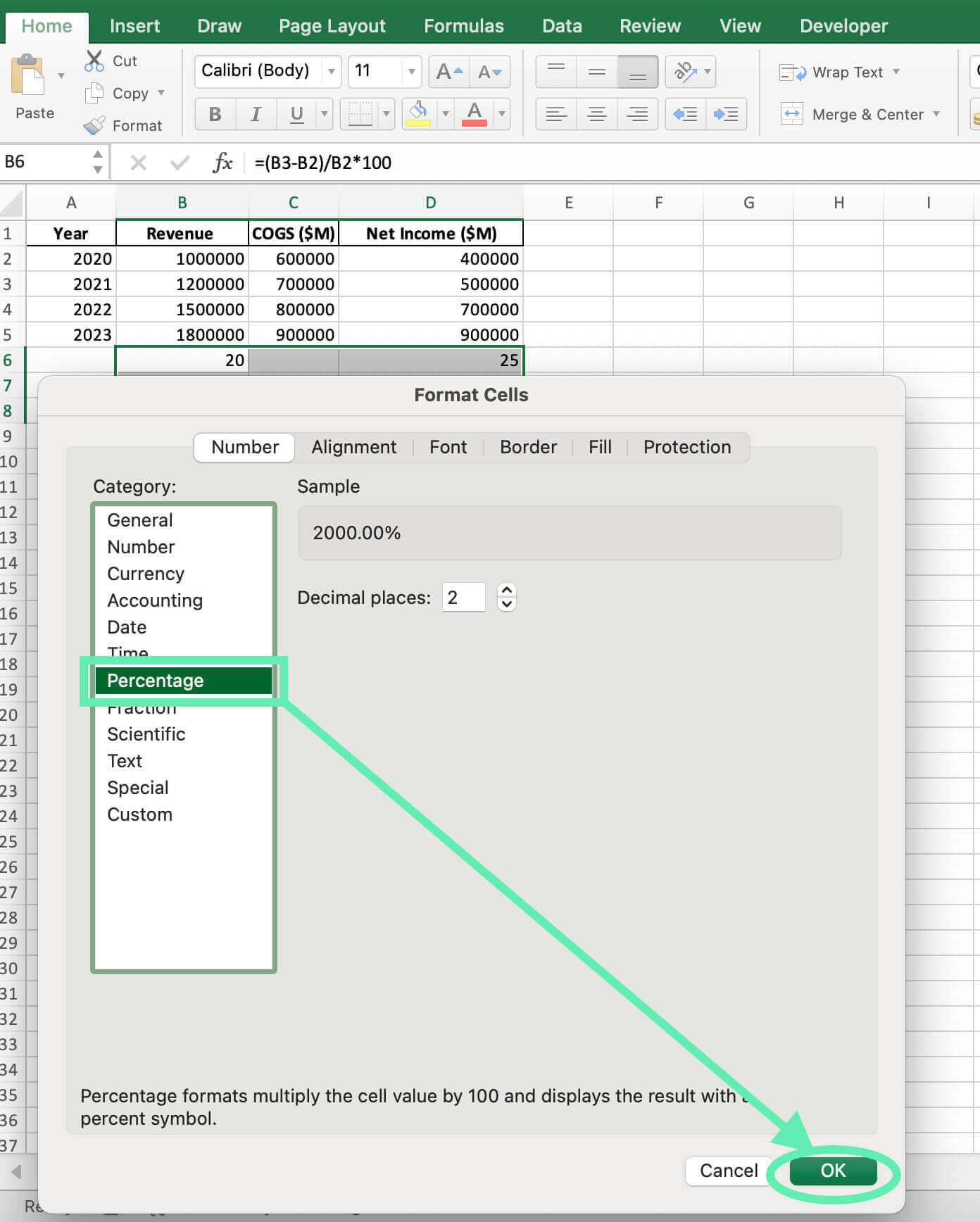
- In the Format Cells dialog box, select Custom from the Category list.
- In the Type box, enter your desired custom format code. For instance:
hwill display only the hours.h:mmwill show hours and minutes.h:mm:sswill display hours, minutes, and seconds.
Using the TEXT Function for Formatting
Alternatively, the TEXT function provides a robust way to format the time difference directly within your formula. This method is particularly useful when you want to ensure the formatting is explicitly defined by the formula itself.
When using time format codes, remember that hours will not exceed 24, minutes will not exceed 60, and seconds will not exceed 60.
Consider the following example data in your worksheet:
| Cell A Example | Cell B Example |
|---|---|
| Start time | End time |
| 6/9/2007 10:35 AM | 6/9/2007 3:30 PM |
Here are the formulas and their descriptions:
| Formula | Description (Result) |
|---|---|
=B2-A2 | Hours between two times (4). You must manually apply the custom format “h” to the cell. |
=B2-A2 | Hours and minutes between two times (4:55). You must manually apply the custom format “h:mm” to the cell. |
=B2-A2 | Hours, minutes, and seconds between two times (4:55:00). You must manually apply the custom format “h:mm:ss” to the cell. |
=TEXT(B2-A2,"h") | Hours between two times, formatted as “h” using the TEXT function (4). |
=TEXT(B2-A2,"h:mm") | Hours and minutes between two times, formatted as “h:mm” using the TEXT function (4:55). |
=TEXT(B2-A2,"h:mm:ss") | Hours, minutes, and seconds between two times, formatted as “h:mm:ss” using the TEXT function (4:55:00). |
Important Note: If you apply both a custom number format to a cell and use the TEXT function within that cell’s formula, the TEXT function’s formatting will take precedence. For more details on these functions, you can refer to the TEXT function documentation and guidance on formatting numbers as dates or times.
Presenting Time Differences Based on a Single Time Unit
If you need to express the total duration in a single unit—such as total hours, total minutes, or total seconds—Excel provides functions to extract these values or calculate them directly. This is useful for tasks like calculating total hours worked for payroll or determining the total processing time in seconds.
You can achieve this using the INT function in conjunction with multiplication, or by utilizing the HOUR, MINUTE, and SECOND functions.
Using the same start and end times from the previous example:
| Cell A Example | Cell B Example |
|---|---|
| Start time | End time |
| 6/9/2007 10:35 AM | 6/9/2007 3:30 PM |
Here are the formulas for calculating differences based on single time units:
| Formula | Description (Result) |
|---|---|
=INT((B2-A2)*24) | Total hours between two times (4). |
=(B2-A2)*1440 | Total minutes between two times (295). |
=(B2-A2)*86400 | Total seconds between two times (17700). |
=HOUR(B2-A2) | The difference in the hours unit between two times. This value cannot exceed 24 (4). |
=MINUTE(B2-A2) | The difference in the minutes unit between two times. This value cannot exceed 60 (55). |
=SECOND(B2-A2) | The difference in the seconds unit between two times. This value cannot exceed 60 (0). |
For further information on these functions, consult the documentation for the INT function, HOUR function, MINUTE function, and SECOND function. Mastering these techniques will significantly enhance your ability to manage and analyze time-related data within Excel, providing you with accurate insights for various applications.