
Introduction
Calculating the difference between dates and times is a common task in Excel, whether for tracking project timelines, determining age, or analyzing time-based data. Excel’s DATEDIF function is a powerful tool for these calculations, though it comes with some caveats. This guide explores how to use DATEDIF, NETWORKDAYS.INTL, and basic arithmetic to compute differences in days, weeks, months, years, and even elapsed time. We’ll also cover best practices to avoid errors and ensure accuracy.
Understanding the DATEDIF Function
Excel’s DATEDIF function calculates the difference between two dates in days, months, or years. While it is not officially documented by Microsoft due to its legacy support for Lotus 1-2-3, it remains widely used.
Syntax:
=DATEDIF(start_date, end_date, unit)start_date: The beginning date.end_date: The ending date.unit: The type of difference to calculate (e.g.,"d"for days,"m"for months,"y"for years).
Warning: If the start_date is later than the end_date, Excel returns a #NUM! error.
Calculating Differences Between Dates
1. Difference in Days
To find the number of full days between two dates, use the "d" unit.
Example:
If the start date is in cell D9 and the end date is in E9, the formula is:
=DATEDIF(D9, E9, "d")This returns the total number of full days between the two dates.
2. Difference in Weeks
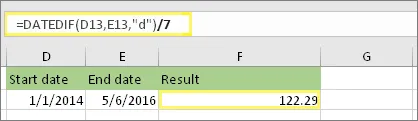
Excel does not have a direct "w" unit for weeks. Instead, calculate the difference in days and divide by 7.
Example:
=DATEDIF(D13, E13, "d")/7Format the result as a number with decimal places (e.g., CTRL + 1 → Number → Decimal places: 2).
3. Difference in Months
Use the "m" unit to find the number of full months between two dates.
Example:
=DATEDIF(D5, E5, "m")4. Difference in Years
Use the "y" unit to find the number of full years between two dates.
Example:
=DATEDIF(D2, E2, "y")Calculating Age in Years, Months, and Days
To calculate age or service time in a format like “2 years, 4 months, 5 days”, combine multiple DATEDIF formulas.
Step 1: Calculate Full Years
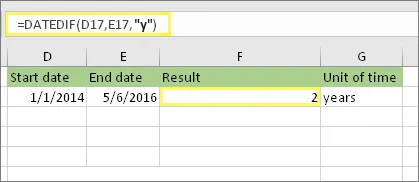
Use the "y" unit to find the total full years.
Example:
=DATEDIF(D17, E17, "y")Step 2: Calculate Remaining Months
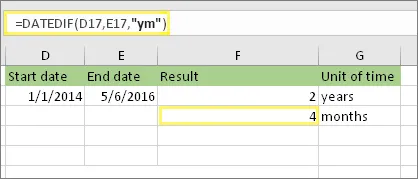
Use the "ym" unit to find the remaining months after the last full year.
Example:
=DATEDIF(D17, E17, "ym")Step 3: Calculate Remaining Days
Use a custom formula to find the remaining days. Subtract the first day of the end month from the end date.
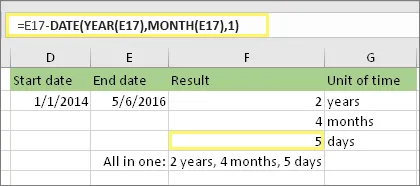 Example of custom formula for remaining days
Example:
=E17-DATE(YEAR(E17), MONTH(E17), 1)Note: Avoid using the "md" unit in DATEDIF, as it may produce inaccurate results.
Step 4: Combine All Calculations (Optional)
Combine all three calculations into a single cell using ampersands (&) and text.
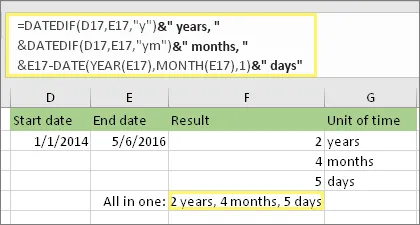
Example:
=DATEDIF(D17, E17, "y") & " years, " & DATEDIF(D17, E17, "ym") & " months, " & (E17-DATE(YEAR(E17), MONTH(E17), 1)) & " days"Tip: Use ALT + ENTER to add line breaks in the formula for better readability.
Using Dynamic Dates with TODAY()
Instead of hardcoding dates, use the TODAY() function to automatically update calculations based on the current date.
Example:
=DATEDIF(TODAY(), D28, "d")Note: The result changes as the file is opened on different days.
Calculating Workdays with NETWORKDAYS.INTL
The NETWORKDAYS.INTL function calculates the number of workdays between two dates, excluding weekends and optional holidays.
Step 1: Define Start and End Dates
Enter the start and end dates in separate cells.
Step 2: Use NETWORKDAYS.INTL
Specify the weekend days using a number (e.g., 1 for Saturday-Sunday).
Example:
=NETWORKDAYS.INTL(D53, E53, 1)This excludes Saturdays and Sundays.
Step 3: Customize Weekend Days
Change the weekend parameter to match your requirements (e.g., 2 for Sunday-Monday).
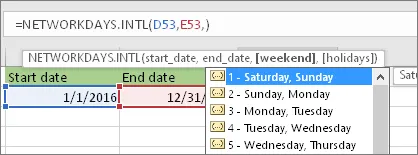 IntelliSense list for weekend parameters
Step 4: Exclude Holidays
Define a named range for holidays (e.g., MyHolidays) and include it in the formula.
Example:
=NETWORKDAYS.INTL(D53, E53, 1, MyHolidays)Calculating Elapsed Time
1. Enter Start and End Times
Ensure times include hours, minutes, and AM/PM.
2. Format Cells as h:mm AM/PM
Select the cells and apply the h:mm AM/PM format.
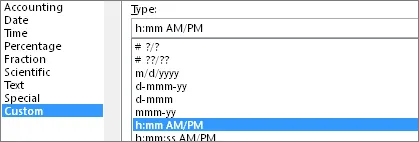
3. Subtract Start Time from End Time
Use a simple subtraction formula.
Example:
=E80-D804. Format Result as h:mm
Apply the h:mm format to exclude AM/PM.
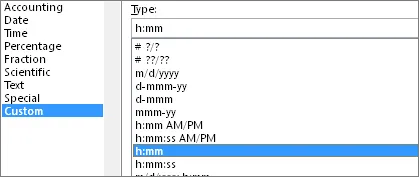 Format cells dialog for h:mm
Calculating Time Between Two Dates and Times
1. Enter Full Dates and Times
Include month, day, year, hour, minute, and AM/PM.
2. Format Cells as Date/Time
Use the 3/14/12 1:30 PM format.
3. Subtract the Two
Subtract the start date/time from the end date/time.
4. Format Result as [h]:mm
Apply the [h]:mm format to display the total hours and minutes.
Conclusion
Mastering date and time calculations in Excel empowers you to handle a wide range of tasks, from age calculations to project timelines. The DATEDIF function, while undocumented, remains a versatile tool for basic date differences. For more advanced scenarios, NETWORKDAYS.INTL and custom formatting provide flexibility and accuracy.
Pro Tip: Always double-check your formulas and formatting to avoid errors, especially when dealing with dynamic dates like TODAY().
For further exploration, download our example workbook to practice these techniques. Happy calculating!