
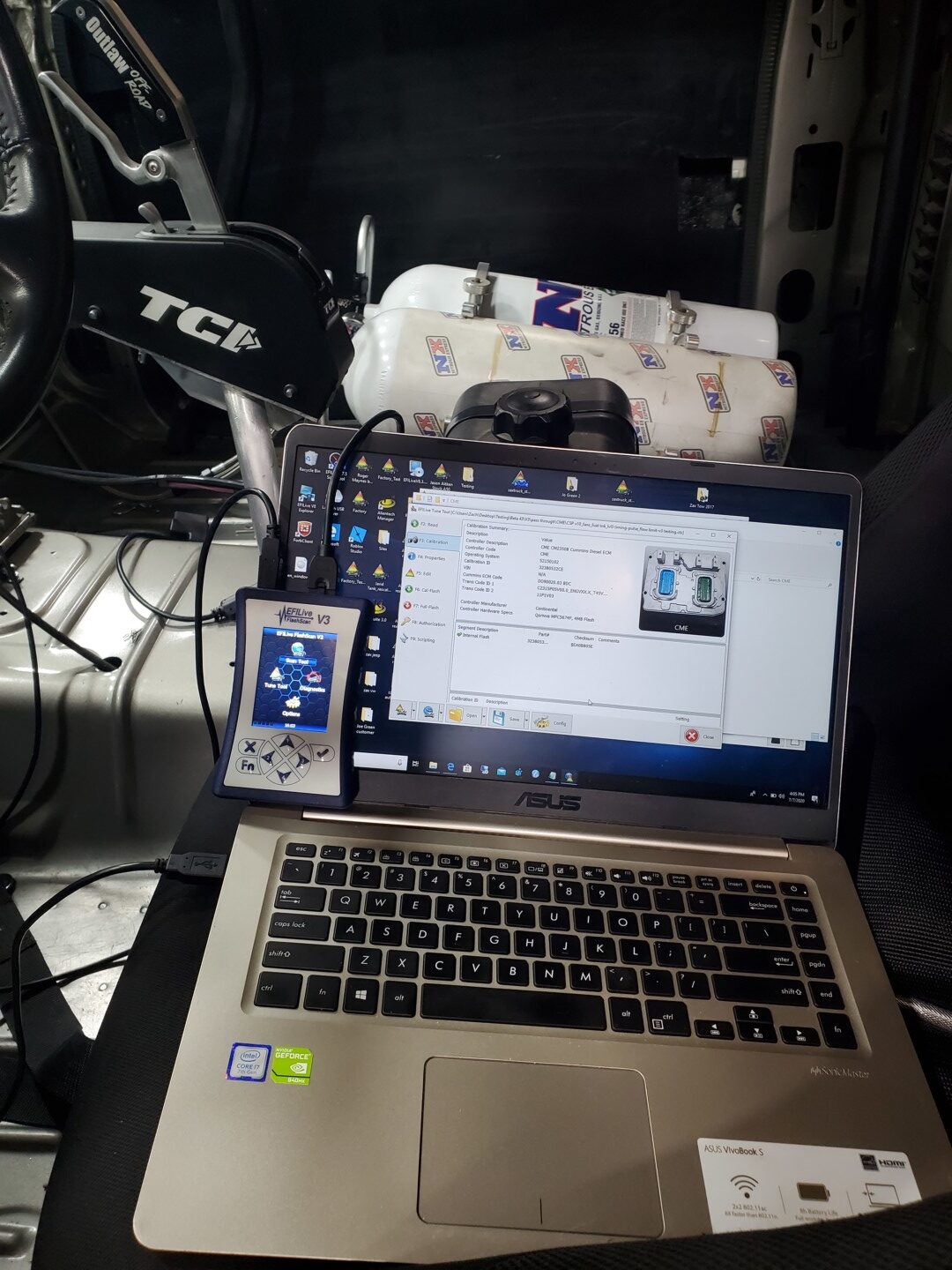
The AutoCal V2, a popular tuning device in the automotive aftermarket, faces capacity challenges with the increasing size of modern vehicle tune files. This guide, originally updated on August 21, 2020, by EFILive Support, delves into managing the device’s internal memory to ensure seamless operation for users working with late-model ECUs. Understanding and effectively managing AutoCal V2’s storage is crucial for avoiding errors and optimizing the tuning workflow.
The AutoCal V2 is equipped with 8MB of internal memory, of which approximately 6MB is usable for storing tune and log files. This was a standard specification when the device was developed. However, contemporary tune files for many late-model vehicle controllers can be significantly larger, sometimes up to 3.5MB, which is 8 to 10 times the size of older tune files. This substantial increase in file size means users may encounter limitations when adding new tunes or configuring the device for different vehicles. When the AutoCal V2’s capacity is exceeded, users will typically receive an $0194 Write Failure error. This error can occur during several common operations, including adding tune or configuration files, copying BBX Quick Setup files, reading a tune file from a controller, or initiating a data logging session.
Efficient Tune File Management on AutoCal V2
To effectively manage the storage on your AutoCal V2 and prevent capacity-related errors, EFILive strongly recommends backing up tune and log files before deleting them from the device. This ensures you retain access to your important data. The process for copying these files to your PC is straightforward:
- Connect AutoCal V2 to your PC: Utilize the provided USB cable to establish a connection.
- Open EFILive Explorer: Launch the EFILive Explorer application on your computer.
- Navigate to Backup Directory: Browse to the specific folder on your PC where you intend to save the files.
- Access AutoCal Device Files: Within EFILive Explorer, navigate to the
[F3: Data Files]directory on your AutoCal V2. - Transfer Files: Select the desired tune and log files from the appropriate folder on your AutoCal device and drag them to your chosen backup location on your PC.
- Delete Unnecessary Files: Once you have successfully created a backup copy of your tune and log files, you can then select the corresponding files on your AutoCal device within EFILive Explorer and press the delete key to free up space.
Formatting the AutoCal V2 Data File System
Important Note: Only perform this action if explicitly instructed by your tuner. Formatting the data file system will erase all scan and tune files currently stored on your AutoCal V2.
To initiate a format of the AutoCal V2’s data file system:
- Connect AutoCal V2 to your PC.
- Open EFILive Explorer.
- Navigate to Desired Backup Directory: Select the location on your PC where you want to save any potential temporary files, although formatting erases existing data.
- Access Data Files: Navigate to
[F3: Data Files]on your AutoCal device. - Initiate Format: Click the
[Format]button to begin the data file system erasure process.
Formatting the AutoCal V2 Configuration File System
Similarly, to erase all controller configuration files from your AutoCal V2, follow these steps:
- Connect AutoCal V2 to your PC.
- Open EFILive Explorer.
- Navigate to Desired Backup Directory: Choose a location on your PC for any temporary file saving.
- Access Config Files: Navigate to
[F9: Config Files]on your AutoCal device. - Initiate Format: Click the
[Format]button to erase all controller configuration files.
Displaying Free Space on AutoCal V2
To gain insight into the storage utilization of your AutoCal V2, you can easily check the used space, free space, and overall capacity:
- Connect AutoCal V2 to your PC.
- Open EFILive Explorer.
- Navigate to Desired Directory: Proceed to either the
[F3: Data Files]or[F9: Config Files]section on your AutoCal device. - View Free Space: Select the
[Free Space]button. This action will display the current storage status, allowing you to gauge how much room you have for new files or if you need to perform cleanup.