
Bluetooth is one of the most convenient wireless technologies available today, enabling seamless connections between your PC and headphones, keyboards, mice, speakers, and more. Yet despite its widespread adoption, Bluetooth issues remain surprisingly common — from devices that refuse to pair to audio that cuts in and out without warning. This guide walks you through the most effective troubleshooting steps for fixing Bluetooth problems on both Windows 10 and Windows 11, whether you’re dealing with a missing Bluetooth option, connection failures, or driver errors.
Start Here: Run the Windows Bluetooth Troubleshooter
Before diving into manual fixes, Microsoft provides a built-in automated tool that can diagnose and resolve many common Bluetooth problems automatically.
On Windows 11, open the Get Help app and run the Bluetooth troubleshooter. It will scan your system, identify issues, and attempt repairs without requiring manual input. If it resolves your problem, you’re done. If not, continue with the steps below.
On Windows 10, go to Start > Settings > Update & Security > Troubleshoot, find Bluetooth under “Find and fix other problems,” and select Run the troubleshooter.
General Bluetooth Troubleshooting (Windows 11 and Windows 10)
If the automated troubleshooter didn’t resolve the issue, the following manual steps address the most frequent root causes of Bluetooth problems on Windows.
Check That Bluetooth Is Actually Turned On
This sounds obvious, but it’s the most commonly overlooked step. Windows provides two ways to verify Bluetooth is enabled:
On Windows 11:
- Via Quick Settings: Click the Network, Sound, or Battery icon on the right side of the taskbar to open Quick Settings, then confirm the Bluetooth toggle is active.
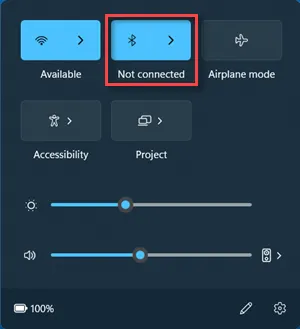
- Via Settings: Go to Start > Settings > Bluetooth & devices and make sure Bluetooth is switched on. When enabled, your PC will display the message: “Discoverable as [computer name].”
On Windows 10:
- Via Action Center: Click the notification icon (or press Win + A) and look for the Bluetooth tile. If it’s not visible, select Expand to find it.
- Via Settings: Go to Start > Settings > Devices > Bluetooth & other devices and confirm Bluetooth is toggled on.
Also check that Airplane mode is turned off, as it disables all wireless connections including Bluetooth. On Windows 11, this is in Quick Settings. On Windows 10, go to Settings > Network & Internet > Airplane mode.
Check Your Bluetooth Device
Before assuming the problem is with your PC, verify the device you’re trying to connect:
- Is it powered on?
- Is the battery charged or fresh?
- Is it within range (typically within 30 feet / 10 meters)?
- If it’s a laptop, does it have a physical Bluetooth switch on the body that might be turned off?
Try turning the Bluetooth device off, waiting a few seconds, then turning it back on. Also make sure it isn’t sitting directly next to a USB device plugged into a USB 3.0 port — unshielded USB 3.0 devices are known to emit radio interference that disrupts Bluetooth connections.
Adjust Bluetooth Device Discovery Settings
If your Bluetooth device doesn’t appear in the list of available devices, the discovery filter may be set too restrictively.
On Windows 11:
- Go to Start > Settings > Bluetooth & devices > Devices.
- Under Device settings, find Bluetooth devices discovery.
- Change the setting from Default to Advanced to show all Bluetooth device types.
On Windows 10:
- Go to Start > Settings > Bluetooth & other devices.
- Click More Bluetooth options (found on the right side or under Related Settings).
- In the Bluetooth Settings dialog, go to the Options tab.
- Check Allow Bluetooth devices to find this PC.
Remove and Re-Pair the Bluetooth Device
If a previously connected device is now failing to connect, removing it and pairing fresh often resolves the issue.
On Windows 11:
- Go to Start > Settings > Bluetooth & devices > Devices.
- Find the problematic device, click More options, then select Remove device > Yes.
On Windows 10:
- Go to Start > Settings > Devices > Bluetooth & other devices.
- Select the device under the Bluetooth list, then click Remove device > Yes.
After removal, put your Bluetooth device back into pairing mode and add it again through the same Settings menu.
Update or Reinstall Your Bluetooth Driver
An outdated or incompatible Bluetooth driver is one of the most common causes of Bluetooth connection problems, especially after a Windows upgrade or major update. Here’s how to fix it.
Automatically Update the Bluetooth Driver
- Right-click the Start button and open Device Manager (or search for it in the taskbar).
- Expand the Bluetooth section and select your Bluetooth adapter (it may include the word “radio” in the name).
- Right-click the adapter and choose Update driver > Search automatically for updated driver software.
- Follow the prompts, then restart your PC if asked.
If Windows cannot find an updated driver automatically, visit your PC manufacturer’s website directly and download the latest Bluetooth driver from the support section.
Manually Install the Bluetooth Driver
If you’ve downloaded a driver manually from the manufacturer:
- For .exe files: Simply double-click the file and follow the installation wizard.
- For .inf/.sys files:
- Open Device Manager and expand Bluetooth.
- Right-click your Bluetooth adapter and select Update driver > Browse my computer for drivers.
- Click Browse, navigate to the folder where you saved the driver files, and click OK > Next.
- Follow the on-screen steps, then restart your PC when prompted.
Uninstall and Reinstall the Bluetooth Adapter
If the Bluetooth icon is missing from the taskbar but the adapter still appears in Device Manager, a full uninstall and automatic reinstall can restore it:
- Open Device Manager and expand Bluetooth.
- Right-click the Bluetooth adapter and select Uninstall device > Uninstall.
- Go to Start > Power > Shut down — a full shutdown, not a restart.
- After a few seconds, power the PC back on. Windows should automatically reinstall the Bluetooth driver.
- If it doesn’t reinstall automatically, open Device Manager and select Action > Scan for hardware changes.
Note: If Windows still cannot find an appropriate driver, contact your PC manufacturer or hardware vendor for the correct Bluetooth adapter driver.
Common Bluetooth Issues in Windows 11 and Windows 10
Beyond the general steps above, certain Bluetooth problems have specific causes and targeted solutions. The most frequent issues include:
- Bluetooth not showing up or missing entirely from Settings or the taskbar
- Bluetooth device not pairing or connecting
- Bluetooth audio problems such as poor quality, cutting out, or no sound
- Bluetooth device disconnecting randomly after initial pairing
- Slow or unresponsive Bluetooth peripherals such as keyboards and mice
Each of these issues typically traces back to one of three root causes: the Bluetooth radio being disabled, a driver problem, or interference from other wireless or USB devices. The steps outlined above cover all three scenarios.
A Note on Windows 10 Support
Microsoft ended support for Windows 10 on October 14, 2025. After this date, Windows 10 no longer receives free software updates, security patches, or technical support. While your PC will continue to function, Bluetooth drivers and system components will no longer be maintained by Microsoft. Upgrading to Windows 11 is the recommended path forward to ensure continued compatibility and security for Bluetooth and all other hardware features.
Bluetooth problems on Windows are frustrating, but in the vast majority of cases, they can be resolved through one of the steps above — toggling the radio, clearing a stale device pairing, or refreshing the driver. Work through each section methodically, starting with the simplest checks, and most issues will be resolved before you reach the advanced driver steps. If the problem persists after all of the above, consider contacting your PC manufacturer’s support team, as the issue may be hardware-related.