
If you’ve spent any time working with complex AutoCAD drawings, you’ve almost certainly run into layers that simply refuse to be deleted — even when they appear completely empty. Running PURGE does nothing, and the layer just sits there cluttering your Layer Manager. This is a surprisingly common frustration among AutoCAD users, and the good news is there are two dedicated commands specifically designed to handle these stubborn cases: LAYDEL and LAYMRG.
These commands go far beyond standard deletion methods. They can remove layers containing visible objects, layers tied to block definitions, and even persistent system layers like the Defpoints layer that other methods leave untouched. Here’s how to use both effectively.
Why Some Layers Won’t Delete
Before diving into the solutions, it’s worth understanding why certain layers resist deletion in the first place. AutoCAD drawing files often contain invisible data attached to layers — DGN linetypes, xref-dependent references, or objects embedded deep inside block definitions — that don’t show up visually in the drawing area but are still recognized by AutoCAD as active content. Because of this, the standard PURGE command correctly refuses to remove them, since doing so without proper handling could corrupt the drawing. The two commands below take a more surgical approach.
LAYDEL Command: Force-Delete a Layer and Everything on It
The LAYDEL command is the nuclear option. It deletes every object assigned to a target layer and then purges the layer itself from the drawing, regardless of what’s on it.
To use it, type LAYDEL on the command line and press Enter. AutoCAD will prompt you to select an object on the layer you want to delete — click any object belonging to that layer and press Enter. Then select Yes from the command line options and press Enter to confirm.
AutoCAD will immediately remove all objects on that layer and purge the layer from the Layer Manager.
If the layer you want to delete contains no visible objects, you can use the Name option from the command line prompt instead of selecting an object. This opens a list of layers in the drawing so you can choose the target layer by name directly.
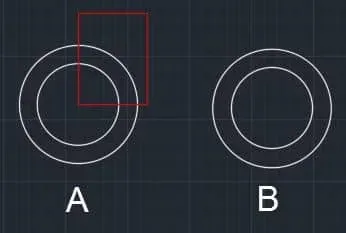
One critical caveat: if any of the objects on the deleted layer are part of a block definition, the block will be redefined. For example, if you have a block that includes a rectangle drawn on a red layer, and you delete the red layer using LAYDEL, that rectangle will be removed from every instance of the block throughout the drawing. The block is then automatically redefined to reflect the change.
This side effect makes LAYDEL a powerful but potentially destructive tool. Always save your drawing before using it, and audit your layers carefully to understand what might be affected before confirming the deletion.
LAYMRG Command: Merge Layers While Preserving Objects
If you need to remove a layer but want to keep the objects that live on it, LAYMRG is the right tool. Rather than deleting objects, this command merges the source layer into a target layer — all objects from the source are reassigned to the target layer, adopting its color, linetype, and other layer properties, and the source layer is then purged.
Consider a scenario with three shapes on three separate layers: red, green, and blue. If the red layer needs to be eliminated but the geometry on it is still needed in the drawing, you can merge red into green.
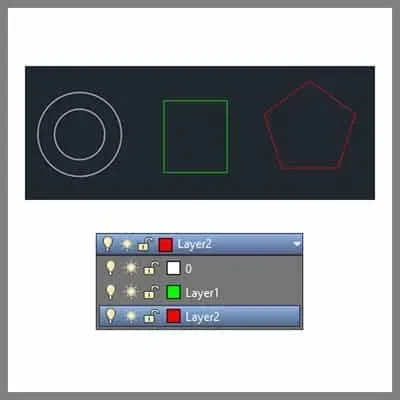
Type LAYMRG on the command line and press Enter. Click any object on the source layer (red) and press Enter, then click any object on the target layer (green) and press Enter again. When prompted, select Yes to confirm the merge.
The red layer disappears from the layer list, and all objects that were on it are now assigned to the green layer, taking on its visual properties.
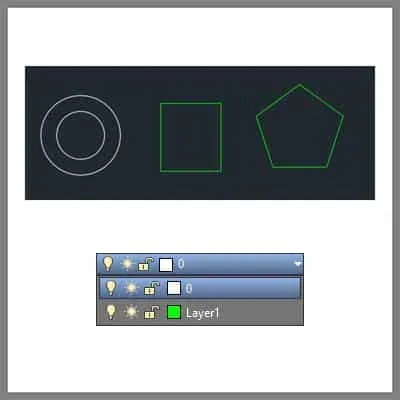
As with LAYDEL, if any objects on the source layer belong to a block definition, those block instances will be redefined to reflect the new layer assignment. Apply the same caution here and work on a saved copy of the drawing when experimenting with this command on unfamiliar files.
Which Command Should You Use?
The choice between LAYDEL and LAYMRG comes down to whether you need to preserve the objects on the problematic layer:
- Use LAYDEL when the layer and all its contents are genuinely unwanted — redundant construction geometry, invisible DGN linetype data, or leftover import artifacts.
- Use LAYMRG when the objects on the layer are still needed in the drawing but the layer itself is redundant — for example, when consolidating layers imported from a consultant’s file into your own layer standard.
Both commands handle edge cases that PURGE cannot, making them essential tools in any AutoCAD user’s workflow for keeping drawings clean and well-organized.
Summary
Standard deletion and purge methods in AutoCAD often fail on layers that contain hidden data or objects nested inside blocks. The LAYDEL command force-deletes a layer and all its associated objects, while LAYMRG safely relocates those objects to another layer before purging the original. Both are effective solutions for layers that resist conventional deletion — just exercise caution with block-dependent content, and always work from a saved file when applying either command to production drawings.