
If you regularly work with spreadsheets, you already know that manually counting cells is slow and prone to error. This is exactly where the COUNT function in Excel comes in handy. As one of Excel’s most fundamental counting tools, COUNT lets you quickly determine how many cells in a selected range contain numeric values, saving you time and reducing the risk of mistakes when handling large datasets. This guide walks you through the syntax, important notes, and practical examples of using the COUNT function effectively.
COUNT Function Syntax in Excel
The COUNT function follows this syntax:
=COUNT(value1, [value2], …)
Where:
- value1 is a required argument. It represents the first cell reference or range you want to count numeric values from.
- value2 is an optional argument. You can include up to 255 additional cell references or ranges to count, though this parameter isn’t mandatory.
The COUNT function returns the total number of cells containing numeric data. This includes negative numbers, percentages, dates, times, fractions, and formulas that return numbers. Empty cells and text values are automatically ignored. In short, COUNT scans through a list of arguments—whether entered manually, referenced from individual cells, or pulled from a range—and tallies up only the numeric entries, supporting up to 255 arguments in total.
Important Notes When Using COUNT
Before diving into examples, keep these key points in mind:
- COUNT can handle a maximum of 255 arguments.
- COUNT ignores logical values such as TRUE and FALSE.
- COUNT ignores text values and blank cells.
- The function accepts numbers, dates, or numbers written as text as valid arguments to count.
- Logical values and numbers formatted as text, when entered directly into the argument list, will still be counted.
- Arguments can reference different data types, but COUNT will only tally the numeric ones.
- For counting exceptions like logical values, text, or non-numeric entries, use the COUNTA function instead.
- If you need to count values based on a specific condition, use the COUNTIFS function.
Practical Example: How to Use COUNT in Excel
Let’s walk through a real example to see how the COUNT function works in practice.
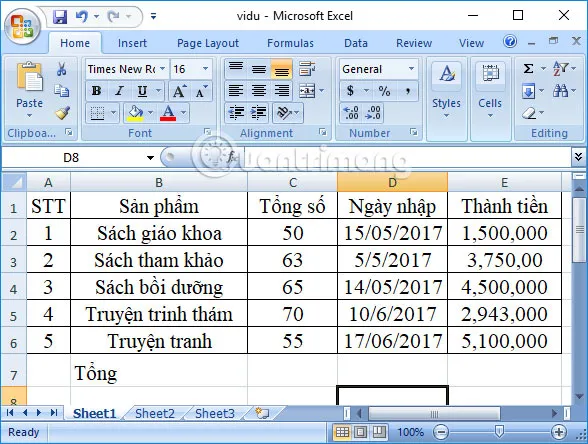
Suppose you have a table showing the number of books sold and the corresponding revenue generated, as shown below. Your goal is to find out how many types of books have been sold.
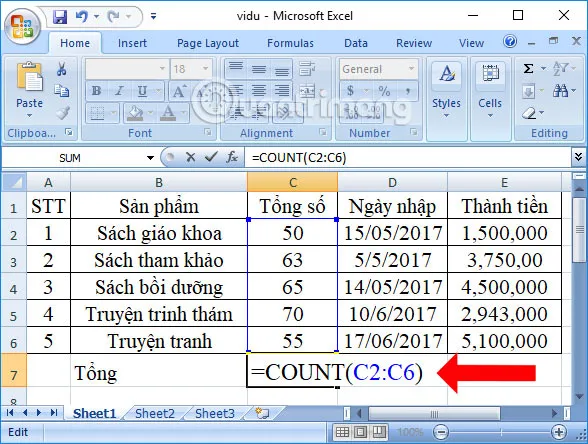
In any empty cell, enter the formula =COUNT(C2:C6) and press Enter to run the calculation.
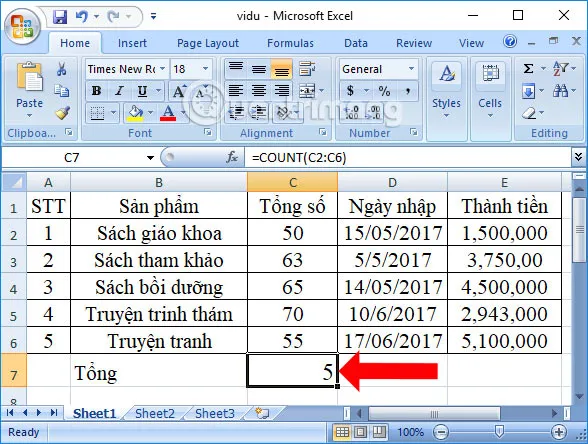
The result returns 5, indicating that five types of books were sold.
You can also apply the formula to a different data range and get a similarly accurate result using =COUNT(E2:E6).
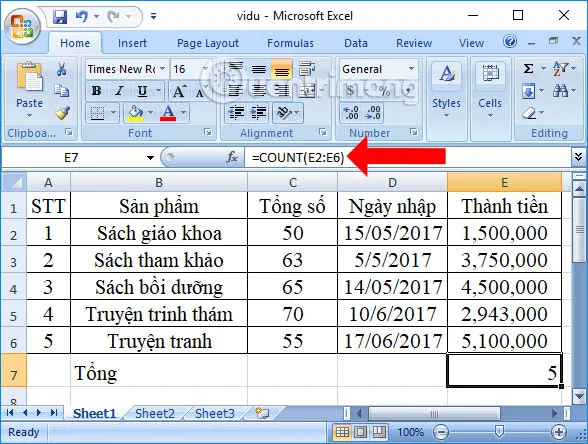 Excel worksheet showing the COUNT function applied to a different column of numeric data
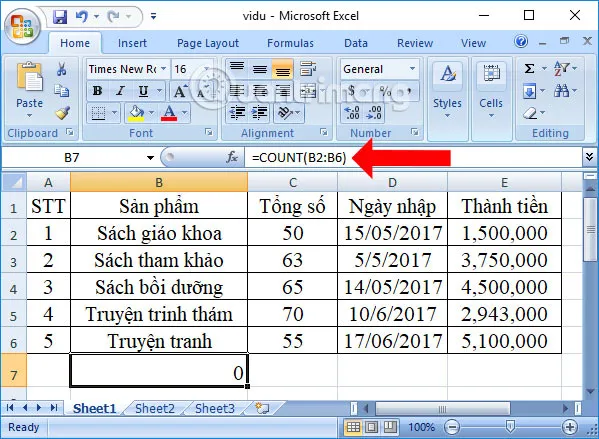
However, if you try to apply the same formula to a column containing text data instead of numbers, the result will be zero, since that column doesn’t hold numeric values. To count cells that contain text or non-numeric data, you’ll need to use the COUNTA function instead.
When Should You Use the COUNT Function?
Choosing the right counting function depends on what kind of data you’re working with:
- To count numbers only, use COUNT.
- To count numbers and text together, use COUNTA.
- To count values based on one condition, use COUNTIF.
- To count values based on multiple conditions, use COUNTIFS.
- To count blank cells, use COUNTBLANK.
COUNT vs. COUNTA: What’s the Difference?
Understanding the distinction between these two functions can save you a lot of confusion:
- COUNT only counts cells containing numbers, while COUNTA counts all non-blank cells, including numbers. Since dates and times are stored as serial numbers in Excel, both functions will count them.
- COUNT does not count logical values (TRUE and FALSE), whereas COUNTA does.
- Logical values and text representations of numbers (like “5” typed as text) are only counted by COUNT if they’re entered directly into the formula. With COUNTA, these values are counted regardless of whether they’re entered directly or referenced from another cell.
- Formulas that return an empty text string (“”) and general text values are not counted by COUNT, but are counted by COUNTA.
Conclusion
The COUNT function is one of the simplest yet most practical tools in Excel for anyone working with numeric datasets. All it takes is selecting the correct range containing numeric values, and COUNT handles the rest—accurately and instantly. If your data includes text values or requires filtering based on specific criteria, remember to reach out to COUNTIF or COUNTIFS instead, since COUNT is designed exclusively for numeric cells.
Mastering this function is a small but valuable step toward becoming more efficient in Excel, especially when dealing with large or frequently updated spreadsheets. Try applying the COUNT function to your own datasets today, and explore related functions like COUNTA, COUNTIF, and COUNTIFS to build a more complete toolkit for data analysis in Excel.