

To compare 2 Excel spreadsheets for duplicates, use COUNTIF, VLOOKUP/XLOOKUP, conditional formatting, or Power Query. COUNTIF works for quick checks, formulas help return matching details, and Power Query is best for repeat comparisons between larger workbooks.
Comparing two Excel spreadsheets for duplicates helps you identify records that exist in both files without manually scanning thousands of rows. The challenge is choosing the right method: formulas work well for quick checks, while Power Query is better for repeat comparisons and larger workbooks. This guide shows how to compare Excel files, prepare data correctly, find matching records, and validate duplicates before deleting or merging anything.
To compare two Excel spreadsheets for duplicate records, use a matching method such as COUNTIF, VLOOKUP/XLOOKUP, conditional formatting, or Power Query. The best choice depends on your file size, whether the comparison is a one-time task or repeated process, and whether you need an automated refresh workflow.
For a broader overview of spreadsheet comparison workflows, see how to compare two Excel sheets for duplicates.
Compare two Excel spreadsheets for duplicate records
Duplicate comparison means checking whether the same record, value, or combination of fields appears in two different Excel worksheets or workbooks. A duplicate does not always mean an identical row; it often means the same unique identifier, customer ID, email address, product code, or transaction reference appears in both files.
This process is useful when merging customer lists, checking updated exports, reconciling reports, or finding records that were copied into separate workbooks.
Choose the right Excel duplicate comparison method
The right comparison method depends on three factors: the number of rows, how often the comparison happens, and how much automation is required.
Use formulas for small one-time comparisons, conditional formatting for visual review, and Power Query when recurring comparisons are needed.
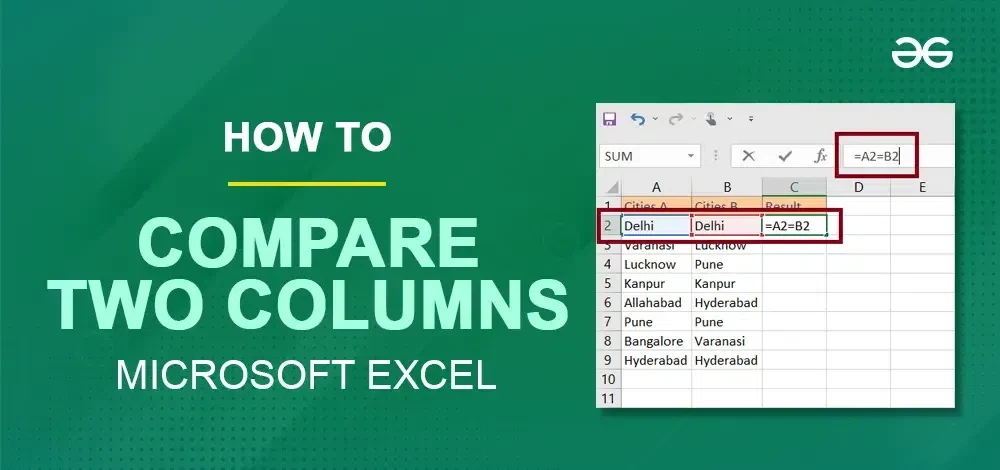
When the comparison involves only two lists of values rather than full workbooks, methods for an Excel compare 2 lists for duplicates workflow can also be useful.
Prepare Excel files before checking duplicate values
Many duplicate comparison errors happen before the formula or query runs. Excel compares stored values, so hidden spaces, different data types, and inconsistent formatting can create missing matches or false duplicates.
Before comparing files, normalize the data in both workbooks.
Highlight and extract matching records in Excel
Conditional formatting is useful when the goal is to visually inspect duplicate values before exporting or cleaning data.
For comparing values within specific fields, learning how to Excel conditional format compare two columns can help create faster visual checks.
Validate duplicate match results
Finding duplicates is only the detection stage. The next step is confirming that the matches represent the same business record before deletion, merging, or replacement.
Fix common Excel duplicate comparison problems
Duplicate comparison failures usually come from incorrect lookup logic, inconsistent source data, or different spreadsheet structures.
Select the best workflow for your Excel files
Different spreadsheet situations require different comparison approaches. The goal is not to use the most advanced method, but to use the method that reduces manual work while keeping results reliable.
FAQ
Can you compare two Excel spreadsheets for duplicates?
Yes. You can compare two Excel spreadsheets for duplicates using COUNTIF, VLOOKUP/XLOOKUP, conditional formatting, and Power Query.