
Working for hours inside AutoCAD can quickly become uncomfortable when the default interface settings are not optimized for your eyes. One of the most common complaints among CAD users is the bright white or dark background that can make drawings difficult to read during long design sessions. Fortunately, customizing the AutoCAD background color is simple and can significantly improve visibility, screenshot quality, and overall workflow efficiency.
Whether you are preparing technical documentation, creating tutorials, or simply trying to reduce eye strain, changing the AutoCAD background color is a practical adjustment every designer should know. This guide explains several methods to customize the AutoCAD workspace, including layout colors, black-and-white plotting, and adding background images in 3D views.
Why Change the Background Color in AutoCAD?
The default workspace color in AutoCAD may not suit every user or project type. Many engineers, architects, and drafting professionals prefer different background colors depending on their environment and workflow.
Some of the main reasons to customize the AutoCAD interface include:
- Reducing eye fatigue during long working sessions
- Improving contrast between layers and drawing elements
- Creating cleaner screenshots for presentations or documentation
- Enhancing visibility in brightly lit workspaces
- Personalizing the CAD environment for productivity
After adjusting the background settings, users often find it easier to focus on dimensions, annotations, and detailed linework.
Method 1: Change the AutoCAD Background to White
The quickest way to switch the AutoCAD workspace background is through the Preferences or Options menu.
Begin by opening AutoCAD on your computer and navigating to the main interface settings. From there, locate the display customization section where interface colors can be modified.

Once you access the background color settings, select white as the preferred color and apply the changes. After confirmation, the drawing area will immediately update with the new appearance.
This adjustment is especially useful when taking screenshots for tutorials, reports, or client presentations because white backgrounds usually print and export more clearly.
Step-by-Step Instructions
- Open AutoCAD.
- Go to the Home tab.
- Locate the Settings section.
- Open Preferences or Options.
- Select Display and Visualization.
- Find the Background Color setting.
- Choose White from the color palette.
- Click Apply and then OK.
Your AutoCAD workspace will now display a white background suitable for captures and technical documentation.
Method 2: Use the OP Command for Faster Access
Advanced AutoCAD users often prefer using command shortcuts instead of navigating through menus. One of the fastest ways to access display settings is with the OP command.
Type OP directly into the command bar and press Enter. This opens the Options panel immediately, allowing faster customization of interface colors and display preferences.
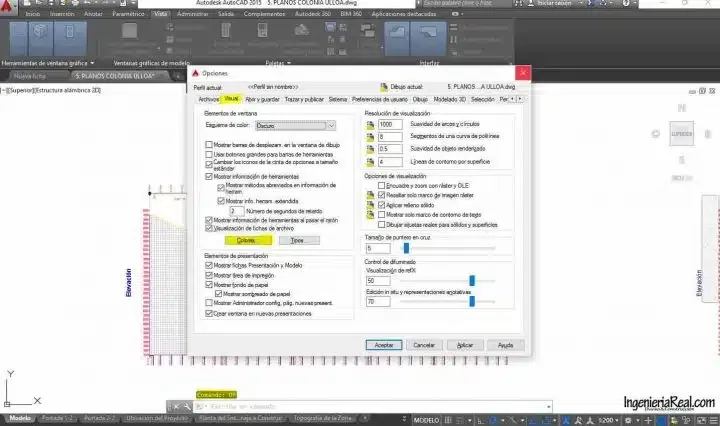
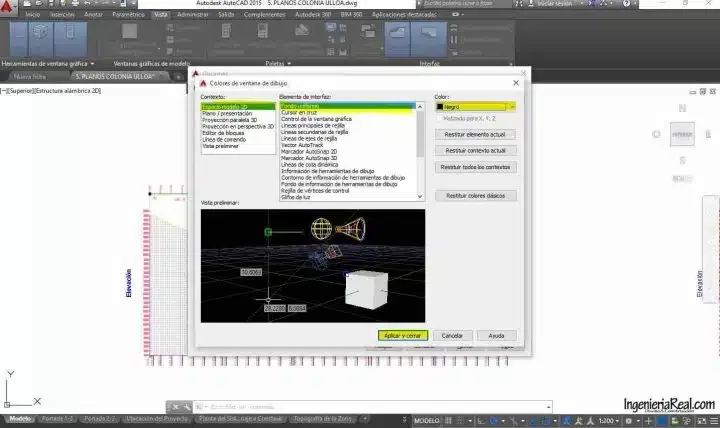
Inside the Options panel, navigate to the Display tab and open the color customization window. Here, you can modify the model space background, layout background, crosshair color, and other interface elements.
This method is particularly useful for experienced CAD professionals who rely heavily on keyboard-driven workflows to improve efficiency.
How to Change the Layout Background Color
The layout area in AutoCAD uses separate display settings from model space. If you want to customize paper space or plotting previews, you need to modify the layout background independently.
To change the layout background color:
- Open the drawing file.
- Select the desired Layout tab.
- Right-click the layout name.
- Choose Page Setup Manager.
- Click Modify.
- Locate the Background option inside the Plot settings.
- Select a new background color.
- Save the changes.
This customization helps improve visibility when working with sheets, title blocks, and printable drawing formats.
Many users prefer lighter layout backgrounds because they simulate printed paper more accurately during plotting preparation.
How to Remove the Black Background in AutoCAD
AutoCAD traditionally uses a dark interface because it reduces eye strain during intensive drafting sessions. However, some users prefer a brighter interface similar to document editing software.
To remove the black background:
- Open AutoCAD.
- Navigate to Tools.
- Select Options.
- Open the Display tab.
- Locate Color Scheme.
- Select a lighter theme such as Light or White.
- Save the changes.
Switching to a brighter interface can improve readability for users who frequently alternate between CAD software and office applications.
How to Display Layouts in Black and White
For printing and exporting technical plans, many engineers prefer monochrome layouts. AutoCAD allows users to configure black-and-white plotting styles using CTB or STB files.
To enable black-and-white layouts:
- Open the desired AutoCAD file.
- Go to the Layout tab.
- Open Page Setup Manager.
- Click Modify.
- Locate Plot Style Table.
- Select a monochrome CTB or STB file.
- Apply and save the settings.
This ensures drawings are printed in grayscale or black-and-white regardless of original layer colors.
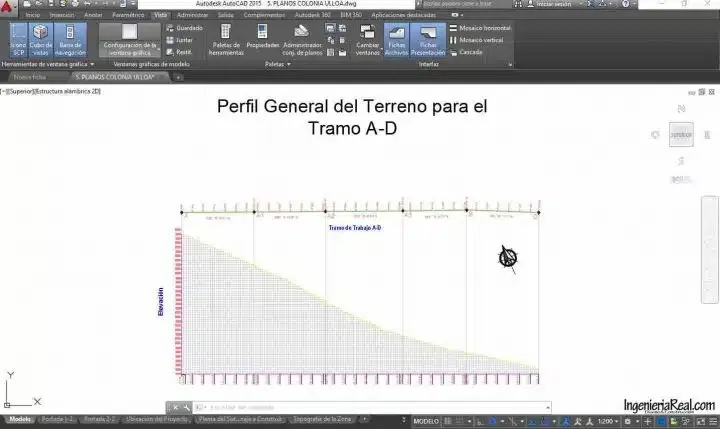 AutoCAD plotting and visualization configuration for black-and-white layouts
Black-and-white plotting remains one of the most widely used standards for structural, architectural, and engineering documentation.
How to Add a Background Image in AutoCAD 3D
AutoCAD also supports background images inside 3D workspace environments. This feature is useful for visualization projects, presentations, and contextual modeling.
To add a background image:
- Open your 3D project.
- Navigate to the View tab.
- Open Viewport Configuration.
- Enable the Show Background option.
- Select an image file from your computer.
- Adjust scale and positioning.
- Apply the changes.
Background images can help simulate realistic environments or provide visual references during modeling tasks.
Best Practices for AutoCAD Display Customization
When modifying AutoCAD interface settings, consider the following recommendations:
- Use darker backgrounds for extended drafting sessions
- Use white backgrounds for screenshots and printed documentation
- Maintain strong color contrast between layers and annotations
- Test different interface themes depending on ambient lighting
- Save custom workspace profiles for different project types
Experienced CAD users often create multiple workspace presets to switch quickly between drafting, rendering, and documentation tasks.
Conclusion
Changing the AutoCAD background color is a simple but highly effective way to improve usability, visibility, and productivity inside your CAD environment. Whether you prefer a white workspace for cleaner screenshots or a dark interface for extended drafting sessions, AutoCAD offers flexible customization options for every workflow.
By learning how to modify display colors, layout backgrounds, plotting styles, and 3D view settings, you can create a more comfortable and professional workspace tailored to your design needs. Experiment with different configurations and optimize your setup for better performance and clearer technical presentations.