
Customizing your gaming keyboard’s appearance is one of the easiest ways to personalize your setup and reflect your unique gaming style. Whether you prefer subtle lighting effects for focused work sessions or vibrant RGB animations for immersive gaming, modern gaming keyboards offer multiple ways to achieve your desired aesthetic. This comprehensive guide will walk you through all available methods—from using built-in keyboard shortcuts without any software installation to leveraging advanced customization tools and even physically modifying your keycaps.
Changing Gaming Keyboard Color Without Software
Built-in RGB shortcuts provide the simplest method to modify lighting effects without installing any software. These integrated commands work independently from your operating system, making them ideal for quickly adjusting your keyboard’s appearance. This approach is particularly convenient if you lack administrative privileges on your computer or prefer a straightforward solution.
Essential Fn Key Shortcuts for RGB Lighting
On a mechanical gaming keyboard, combining the function key with other buttons gives you complete control over visual effects. Press Fn + Ins to cycle through different lighting modes, particularly on Redragon models, accessing numerous luminous effects without navigating complex menus. These shortcuts are saved directly in your keyboard’s memory, remaining active even after system restarts.
- Switch between effects: Press Fn + Ins to rapidly toggle through available lighting animations and modes.
- Target specific keys: Use Fn combined with the numeric keypad, then confirm with the spacebar to change individual key colors.
- Activate custom mode: Hold Fn + Backspace simultaneously to enter key-by-key customization mode, with the selected area flashing to indicate readiness.
- Reset to default: Press Esc and Fn together to restore your keyboard’s lighting to its original factory settings completely.
Custom mode enables you to adjust each key’s appearance individually with remarkable precision. You gain exceptional control without installing external software, and your RGB settings are stored directly within the keyboard’s firmware. This means your configurations persist across multiple sessions and different computers when you connect the keyboard.
Adjusting Brightness and Disabling Backlighting
Controlling light intensity is straightforward thanks to dedicated key combinations. To increase brightness, simply press Fn with the up arrow or Page Up key. This progressive adjustment helps you find the perfect setting for your visual comfort during extended gaming sessions.
To decrease intensity, use Fn paired with the down arrow or Page Down key. These commands provide excellent control ranging from discrete, subtle lighting to intense brilliance during competitive play. Each keystroke adjusts brightness in consistent, regular increments for precise tuning.
To completely disable LEDs, hold Fn and the spacebar or Pause key simultaneously. This feature is ideal for conserving battery power on laptops and reducing eye strain during nighttime use. Your keyboard continues functioning normally even with all lighting disabled, ensuring you don’t sacrifice performance for aesthetics.
Personalizing Individual Keys Without Software
Begin manual configuration by holding Fn and Backspace together. Next, press the specific keys you want to modify according to your desired colors. This method ensures precise control of your gaming peripherals without complicated graphical interfaces requiring software installation.
Confirm your final selections by pressing the spacebar on each modified key. The keyboard immediately records these new parameters and retains them in permanent memory, even when disconnected from your computer. This hands-on approach suits users who prefer direct hardware control without software dependencies.
Using Software for Advanced RGB Customization
RGB customization software unlocks advanced options unavailable through simple keyboard shortcuts alone. Manufacturer-provided programs allow you to access sophisticated settings like creating entirely personalized profiles with custom animations and synchronized effects. Installation typically takes only a few minutes and dramatically expands your customization possibilities.
Installing and Configuring Redragon Software
Visit the official Redragon website to download the dedicated keyboard management program compatible with your specific model. Extract the downloaded archive and launch the installation file to set up the application quickly and effortlessly. Once your keyboard connects via USB, open the application to finalize the connection seamlessly.
Within the software’s main interface, access the dedicated lighting settings tab to explore all available customization options. Select your preferred mode and confirm your choice to instantly save modifications. This RGB customization software remembers all your settings, automatically restoring them whenever you boot your computer, ensuring consistent aesthetics across sessions.
Creating Color Profiles and Dynamic Lighting Effects
Individual key lighting functionality allows you to customize each key with exceptional precision. Gaming keyboard color-changing applications feature a complete color selection system using interactive and intuitive color wheels. You can adjust preset hues or manually fine-tune RGB sliders according to your exact preferences and gaming aesthetic.
Create multiple distinct lighting profiles and easily switch between discrete, work-friendly illumination and gaming-optimized vibrant effects. Each configuration can incorporate unique animations with freely adjustable speed and intensity settings. You can subsequently save these custom creations locally or synchronize them via cloud backup for access across multiple devices.
| Lighting Effect | Description | Ideal Use Case |
|---|---|---|
| Static | Fixed color without animation | Work and productivity |
| Wave | Cascading light progression | Dynamic gaming sessions |
| Ripple | Synchronized luminous pulsations | Streaming and presentations |
| Breathing | Intensity increasing and decreasing rhythmically | Immersive gaming experiences |
Synchronizing Profiles Across Multiple Devices
Redragon software includes convenient cloud backup functionality to secure all your customized lighting configurations. Simply log into your user account and your profiles automatically save to the cloud. You can then access all your personalized lighting settings from any other compatible device, ensuring consistency across your entire gaming setup.
This feature proves particularly valuable for gamers working across multiple machines or content creators maintaining visual consistency between their equipment. Consider updating firmware directly through the interface to benefit from the latest performance improvements and bug fixes. Your local backups remain accessible at all times, even without internet connectivity, providing reliable backup options.
Physically Changing Gaming Keyboard Color
Transforming your mechanical keyboard’s appearance through physical modifications creates lasting aesthetic changes independent of RGB backlighting alone. Replacing keycaps or applying vinyl films fundamentally alters your keyboard’s design, offering genuine visual transformation. These methods provide ideal solutions for comprehensive setup redesigns beyond simple lighting adjustments.
Replacing Keycaps for a Fresh Color
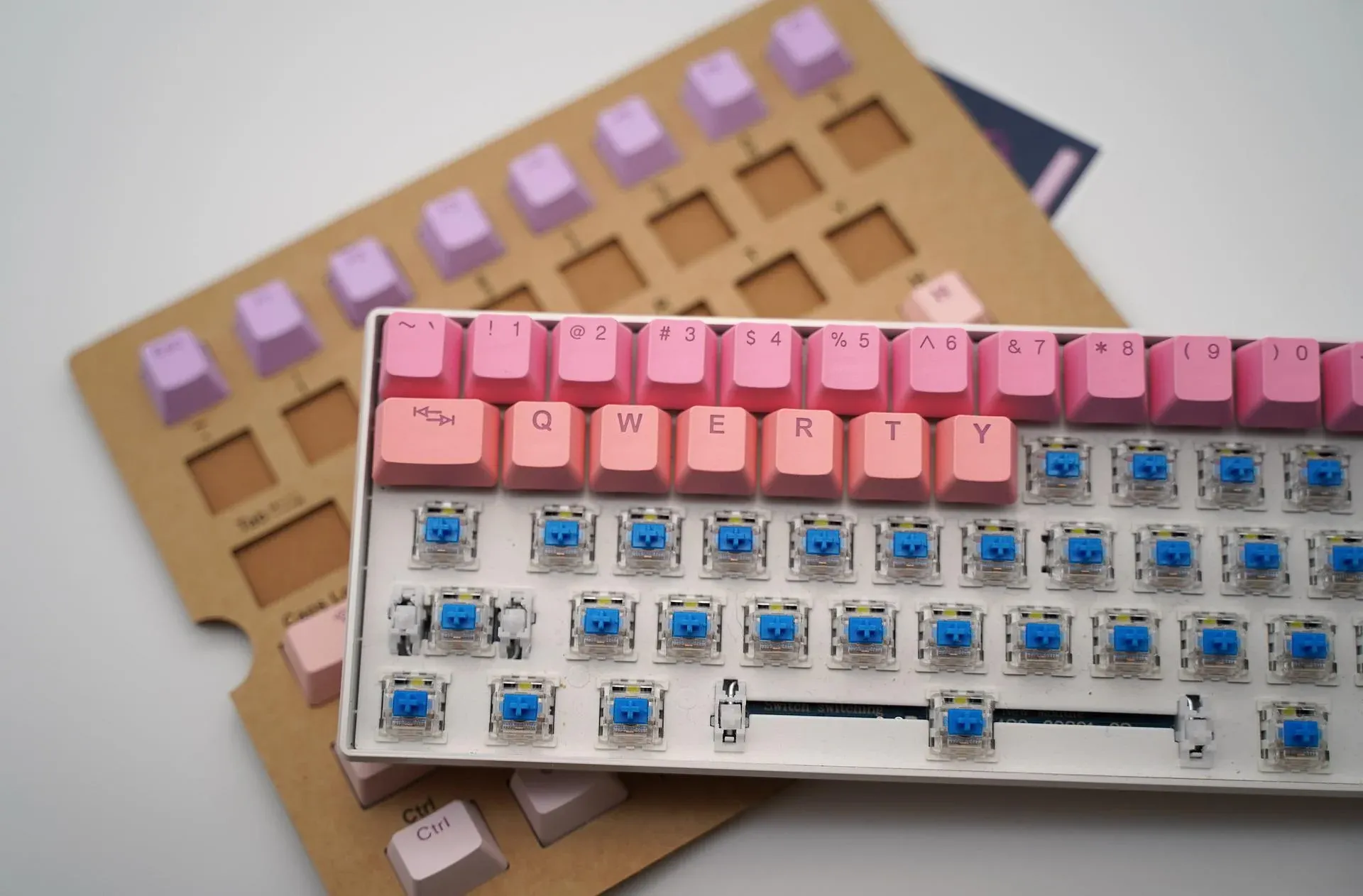
Physically changing your gaming keyboard’s color through keycap replacement represents a simple and effective solution. Keycaps sell in complete sets offering extensive color and style choices, providing diverse ways to modify your keyboard’s overall appearance. Simply ensure your selections are compatible with your mechanical keyboard’s specifications and switch type.
- Remove existing keycaps: Use a keycap puller to gently extract each key by pulling straight upward without excessive force.
- Select replacement caps: Choose materials matching your preferences while verifying compatibility with your keyboard’s switch type.
- Install new keycaps: Press replacement caps firmly onto switches until you hear a satisfying click indicating proper seating.
Protect your switches from damage during removal since repairs prove costly. Remove keycaps row by row to simplify reassembly and maintain organization. This method allows you to completely refresh your equipment’s aesthetics in just minutes, transforming your entire gaming setup’s visual impact.
Consult comprehensive guides on keycap replacement to master this technique perfectly, discovering all available material types for successfully changing your keyboard’s color. From PBT to ABS plastics, each material offers distinct advantages regarding durability and appearance.
Pudding Keycaps and ISO-FR AZERTY Compatibility
Pudding-style backlit keycaps diffuse RGB lighting beautifully, creating stunning visual effects that complement dynamic animations. They combine personalized aesthetics with obvious illumination advantages while often featuring PBT construction for excellent durability against daily wear and extended gaming sessions. These keycaps represent an ideal middle ground between customization and functionality.
For French-speaking users, AZERTY keyboard layouts remain essential when purchasing replacement keycaps. Ensure accented letters (é, è, à, etc.) are properly present and clearly engraved on your caps. Explore resources dedicated to backlit keycaps to choose the option best matching your specific requirements and keyboard configuration.
Vinyl Skins and Painting as Creative Alternatives
Vinyl skins offer straightforward solutions for physically changing gaming keyboard color in original ways. These adhesive films attach directly to your keyboard’s housing, existing in countless colors and textures that instantly modify appearance. Application requires only minutes and removal leaves no residue or damage.
- Adhesive vinyl skins: Custom-sized stickers applying quickly and easily to any keyboard surface.
- Colored protective films: Individual wraps surrounding keycaps for uniform, aesthetically pleasing results.
- Housing paint: After careful sanding, apply special plastic paint and allow complete drying time.
- Airbrush decoration: Advanced technique creating gradients and unique patterns, though requiring specialized equipment.
Painting your keyboard’s housing demands careful attention to protect internal circuits. Disassemble carefully and properly isolate sensitive components in well-ventilated spaces. These physical solutions enable complete creative freedom when modifying your keyboard’s color.
Frequently Asked Questions
How can I quickly access lighting modes without installing software?
To change lighting modes easily, simply press Fn + Ins. This combination works instantly without software installation. For advanced adjustments, hold Fn + Backspace to define each key’s color individually through direct hardware configuration.
What are the best backlit keycaps for French AZERTY keyboards?
Pudding-style keycaps in PBT material represent the most effective backlit options. Their translucent composition magnificently diffuses RGB lighting from your keyboard. Choosing ISO-FR format ensures proper French-specific keys including accented letters. For optimal compatibility, prioritize Cherry or OEM profiles matching your switch type.
Can I use multiple lighting profiles for different activities?
Absolutely! Dedicated software provides this flexibility by allowing you to create unlimited lighting mode profiles. Switch from subtle, static ambiance for work to dynamic, vibrant effects for gaming seamlessly. Save all profiles locally or via cloud backup for convenient access whenever needed, customizing your keyboard’s appearance to match your current activity perfectly.