
Introduction
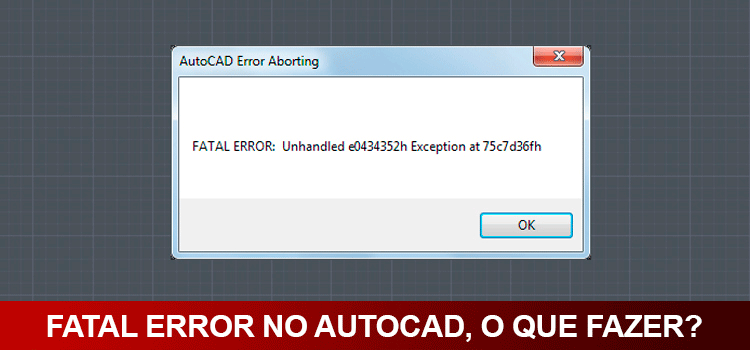
Users of AutoCAD products may encounter a critical “FATAL ERROR: Unhandled e0434352h Exception at fd1ba06dh” when launching the program or attempting to open drawing files. This error, while alarming, is often resolvable with a systematic troubleshooting approach. This guide aims to provide comprehensive solutions for this specific AutoCAD crash, ensuring a smoother user experience for technology professionals.
Understanding the Error
The “FATAL ERROR: Unhandled e0434352h Exception at fd1ba06dh” message indicates a severe, unmanaged error within the AutoCAD software. The alphanumeric string following “at” will vary across different machines. This error can manifest immediately upon program launch or after a drawing file has been loaded. In some instances, users might also observe missing tool palettes and ribbons, or the drawing may briefly appear before the program crashes. A secondary message, “AutoCAD Error-abort Error Handler Re-Entered. Exiting now,” may also follow.
Potential Causes
Several factors can contribute to this persistent error:
- File Path Length: Extremely long file paths for drawing files can exceed system limitations.
- Corrupted User Profile: The AutoCAD user profile, which stores customization settings, might be corrupted.
- Corrupted Installation: A flawed installation of AutoCAD or its components can lead to instability.
- Third-Party Add-ons: Specifically, the AutoCAD SPDS add-on module, used for Russian construction design documentation standards, can sometimes be a source of conflict.
- Operating System Issues: Problems with the OS itself, such as a corrupted installation or issues with core components like the .NET Framework, can impact AutoCAD’s stability.
- Windows Text Editor: An enabled Windows text editor setting has been identified as a potential trigger.
- Performance Monitoring Errors: The Event Viewer might log Microsoft-Windows-PerfProc (PerfProc) Event ID 2002, indicating issues with performance counters or remote registry services.
- Insufficient Privileges: The user account may lack the necessary administrative privileges to run AutoCAD effectively.
- Outdated Software: Missing AutoCAD updates can leave the software vulnerable to known bugs.
- VPN/Proxy Settings: Incorrect or invalid VPN or proxy configurations can interfere with Autodesk’s licensing and services.
- Graphics Driver Issues: An outdated or corrupted graphics driver can cause rendering and stability problems.
Comprehensive Solutions
Addressing this fatal error requires a methodical approach, starting with the simplest potential fixes.
1. Shorten File Paths
If the error occurs when opening a specific file, try moving the file to a folder with a shorter path. Alternatively, consider creating a mapped network drive to shorten the overall path length.
2. Install Product Updates
Ensure your AutoCAD installation is up-to-date. Access Autodesk Account to download and install the latest product updates, which often include critical bug fixes.
3. Reset AutoCAD User Profile
A corrupted user profile is a common culprit. Follow Autodesk’s official guide on how to reset AutoCAD to its default settings. This process typically involves backing up your customizations before resetting.
4. Perform a Clean Uninstall and Reinstall
If resetting the profile doesn’t resolve the issue, a clean uninstall and reinstall is recommended. This ensures that all previous installation files and registry entries are removed before a fresh installation.
5. Address Operating System Issues
- User Profile Corruption: If you suspect your Windows user profile is corrupted, follow guides on how to fix it.
- .NET Framework & Visual C++: Reinstalling Microsoft’s .NET Framework and Visual C++ Redistributable packages can resolve underlying system dependencies.
- System File Checker (SFC): Run the
sfc /scannowcommand in an elevated Command Prompt to check for and repair corrupt Windows system files. - Remote Registry Service: If Event Viewer shows Event ID 2002, ensure the Remote Registry service is running on the relevant system. Check firewall exceptions for File and Printer Sharing if accessing a remote system.
- Reinstall OS: In severe cases, if the issue is environment-specific and persists after other troubleshooting steps, consider reimaging the workstation or reinstalling the operating system.
6. Verify Folder Permissions
Ensure that your user account has the necessary permissions for AutoCAD to function correctly. Refer to Autodesk’s documentation on required user permissions for installation and operation.
7. Configure VPN/Proxy Settings
Verify that any necessary proxy credentials are stored in the Windows Credential Manager. Add the URLs and protocols required for Autodesk Subscription Licensing and Identity Manager to your proxy or VPN exceptions list.
8. Troubleshoot Graphics Drivers
Outdated or faulty graphics drivers can cause significant issues.
- Disable/Update: Open Device Manager, locate your Display adapters, right-click the graphics card, and select “Disable device” or “Uninstall device.” Then, update the driver to the latest version from the manufacturer’s website.
- High-Performance Graphics: Ensure that AutoCAD is configured to use your system’s high-performance graphics card.
9. Disable InfoCenter (If Necessary)
Some security software might interfere with AutoCAD’s InfoCenter. To disable it:
- Press
WINDOWS-R, typeREGEDIT, and clickOK. - Navigate to
HKEY_CURRENT_USERSoftwareAutodeskAutoCAD<Version>ACAD-<Language>InfoCenter. (The specific path will vary based on your AutoCAD version and language). - In the right pane, double-click
InfoCenterOnand set its value to0(zero).
Note: This process needs to be repeated for each installed version of AutoCAD.
10. Turn Off Windows Text Cursor
In Windows 10 and 11, navigate to Settings > Ease of Access > Text cursor and turn the text cursor setting to OFF.
11. Update DirectX
Ensure that DirectX is up-to-date by running its installer.
Conclusion
The “FATAL ERROR: Unhandled e0434352h Exception” in AutoCAD can be a complex issue with multiple potential causes. By systematically working through the troubleshooting steps outlined above, from simplifying file paths to ensuring system components and drivers are up-to-date, users can effectively diagnose and resolve this critical error. Regularly updating AutoCAD and maintaining a clean system environment are key preventative measures for experienced technology users.