
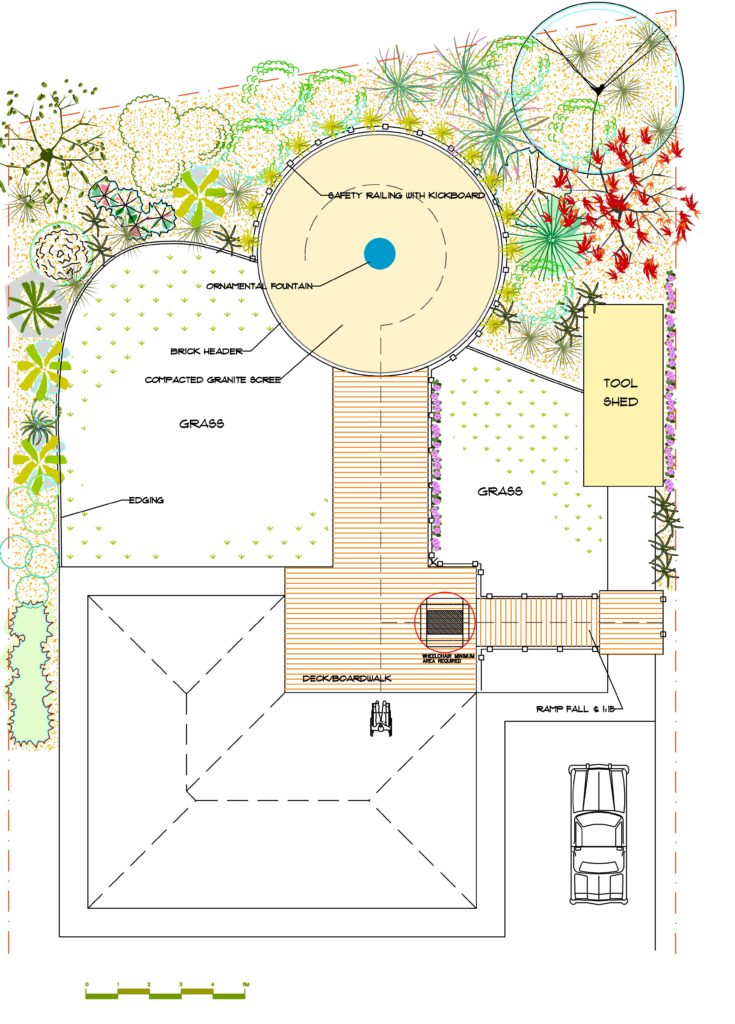
For landscape designers and architects accustomed to projects where plant schedules are an afterthought, transitioning to a workflow that emphasizes them can present a unique challenge. This is particularly true when working with older software versions like AutoCAD 2010. This article delves into effective methods for setting up and managing plant schedules within AutoCAD, offering insights and practical advice for creating organized and informative documentation.
One of the primary considerations when creating plant schedules is how to represent the plants themselves within the drawing. Many professionals opt for distinct plant symbols or hatches to visually differentiate species. Accompanying these symbols with detailed labels is crucial. These labels typically include the common name, botanical name, quantity, and any other pertinent information, though specific sizing might not always be included at this stage.
When direct labeling becomes too cumbersome due to space constraints or complexity, generating a dedicated schedule or list becomes the next logical step. This approach ensures clarity and professionalism in your project documentation.
Leveraging AutoCAD’s Table Functionality
AutoCAD offers robust tools for table creation, which can be a cornerstone of an efficient plant scheduling workflow. A key advantage of AutoCAD tables is their ability to import data directly from spreadsheets. This raises the question for many users: is it more efficient to create tables from scratch within AutoCAD or to utilize external spreadsheet data?
Many seasoned professionals utilize a hybrid approach. Instead of recreating tables for every project, they often copy previously created tables, perhaps dragged in from a template file using Design Center. These existing tables then serve as a foundation, with modifications made as needed. This strategy is particularly effective for recurring plant selections, saving valuable time and reducing the need for repetitive data entry. However, it’s essential to exercise caution when copying tables to avoid overlooking crucial updates and ensure all information remains accurate for the current project.
For those who prefer importing data from spreadsheets, a common query arises: can you selectively import only the plants used in a specific plan, or is it an all-or-nothing affair? Ideally, the workflow would allow for the selection of plants relevant to the current drawing. This often necessitates setting up a new spreadsheet for each plan to meticulously track the chosen species.
Exploring Automated Solutions and Workarounds
While dedicated landscape design software often includes automated features for symbol counting and schedule generation, for users working within the confines of standard AutoCAD, alternative methods are necessary. Tools like LandFX might offer such functionalities, but for those unable to invest in add-ons, leveraging built-in AutoCAD commands is key.
The BCOUNT command, for instance, can provide a list of plant symbols and their quantities within a drawing. However, the accuracy of BCOUNT is heavily reliant on a thoroughly purged drawing file. Furthermore, if plant symbols have generic names (e.g., “shrub1,” “shrub2”), recalling which specific symbol was used for a particular plant can become a challenge, diminishing the practical utility of the raw count.
Best Practices for Plant Schedule Creation
Regardless of the specific method employed, several best practices can significantly enhance the effectiveness of your AutoCAD plant schedules:
- Consistency is Key: Establish a consistent system for plant symbols, labeling, and data entry from the outset. This will streamline the creation process and improve the clarity of your final schedules.
- Data Accuracy: Double-check all entries for botanical names, quantities, and any other critical data. Errors in the plant schedule can lead to significant issues in procurement and installation.
- Utilize Layers: Employing layers effectively can help manage the visibility of plant symbols and labels, ensuring a clean and uncluttered drawing.
- Regular Auditing: Periodically audit your drawings and schedules to ensure all information is up-to-date and accurate, especially when reusing or modifying existing table structures.
By thoughtfully implementing these strategies, designers can overcome the limitations of older software versions and create robust, informative plant schedules that contribute to the overall success of their landscape projects.