
AutoCAD’s Object Snap Tracking feature is a powerful tool that can significantly enhance your drafting efficiency. This tutorial will guide you through the essentials of Object Snap Tracking, enabling you to create precise orthographic lines, match object dimensions effortlessly, and ultimately speed up your drawing process. This exercise is adapted from Noble Desktop’s AutoCAD training materials.
Object Snap Tracking allows you to create temporary alignment paths (tracking lines) that extend from object snap points. These paths can be either horizontal or vertical, helping you to precisely align new objects with existing ones without needing to manually input measurements. This is particularly useful in creating multiview projections and complex technical drawings where accuracy is paramount.
To leverage Object Snap Tracking effectively, ensure that Object Snap is enabled. The tracking functionality is active only while you are engaged in a drawing command. You can toggle Object Snap Tracking on and off using the F11 key on your keyboard, or by clicking the corresponding icon in the Status Bar.
Understanding the Exercise Setup
This tutorial utilizes a drawing file designed for a multiview projection exercise. The front and side views are already completed, with projection lines extending from the side view to a 45-degree construction line. Your task is to use Object Tracking to construct the top view by aligning points with the intersections of these projection lines and the diagonal line. A central line in both the front and side views indicates the center of a circular hole, with dashed lines denoting hidden edges. By employing Object Tracking, you can draw the top view accurately, mirroring the precision of using traditional drafting tools like a T-square and triangles, and eliminating the need for manual measurements.
Step-by-Step Guide to Object Snap Tracking
Let’s begin by opening the provided drawing file and initiating the Line command.
- Initiate Line Command and Snap: Open the file named
Object Track Start.dwg. Start theLinecommand. Without clicking, hover over the upper-left endpoint of the front view to snap to it. Move your cursor directly upwards until a vertical tracking line appears, indicating alignment with the endpoint. Keep theLinecommand active. - Create a Horizontal Tracking Line: While still in the
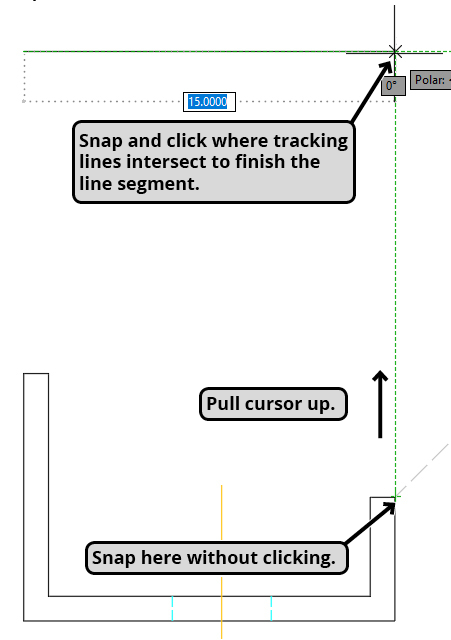
Linecommand, move your cursor to the right. Snap to the intersection point where the diagonal line meets the projection line from the right edge of the side view. Now, pull your cursor to the left to generate a horizontal tracking line. Click precisely when this horizontal line intersects with the vertical tracking line you established in the previous step. This action starts your first line segment for the top view. - Complete the Top Edge: Snap to the upper-right corner of the front view (without clicking). Pull your cursor upwards to create another vertical tracking line. Keep your cursor aligned with this vertical line and click when the line segment snaps to the horizontal tracking line you created earlier. This completes the top edge of the top view, accurately matching the width of the front view due to the use of object tracking. Remain in the
Linecommand for the next step. - Draw the Right Side: For the subsequent line segment, create another object tracking line. Snap (without clicking) to the point where the projection line from the left edge of the side view intersects the diagonal line. Move your cursor to the left along a horizontal tracking line until it snaps to the vertical tracking line that aligns with the endpoint of the line segment you just drew. Click to complete this segment. Continue with the
Linecommand. - Complete the Left Edge: Snap to the upper-left corner endpoint and pull upwards along the vertical tracking line. Click on the intersection point where it snaps to the horizontal tracking line. To close the outer perimeter of the top view, type
Cand pressEnter. This will also end theLinecommand. - Construct Remaining Sides: Restart the
Linecommand. Employ Object Tracking to draw the left and right sides of the top view by carefully following the visual cues in the provided diagrams. Remember the principle: snap to endpoints to generate tracking lines, but only click to initiate or terminate line segments at desired intersection points. - Create the Circular Hole: Observe the front and side views to identify the circular hole. This is indicated by the center line, which points to the circle’s center, and the dashed lines representing hidden edges. Initiate the
Circlecommand. Use Object Tracking from the center line of the front view and the intersection point of the centerline projection from the side view with the diagonal line to precisely locate the center of the hole. - Define the Circle’s Radius: Following the directions in the diagram, Object Track from an endpoint on one of the hidden edges to the horizontal tracking line. Click at this intersection point to establish the circle’s radius and complete the circle.
Conclusion: Integrating Object Tracking into Your Workflow
With the top view now complete, you’ve successfully utilized Object Snap Tracking. This feature is indispensable for efficient and accurate drafting in AutoCAD. With consistent practice, Object Tracking will become an intuitive part of your workflow, significantly simplifying complex drawing tasks. We recommend repeating this exercise to solidify your understanding and mastery of Object Snap Tracking.
Noble Desktop offers comprehensive AutoCAD training, including AutoCAD Bootcamp and various AutoCAD classes available in NYC and online. Explore these options to further enhance your skills.