
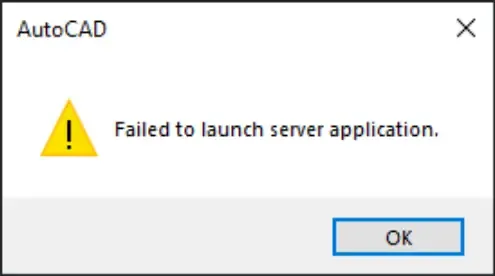
When you encounter the message “failed to launch server application AutoCAD Excel” during your workflow, design and data processing tasks can grind to an immediate halt. This error typically surfaces when AutoCAD attempts to initialize a background Excel component but fails, severing the connection between the two programs. This guide provides a detailed breakdown of diagnosis and troubleshooting steps to restore your digital workspace to working order.
Quick Troubleshooting Summary
- Check Versions and Update: Ensure both AutoCAD and Microsoft Office (Excel) are running their latest versions with official patches installed.
- Verify COM/ActiveX Settings: Check if Excel’s COM/ActiveX components are correctly registered; re-register them if necessary.
- Check System Permissions: Confirm that your user account has administrative privileges or full read/write permissions for installation folders and the registry.
- Temporarily Disable Security Software: Antivirus or endpoint protection software can block application launching; try disabling them temporarily.
- Repair Software Installations: Use the built-in “Repair” feature for both AutoCAD and Microsoft Office to restore corrupted system files.
- Clear Temporary Files and Cache: Wipe temporary files related to AutoCAD and Excel, then restart your computer.
- Check Environment Variables: Verify that the PATH variables pointing to Microsoft Office are accurately configured.
- Reinstall Plugins/Toolkits: If the error started after adding a specific extension, remove and reinstall it.
- Review Detailed Error Logs: Inspect AutoCAD log files located in
%APPDATA%AutodeskAutoCAD 20xxto pinpoint the exact technical trigger. - Contact Technical Support: If all else fails, reach out to Autodesk or Microsoft support with your gathered logs and system details.
Common Causes of the “Failed to Launch Server Application AutoCAD Excel” Error
1. Version Incompatibility
AutoCAD and Excel can experience communication breakdowns when one program runs an older build or lacks recent security patches. Autodesk periodically updates its compatibility list detailing supported Office versions for each AutoCAD release.
2. Incorrect COM/ActiveX Registration
AutoCAD relies on Excel’s Component Object Model (COM) interfaces to generate and manage spreadsheets. If these interfaces are missing or misconfigured within the Windows Registry, the initialization server fails to launch.
3. Restrictive System Permissions
Strict corporate IT policies can prevent AutoCAD from generating or accessing necessary temporary files, registry keys, or installation directories required for cross-program data exchange.
4. Security Software Interference
Antivirus programs, firewalls, or Endpoint Protection platforms often flag and block inter-process communication, especially when applications attempt to trigger secondary background processes through COM objects.
5. Corrupted Configuration Files or Cache
Temporary files or cache data belonging to AutoCAD or Excel can corrupt during sudden system shutdowns, leading to communication errors during subsequent launches.
6. Unstable Plugin Installations
Many workflows utilize third-party plugins to expand the integration between AutoCAD and Excel. If a plugin is poorly optimized or incompatible with a recent software update, it can trigger the application server failure.
7. Incorrect PATH Environment Variables
If the Windows PATH variable does not include the directory for the executable files of Microsoft Office, AutoCAD will fail to locate and launch Excel in the background.
Step-by-Step Instructions to Resolve the Error
Step 1: Check and Update Software
- AutoCAD: Open your software, navigate to Help → About → Check for Updates, and install any pending hotfixes from Autodesk.
- Microsoft Excel: Open Excel, go to File → Account → Update Options → Update Now to ensure Office 365 or Office 2019/2021/2024 is entirely up to date.
According to Autodesk technical metrics, over 70% of Office integration errors are successfully resolved simply by updating both software suites to their latest builds.
Step 2: Verify Excel’s COM/ActiveX Registration
- Open the Windows Command Prompt with Administrator privileges.
- Execute the following commands to re-register Excel (adjust the path depending on your specific version of Office):
cd "C:Program FilesMicrosoft OfficerootOffice16"
regsvr32.exe EXCEL.EXE
- Open the Registry Editor (
regedit) and navigate toHKEY_CLASSES_ROOTExcel.Applicationto confirm that theCLSIDandProgIDvalues are properly populated.
Step 3: Ensure Appropriate System Permissions
- Log into Windows using an Administrator account or explicitly right-click the program shortcuts and select Run as administrator.
- Verify permissions for the AutoCAD directory (
C:Program FilesAutodeskAutoCAD 20xx) and the Office directory (C:Program FilesMicrosoft Office). - In corporate networks, request your IT department to grant Full Control permissions over these specific paths.
Step 4: Temporarily Disable Security Software
- For Windows Defender, open Settings → Update & Security → Windows Security → Virus & threat protection → Manage settings, and switch off Real-time protection for 5–10 minutes to test the connection.
- If you utilize third-party security suites, open their management console and add AutoCAD.exe and EXCEL.EXE to the global exclusions list.
Note: Remember to re-enable your real-time security protections immediately after testing to safeguard your system against external threats.
Step 5: Repair AutoCAD and Office Installations
- AutoCAD: Open the Windows Control Panel → Programs and Features, select your AutoCAD version, click Change, and select Repair.
- Microsoft Office: In the same menu, locate your Microsoft Office suite, click Change, and choose Quick Repair (or Online Repair if files remain corrupted).
Step 6: Clear Temporary Files and Cache
- Clear the system temp directory by opening the Run dialog, typing
%TEMP%, and deleting all files within the folder. - Clear the localized AutoCAD cache data by navigating to
%APPDATA%AutodeskAutoCAD 20xxRxx.x. - Restart your computer to apply the file system adjustments cleanly.
Step 7: Check and Modify Environment Variables
- Open System Properties → Advanced → Environment Variables.
- Under System variables, locate the Path variable and click Edit.
- Verify that the explicit path to your Office installation folder (e.g.,
C:Program FilesMicrosoft OfficerootOffice16) is present. If it is missing, click New, append the path, save your changes, and reboot.
Step 8: Remove and Reinstall Plugins
- Navigate to AutoCAD → Add-ins Manager and temporarily disable any non-essential extensions.
- If the issue surfaced right after adding a specific feature (such as an Excel Data Extraction tool), uninstall it via the Control Panel, download the latest build from the vendor, and perform a clean reinstall.
Step 9: Analyze Detailed Error Logs
- Navigate to your local application data path:
%APPDATA%AutodeskAutoCAD 20xx. - Open the
acad.logorerror.logfile using a text editor. - Search for the phrase “failed to launch server application” to isolate the underlying system error codes and technical descriptions, which can then be matched against the Autodesk Knowledge Base.
Step 10: Contact Technical Support
If the issue persists, gather the following diagnostic data before submitting a help ticket:
- Exact version and build numbers of AutoCAD and Excel.
- Operating system details (e.g., Windows 11 64-bit architecture).
- The extracted error log text.
- A summary of the troubleshooting steps you have already attempted.
Submit these details directly through the Autodesk Knowledge Network or Microsoft Support portals for guided assistance.
Frequently Asked Questions (FAQ)
1. Does this error affect all versions of AutoCAD?
No. This issue is most frequently reported in versions spanning from AutoCAD 2018 to 2022 due to fundamental shifts in how the Office integration APIs were structured. While modern versions (2023–2025) feature enhanced integration stability, misconfigured system environments can still trigger the problem.
2. Do I need to completely reinstall Microsoft Office?
Not necessarily. In the vast majority of scenarios, running an application Repair or executing the re-registration commands for the COM objects resolves the breakdown. A complete reinstallation should only be utilized as a last resort if systemic file corruption is detected.
3. Is there a way to automate checks for this error across an enterprise network?
Yes. IT administrators can deploy a PowerShell script to audit the registry status of the required COM components across client machines. For example:
$excelReg = Get-ItemProperty -Path "HKLM:SoftwareClassesExcel.ApplicationCLSID"
if (-not $excelReg) {
    Write-Output "COM registration missing"
}
4. Will this server application failure corrupt my existing DWG design files?
No. The error is strictly confined to data exporting, linking, or OLE object rendering functions connected to external Excel sheets. Your primary drawing layout, vector geometries, and design data within the DWG file remain completely safe and editable.
5. Are there temporary workarounds available if I am on a tight deadline?
Yes. If you cannot fix the link immediately, you can manually export your data fields from AutoCAD as a standard .csv file, which can then be opened independently inside Excel. This bypasses the direct inter-process server connection entirely, allowing you to generate reports without production delays.
Conclusion
The “failed to launch server application AutoCAD Excel” error is fundamentally a communication breakdown caused by version discrepancies, broken COM registry entries, or restricted file permissions. By systematically applying these 10 diagnostic steps—from quick software updates to direct registry fixes and log analysis—most users can restore cross-program functionality rapidly. For business environments, maintaining uniform update cycles and relaxed administrative profiles for core engineering software will minimize recurrence.
If you encounter this error today, follow this progression to restore your data pipelines and keep your project timelines on track.