
Editing multiple instances of MText in AutoCAD can be a repetitive task, especially when you need to update text across various objects. Many users recall the convenience of the ED command, which allowed seamless editing of multiple MText instances without repeatedly double-clicking or re-entering the command. However, newer versions of AutoCAD have replaced this functionality with alternative methods.
Understanding the Problem
In older versions of AutoCAD, the ED command (or DDEDIT) allowed users to edit multiple MText objects sequentially. After editing one instance, the editor would remain open, enabling users to click on the next MText object and continue editing without interruption. In newer versions, the editor closes after editing each instance, forcing users to double-click or re-enter the command for every MText object.
This change has led to frustration, particularly for users who frequently edit multiple text objects, such as annotations for equipment or labels in drawings.
Solutions for Editing Multiple MText Instances
1. Using the TEXTEDIT Command
The TEXTEDIT command is the modern replacement for DDEDIT in AutoCAD. To edit multiple MText instances efficiently:
Enable Multiple Editing Mode:
- Type
TEXTEDITin the command line. - Select the Mode option and set it to Multiple. This allows you to edit multiple text objects sequentially without closing the editor after each edit.
- Type
Shortcut for Efficiency:
- If
TEis defined as an alias forTEXTEDITin youracad.pgpfile, you can simply typeTEto activate the command. IfTEis not defined, use the fullTEXTEDITcommand.
- If
Setting
TEXTEDITMODE:- Ensure
TEXTEDITMODEis set to0for multiple editing. You can adjust this setting by:- Typing
TEXTEDITin the command line. - Selecting Mode and choosing Multiple.
- Typing
 TextEdit.PNG
- Ensure
2. Using the Properties Palette
For a more visual approach, you can use the Properties Palette to edit multiple MText objects simultaneously:
Select All MText Objects:
- Use the PickFirst selection mode to select all the MText objects you want to edit.
Edit via Properties:
- Open the Properties Palette (
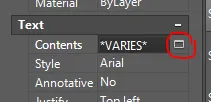
CTRL + 1). - Locate the Contents field. If the selected MText objects have different content, it will display
*VARIES*. - Click the small icon next to
*VARIES*to open the Text Edit dialog box. - Edit the text in the dialog box. AutoCAD will automatically apply the changes to all selected MText objects and cycle through them for individual edits.
- Open the Properties Palette (
This method is particularly useful for batch editing, as it allows you to see all selected objects and their changes in real-time.
3. Using LISP Routines for Automation
For advanced users, LISP routines can automate the process of editing multiple MText objects. Below is a simple LISP routine that allows you to pick and edit multiple text objects, including MText, dimensions, and attributes:
(defun C:ME (/ A B C D E F G H J K L M N P R)
  (graphscr)
  (setvar "CMDECHO" 0)
  (setvar "HIGHLIGHT" 1)
  (prompt "nMulti-Edit is loaded ... ")
  (setq A (ssget) B (sslength A) C 0)
  (while (< C B)
    (setq D (ssname A C) E (entget D))
    (setq F (car E))
    (setq G (cdr E))
    (setq H (car G))
    (setq J (cdr H))
    (setq K "TEXT")
    (setq L "INSERT")
    (setq M "DIMENSION")
    (setq N "MTEXT")
    (setq P "ATTDEF")
    (setq R "ARCALIGNEDTEXT")
    (if (= J N)(command ".TEXTEDIT" D ""))
    (if (= J M)(command ".TEXTEDIT" D ""))
    (if (= J K)(command ".TEXTEDIT" D ""))
    (if (= J L)(command ".TEXTEDIT" D ""))
    (if (= J P)(command ".TEXTEDIT" D ""))
    (if (= J R)(command ".ARCTEXT" D ""))
    (setq C (1+ C))
  )
  (princ)
)
How to Use:
- Copy the LISP code into a text editor.
- Save the file with a
.lspextension (e.g.,ME.lsp). - Load the LISP routine in AutoCAD using the
APPLOADcommand. - Type
MEin the command line to activate the routine. - Select the MText objects you want to edit, and the routine will cycle through them for editing.
4. Using the MULTIPLE Command
AutoCAD’s MULTIPLE command can also be used to repeat the TEXTEDIT command for multiple objects:
- Type
MULTIPLEin the command line. - When prompted, type
TEXTEDIT. - Select the MText objects you want to edit. AutoCAD will apply the
TEXTEDITcommand to each selected object sequentially.
This method is simple and effective for users who prefer not to use LISP routines.
5. Using Find and Replace
For users who need to update specific text across multiple MText objects, AutoCAD’s Find and Replace feature is a quick solution:
- Type
FINDin the command line. - Enter the text you want to replace in the Find field.
- Enter the new text in the Replace field.
- Select Replace All to update all instances of the text in your drawing.
This method is ideal for global text replacements but does not allow for individual editing of each MText object.
Conclusion
While the ED command’s functionality has evolved in newer versions of AutoCAD, there are multiple ways to achieve efficient editing of multiple MText instances. The TEXTEDIT command with Multiple Mode enabled is the most straightforward method, while the Properties Palette and LISP routines offer additional flexibility. For users who prefer automation, the MULTIPLE command or custom LISP routines can streamline the process.
Choose the method that best fits your workflow, and enjoy a more efficient editing experience in AutoCAD!