
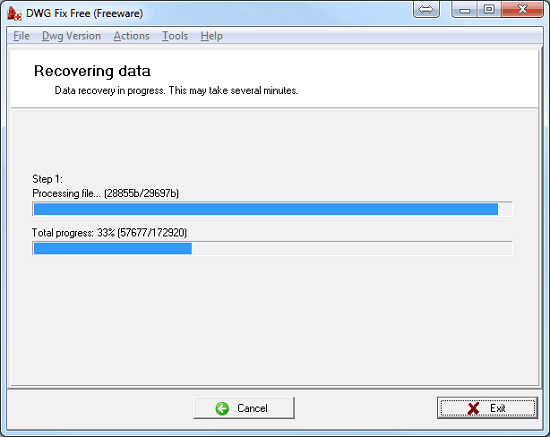
Dealing with a corrupted AutoCAD DWG file can be one of the most frustrating experiences for any CAD designer or engineer. You might have spent hours on a complex layout only to find that the file refuses to open, causes the software to crash, or exhibits bizarre behavior during editing. Understanding how to diagnose and repair these issues is essential for maintaining a productive workflow and ensuring data integrity.
In this guide, we will explore the common symptoms of file corruption, the underlying causes, and a comprehensive step-by-step approach to recovering your valuable design data.
Identifying Symptoms of DWG File Corruption
Before jumping into the repair process, it is important to recognize the red flags that indicate your drawing file has been compromised. Common signs include:
- Failure to open: The most obvious sign, where AutoCAD simply cannot load the file.
- Software instability: Frequent freezing or crashing specifically when handling a particular file.
- Performance degradation: Significant lag during simple tasks like panning, zooming, or editing.
- Error messages: Pop-up warnings appearing during file open or save operations.
- Command failure: Certain AutoCAD tools stop working or respond with a noticeable delay.
- Unexplained file size growth: The file becomes much larger than expected without adding new geometry.
- Missing elements: Parts of the drawing mysteriously disappear or fail to regenerate correctly.
Root Causes Behind AutoCAD File Errors
File corruption doesn’t happen without a reason. It is often the result of hardware failures, software conflicts, or environmental factors. Key causes include:
- Third-party applications: Add-ons running inside AutoCAD that may conflict with the core engine.
- Non-Autodesk products: DWG files created or saved using software not powered by RealDWG technology.
- Interrupted saves: AutoCAD crashing or the computer losing power while the save process is active.
- Legacy data: Using very old drawing templates repeatedly over many years can accumulate “junk” data.
- Network issues: Transmission errors, file locking conflicts, or latent data writing over unstable network drives.
- Hardware failure: Bad sectors on hard drives, failing RAM modules, or power surges affecting the workstation.
Step-by-Step Solutions for Files That Won’t Open
If you are facing a DWG file that refuses to launch, try these recovery methods in order:
- The RECOVER Command: Open a blank DWG and type
RECOVER. Select the problematic file. AutoCAD will attempt to audit the file and fix errors during the opening process. - The RECOVERALL Command: Similar to the recover command, but this is used for files with many Xrefs. It audits the main drawing and all attached references.
- The INSERT Method: Open a new blank drawing and use the
INSERTcommand to bring the corrupted file in as a block. If successful, useEXPLODEon the block, then runAUDITandPURGEbefore saving as a new file. - Rename Backup Files (BAK): Check the folder where the DWG is stored for a
.bakfile of the same name. Rename the extension from.bakto.dwgand attempt to open it. - **Temporary Save Files (SV$):** Navigate to
C:WindowsTemp. Look for files with the.sv$extension that match your file’s name. Rename the extension to.dwgto recover the last autosave. - Use DWG TrueView: Try opening the file in Autodesk’s free DWG TrueView utility. If it opens, convert it to an older DWG version and try reopening it in AutoCAD.
- System Backup: If all else fails, restore the file from your server backup or cloud storage from a point in time before the corruption occurred.
Optimization Steps for Files That Still Open
If you can still open the file but it is behaving erratically, follow this sequence to “clean” the drawing database:
- Remove Registered Applications: Type
-PURGE(include the dash) in the command line. Choose “R” (Regapps), hit Enter, then “N” (No verification) and Enter. This removes bloated metadata. - Standard Purge: Run the
PURGEcommand and select Purge All to remove unused layers, blocks, and styles. - Audit and Fix: Run the
AUDITcommand and type “Y” when asked if you want to fix any errors detected. - Save: Always save the cleaned file under a new name to ensure a fresh database structure.
The “Copy-Paste” Alternative
When standard recovery tools fail to stabilize a file, a manual migration often works:
- Open both the corrupted drawing and a brand-new, clean drawing template.
- In the corrupted file, press
CTRL + Ato select all andCTRL + SHIFT + C(Copy with Base Point). Use0,0,0as the base point. - Switch to the new drawing and press
CTRL + V. Input0,0,0as the insertion point. - Save the new drawing. This often leaves the corruption behind in the old file’s database.
By following these professional maintenance and recovery steps, you can safeguard your engineering data and minimize downtime caused by file errors.
References
- Autodesk Knowledge Network: Troubleshooting Corrupt DWG Files.
- Pacisoft Technical Blog: Advanced AutoCAD Optimization Techniques.
- CAD Management Forum: Best Practices for File Integrity.