
If you’ve ever stared at your AutoCAD drawing wondering why some dimension lines have strange gaps near the extension lines — or why certain dimensions appear to extend past the extension line while others using the same style do not — you’re not alone. This is a subtle but frustrating issue that catches many AutoCAD users off guard, and the fix is simpler than most people expect.
Understanding the Problem
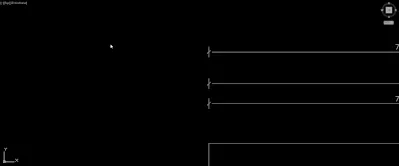
Dimension line gaps in AutoCAD typically appear as small breaks or spaces where the dimension line meets the extension line. In some cases, the dimension line even overshoots the extension line, creating an inconsistent appearance across the drawing. What makes this especially confusing is that the affected dimensions often share the same named dimension style as the ones that look perfectly fine.
The root cause is almost always the arrowhead block symbol assigned within the dimension style settings. AutoCAD allows users to assign custom blocks as arrowhead symbols, and if an incorrect or mismatched block is selected, the geometry of that block can create apparent gaps or overruns at the junction between the dimension line and extension line. Because many arrowhead block options look visually similar in the dropdown list, it’s easy to select a subtly wrong one without noticing.
Why the Same Dimension Style Produces Different Results
This is the part that trips up even experienced drafters. Two dimensions can reference the same style name and still render differently if one of them has been overridden at the object level. AutoCAD allows individual dimension objects to carry local property overrides that supersede the named style. When you place a dimension and later tweak a property directly on that object, AutoCAD stores that override on the dimension itself — the style name doesn’t change, but the behavior does.
This means a visual check of the style name in the Properties panel is not enough. You need to inspect whether any style overrides are present on the specific dimension object showing the gap.
How to Fix Dimension Line Gaps in AutoCAD
The accepted solution from the Autodesk community forum comes down to correcting the arrowhead block symbol in the dimension style. Here’s how to do it:
Step 1: Open the Dimension Style Manager
Type DIMSTYLE in the command line, or navigate to Annotate → Dimensions → Dimension Style. The Dimension Style Manager dialog will open.
Step 2: Select the affected style and click Modify
Identify the dimension style being used for the dimensions with gaps, select it, and click the Modify button to open the style editor.
Step 3: Go to the Symbols and Arrows tab
In the Modify Dimension Style dialog, click the Symbols and Arrows tab. This is where the arrowhead blocks are configured.
Step 4: Review and correct the arrowhead assignment
Check the First, Second, and Leader arrowhead dropdown values. If a custom block is assigned, verify that it is the correct block. Many standard arrowhead types — such as closed filled, closed blank, and architectural tick — have entries that look nearly identical in the preview but produce very different results at the line junction. Select the correct arrowhead type and click OK.
Step 5: Apply and update
Click Apply or Set Current, then close the dialog. Use DIMREGEN if dimensions do not update immediately.
Checking for Object-Level Overrides
If correcting the style does not resolve the issue on all affected dimensions, some objects may be carrying individual overrides. Select a misbehaving dimension, open the Properties panel (CTRL+1), and scroll through the Lines & Arrows section. Any property showing a value that differs from the parent style is an override. You can right-click the dimension and choose Dim Style → Apply Dim Style to strip overrides and reapply the named style cleanly.
Alternatively, the MATCHPROP command (MA) is a fast way to copy the correct properties from a well-formatted dimension to the problematic ones.
Best Practices to Prevent This Issue
Dimension formatting inconsistencies are much easier to prevent than to diagnose after the fact. A few habits help keep drawings clean:
- Always create and apply dimension styles at the style level rather than making one-off property edits on individual dimension objects.
- When inserting custom arrowhead blocks, verify the block geometry and origin point are correct before assigning them to a style.
- Periodically run AUDIT and PURGE on drawing files to clean up stale or duplicate block definitions that can cause unexpected behavior in dimension rendering.
- If sharing DWG files between team members, confirm that all required block definitions are embedded in the file, not just referenced externally.
Conclusion
Gaps or overruns in AutoCAD dimension lines near extension lines are almost always caused by an incorrect arrowhead block assignment in the dimension style — not by a geometry problem or a drawing scale issue. The fix requires only a few clicks inside the Dimension Style Manager to select the right arrowhead type. Once corrected at the style level, all dimensions referencing that style will update immediately. If individual dimensions still misbehave after the style correction, check for object-level property overrides and clear them using Dim Style → Apply Dim Style or MATCHPROP. Keeping dimension formatting at the style level — rather than applying ad hoc overrides — is the single most effective way to avoid this issue in future drawings.