
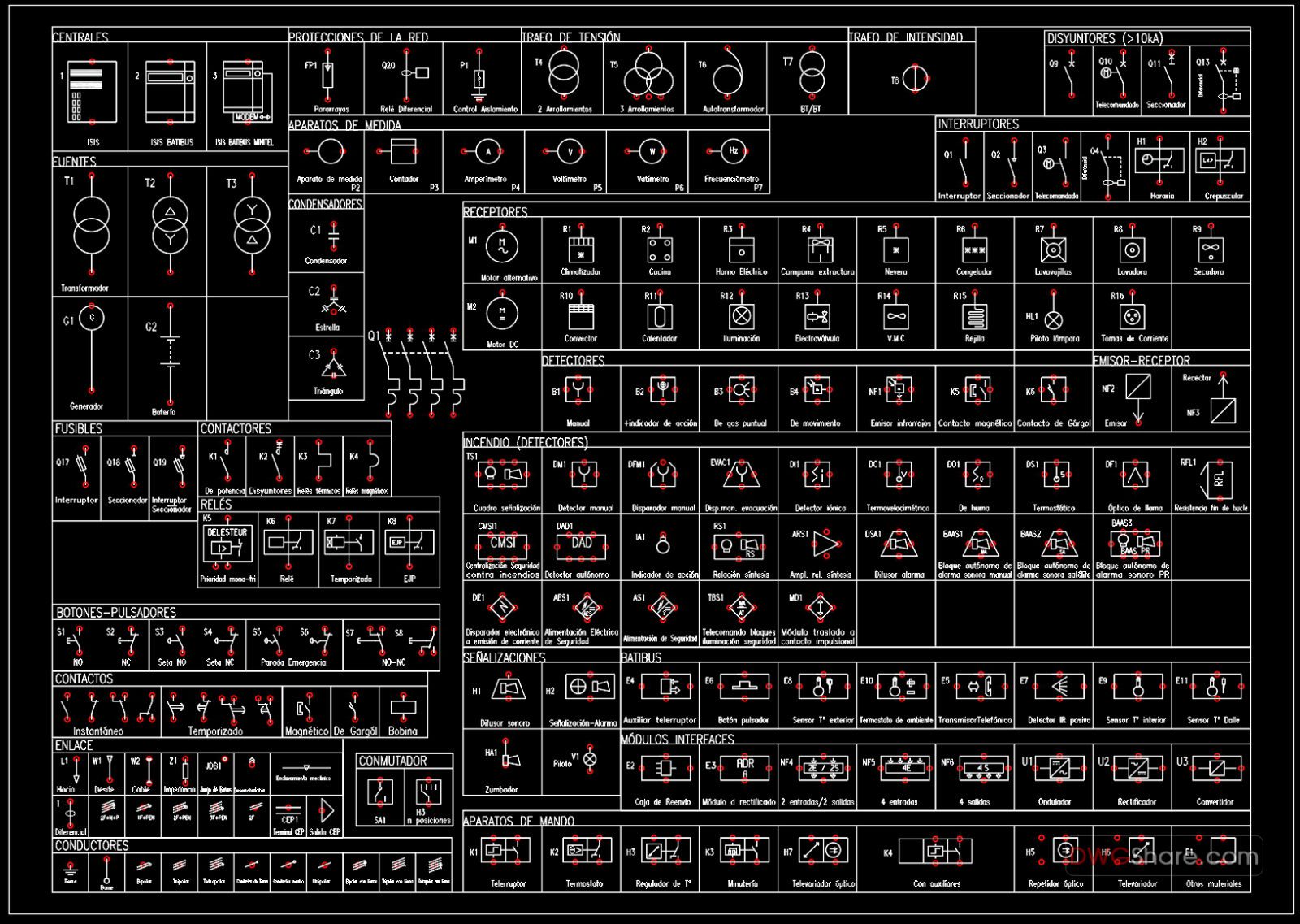
AutoCAD Electrical’s “Circuit Builder” tool offers a powerful, Excel-spreadsheet-driven approach to parametrically creating electrical control circuits. Introduced around the AutoCAD Electrical 2009 version, this feature streamlines the design process for motor control and power feed circuits, supporting three-phase, single-phase, and one-line representations. It dynamically connects components, adds wiring, annotates devices with suggested values, and maintains a history for quick re-insertion of previously configured circuits. This guide delves into the functionality and customization potential of Circuit Builder, empowering users to tailor it to their specific company needs.
Circuit Builder significantly enhances the efficiency of electrical design within AutoCAD Electrical. Its ability to generate circuits based on predefined templates and user-defined configurations saves considerable time compared to manual drawing. By leveraging an external Excel spreadsheet, users gain unprecedented control over the available circuit options and their corresponding schematic symbols. This level of customization is crucial for ensuring that the software aligns perfectly with industry standards and company-specific design practices. This feature is particularly valuable for engineers and designers working on complex control systems where consistency and accuracy are paramount.
Understanding the Circuit Builder Interface and Workflow
The Circuit Builder is initiated from the Schematic tab within the AutoCAD Electrical toolbar, launching the “Circuit Selection” dialog. This dialog presents a tree structure of pre-defined circuit types, encompassing both three-phase and one-line configurations. Users select the desired circuit type, such as a horizontal full-voltage non-reversing motor circuit, and click “Configure” to proceed.
Following the selection, a 3-phase bus is attached to the cursor, ready to be placed in the drawing, typically adjacent to a vertical supply bus. Upon insertion, the “Circuit Configuration” dialog appears. This interface allows users to navigate through a tree structure on the left pane, select specific elements, and make configuration choices and value assignments in the center and right panes, respectively. A key feature is the ability to insert configured options into the template circuit at any stage, providing immediate visual feedback on the design’s progress. Users can dynamically adjust selections if a particular option is unsatisfactory. Finalizing the design by clicking “Done” exits the dialog and completes the circuit’s placement in the drawing.
The Power of Customization: How Circuit Builder Operates
At the heart of Circuit Builder’s functionality lies an Excel spreadsheet, commonly named “ace_circuit_builder.xls”. The “ACE_CIRCS” sheet within this file defines the hierarchical structure displayed in the “Circuit Selection” dialog. Columns A and B list the main circuit categories and their respective options, respectively.
Each selection within this tree corresponds to a specific drawing template file (e.g., “ace_cb1_FVNR_H.dwg”) specified in the third column. When a circuit is chosen, Circuit Builder inserts this template drawing into the active AutoCAD Electrical drawing. This template serves as a framework, containing a bus and numerous “marker” blocks with attributes. These marker blocks, each with a unique “CODE” attribute, denote specific X,Y coordinates within the template where various circuit components or actions can be applied. For instance, a marker block with the code “Q001” might indicate the position for the circuit’s main disconnection means.
The customization process extends to modifying the underlying Excel spreadsheet. For the “Q001” marker, the spreadsheet lists available options for disconnection means (e.g., non-fused switch, circuit breakers, fuses). Circuit Builder uses this data to populate the “Circuit Configuration” dialog with relevant choices. When a user selects an option, such as “Disconnect switch and fuses (time-delay),” Circuit Builder references an index value derived from the user’s selections and corresponding spreadsheet data to execute the appropriate AutoCAD Electrical API command, inserting the chosen component at the marker block’s location. This transparent, spreadsheet-driven mechanism allows for extensive customization to meet specific company requirements.
Tailoring Circuit Builder: Adding Custom Pilot Light Options
To illustrate the customization process, consider the scenario of adding “blue” and “amber” pilot light options to the existing “run” pilot light selection for horizontal 3-phase motor circuits. Currently, the available options are limited to red and green.
The first step involves opening the “ace_circuit_builder.xls” spreadsheet and navigating to the “3PH_H” sheet, which contains the detailed control configurations for 3-phase horizontal motor circuits. Within this sheet, locate the entries corresponding to the “Light” selection. These entries define the available pilot light symbols and their associated block names.
The middle argument within the command string in the spreadsheet typically represents the pilot light’s block name. Existing entries like “HLT1R” (red standard) and “HLT1G” (green standard) provide a template. By duplicating existing rows and modifying the block names to incorporate “A” for amber and “B” for blue (e.g., “HLT1A,” “HLT1B”), new options can be introduced. It’s crucial to ensure that these entries are treated as text strings by Excel, often by prefixing numbers with a single quote character, to prevent AutoCAD Electrical from misinterpreting them. Additionally, corresponding color codes in columns K and L need to be updated.
After saving the modified spreadsheet, running Circuit Builder again will reveal the newly added “blue” and “amber” pilot light options alongside the original red and green choices in the “Light” selection dialog. This practical example highlights the flexibility of Circuit Builder in adapting to evolving design needs.
This powerful tool, with its deep integration with Excel and AutoCAD Electrical’s API, offers unparalleled flexibility for electrical designers. By understanding and modifying the underlying data structure, users can significantly expand the capabilities of Circuit Builder, ensuring it remains a relevant and efficient tool for all their electrical design projects.
Further Resources:
- Circuit Builder – Switching from AWG to Metric Wire Sizes
- Circuit Builder – Creating an Alternate Electrical Standards Setting
- Circuit Builder – Leveraging AutoCAD’s “Group” Concept
- Circuit Builder Configure Mode – Adding a “Pick from Icon Menu” Selection
- Circuit Builder – Embedding Custom Calls in the Spreadsheet