
The Batting linetype in AutoCAD LT is a specialized line pattern often used to represent insulation or other materials in architectural and engineering drawings. For beginners, scaling this linetype to match real-world dimensions—such as a 100mm wall—can be challenging. This guide provides step-by-step instructions on how to scale the Batting linetype accurately and save it as a reusable template, ensuring efficiency in your workflow.
Why Scaling the Batting Linetype Matters
In AutoCAD LT, linetypes like Batting are designed to represent specific materials or textures. However, their default scale may not align with your drawing’s units or the real-world dimensions of the objects they depict. For example, if you’re drawing a 100mm insulation layer in a wall, the Batting linetype must be scaled to visually match this thickness. Without proper scaling, the line pattern may appear too dense or too sparse, leading to inaccurate or unprofessional drawings.
Step-by-Step Guide to Scaling the Batting Linetype
1. Determine the Correct Scale Factor
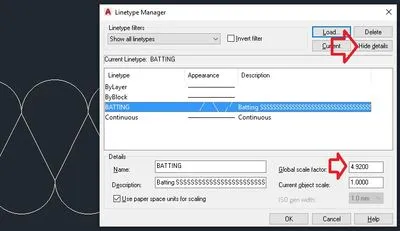
The scale factor depends on the units used in your drawing. For metric drawings (millimeters), the optimal scale is typically 4.92 for a 100mm insulation layer. This value ensures the Batting pattern appears proportional to the actual material thickness.
Note: If your drawing uses imperial units (inches or feet), you’ll need to adjust the scale factor accordingly. Experiment with values until the pattern visually matches your intended dimensions.
2. Apply the Scale to the Batting Linetype
To adjust the scale of the Batting linetype:
Open the Linetype Manager:
- Type
LINETYPEin the command line and press Enter. - In the Linetype Manager dialog box, click Show Details to reveal advanced options.
- Type
Load the Batting Linetype (if not already loaded):
- Click Load and select the Batting linetype from the list.
- Click OK to add it to your drawing.
Set the Global Scale Factor:
- In the Linetype Manager, locate the Global Scale Factor field.
- Enter 4.92 (or your determined value) and click OK.
- This adjusts the scale of all linetypes in your drawing. For a more precise approach, use the Current Object Scale option to modify only the Batting linetype.
Apply the Linetype to Your Object:
- Select the line or object where you want to apply the Batting linetype.
- In the Properties panel (or by typing
PROPERTIESin the command line), change the linetype to Batting.
3. Save the Scaled Linetype as a Template
To avoid repeating these steps for every new drawing, save your scaled Batting linetype as a template:
Create a New Drawing:
- Open a blank drawing in AutoCAD LT.
Load and Scale the Batting Linetype:
- Follow the steps above to load the Batting linetype and set its scale factor (e.g., 4.92).
Save as a Template:
- Go to File > Save As.
- In the Save as type dropdown, select *AutoCAD LT Drawing Template (.dwt)**.
- Name your template (e.g.,
Batting_Linetype_Template) and save it. - This template will now include your pre-scaled Batting linetype, ready for use in future projects.
Troubleshooting: Batting Linetype Disappears in Paper Space
A common issue is that the Batting linetype may disappear when switching to Paper Space (Layout). This happens because AutoCAD LT scales linetypes differently in Model Space and Paper Space. To fix this:
Adjust the PSLTSCALE Setting:
- Type
PSLTSCALEin the command line and press Enter. - Set the value to 0 (zero). This ensures linetypes in Paper Space match their appearance in Model Space.
- Type
Regenerate the Drawing:
- Type
REGENALLin the command line and press Enter. - This forces AutoCAD LT to recalculate and update all linetypes in the drawing, ensuring the Batting pattern appears correctly in both spaces.
- Type
Why This Works:
PSLTSCALEcontrols whether linetypes are scaled based on the layout viewport or uniformly in Paper Space.- Setting it to 0 disables viewport-specific scaling, making linetypes consistent across the entire drawing.
REGENALLrefreshes the display, applying the changes to all objects, including curved or complex linetypes.
Additional Tips for Working with Linetypes in AutoCAD LT
Use the LTSCALE Command:
- The
LTSCALEcommand globally adjusts the scale of all linetypes in the drawing. Use this if you need to fine-tune the appearance of multiple linetypes simultaneously.
- The
Test in Model Space First:
- Always verify the linetype’s appearance in Model Space before switching to Paper Space. This helps catch scaling issues early.
Document Your Scale Factors:
- Keep a record of the scale factors you use for different linetypes (e.g., Batting for insulation, Dashed for hidden lines). This saves time when reusing linetypes in future projects.
Experiment with Different Values:
- If the Batting linetype still doesn’t look right, try incrementally adjusting the scale factor (e.g., 4.8, 5.0) until it matches your requirements.
Conclusion
Scaling the Batting linetype in AutoCAD LT is a straightforward process once you understand the role of Global Scale Factor, PSLTSCALE, and REGENALL. By following these steps, you can ensure your insulation or material representations are accurate and consistent across all drawings. Saving your settings as a template further streamlines your workflow, allowing you to focus on design rather than repetitive setup.
Ready to try it out? Open AutoCAD LT, load the Batting linetype, and experiment with the scale factors to see the difference in your drawings. For more advanced tips, explore AutoCAD’s official documentation or community forums. Happy drafting!