
Claude Code is a terminal-based AI coding assistant, and one of its most practical strengths is that it doesn’t lock you into a single model provider. If you’re already comfortable with Claude Code’s workflow but want to route requests through DeepSeek’s models, connecting Claude Code to the DeepSeek API takes only a few environment variable changes. This guide walks through migrating an existing Claude Code setup, installing it from scratch, and enabling extras like web search — all while pointing the tool at DeepSeek’s Anthropic-compatible endpoint. Note that this integration path is provided by a third party rather than being an official Anthropic feature, so treat configuration details as reference material rather than guaranteed support.
Migrating an Existing Claude Code Installation
If Claude Code is already installed on your machine, you don’t need to reinstall anything. You only need to update a handful of environment variables, and you’ll need an API key from the DeepSeek Platform dashboard first.
On Linux or macOS, run the following in your terminal:
export ANTHROPIC_BASE_URL=https://api.deepseek.com/anthropic
export ANTHROPIC_AUTH_TOKEN=<your DeepSeek API key>
export ANTHROPIC_MODEL=deepseek-v4-pro[1m]
export ANTHROPIC_DEFAULT_OPUS_MODEL=deepseek-v4-pro[1m]
export ANTHROPIC_DEFAULT_SONNET_MODEL=deepseek-v4-pro[1m]
export ANTHROPIC_DEFAULT_HAIKU_MODEL=deepseek-v4-flash
export CLAUDE_CODE_SUBAGENT_MODEL=deepseek-v4-flash
export CLAUDE_CODE_EFFORT_LEVEL=max
On Windows, the same variables are set through PowerShell:
$env:ANTHROPIC_BASE_URL="https://api.deepseek.com/anthropic"
$env:ANTHROPIC_AUTH_TOKEN="<your DeepSeek API key>"
$env:ANTHROPIC_MODEL="deepseek-v4-pro[1m]"
$env:ANTHROPIC_DEFAULT_OPUS_MODEL="deepseek-v4-pro[1m]"
$env:ANTHROPIC_DEFAULT_SONNET_MODEL="deepseek-v4-pro[1m]"
$env:ANTHROPIC_DEFAULT_HAIKU_MODEL="deepseek-v4-flash"
$env:CLAUDE_CODE_SUBAGENT_MODEL="deepseek-v4-flash"
$env:CLAUDE_CODE_EFFORT_LEVEL="max"
Once these variables are set, navigate to your project folder and launch Claude Code as usual:
cd /path/to/my-project
claude
From that point on, every request Claude Code sends will be routed through DeepSeek’s endpoint instead of the default provider.
Installing Claude Code from Scratch
If you haven’t installed Claude Code yet, the setup process is straightforward and only requires a modern Node.js environment.
Step 1 — Install Claude Code
- Install Node.js version 18 or later.
- Windows users should also install Git for Windows, since Claude Code relies on it for certain operations.
- Open a terminal and install the CLI globally:
npm install -g @anthropic-ai/claude-code- Confirm the installation succeeded by checking the version number:
claude --versionStep 2 — Configure the environment variables
The same variables used for migration apply here. On Linux or macOS:
export ANTHROPIC_BASE_URL=https://api.deepseek.com/anthropic
export ANTHROPIC_AUTH_TOKEN=<your DeepSeek API key>
export ANTHROPIC_MODEL=deepseek-v4-pro[1m]
export ANTHROPIC_DEFAULT_OPUS_MODEL=deepseek-v4-pro[1m]
export ANTHROPIC_DEFAULT_SONNET_MODEL=deepseek-v4-pro[1m]
export ANTHROPIC_DEFAULT_HAIKU_MODEL=deepseek-v4-flash
export CLAUDE_CODE_SUBAGENT_MODEL=deepseek-v4-flash
export CLAUDE_CODE_EFFORT_LEVEL=max
On Windows:
$env:ANTHROPIC_BASE_URL="https://api.deepseek.com/anthropic"
$env:ANTHROPIC_AUTH_TOKEN="<your DeepSeek API key>"
$env:ANTHROPIC_MODEL="deepseek-v4-pro[1m]"
$env:ANTHROPIC_DEFAULT_OPUS_MODEL="deepseek-v4-pro[1m]"
$env:ANTHROPIC_DEFAULT_SONNET_MODEL="deepseek-v4-pro[1m]"
$env:ANTHROPIC_DEFAULT_HAIKU_MODEL="deepseek-v4-flash"
$env:CLAUDE_CODE_SUBAGENT_MODEL="deepseek-v4-flash"
$env:CLAUDE_CODE_EFFORT_LEVEL="max"
Step 3 — Start using it
Move into your project directory and run the claude command to begin:
cd /path/to/my-project
claude
At this point Claude Code behaves exactly as it normally would in the terminal, except every model call is now being served by DeepSeek’s infrastructure.
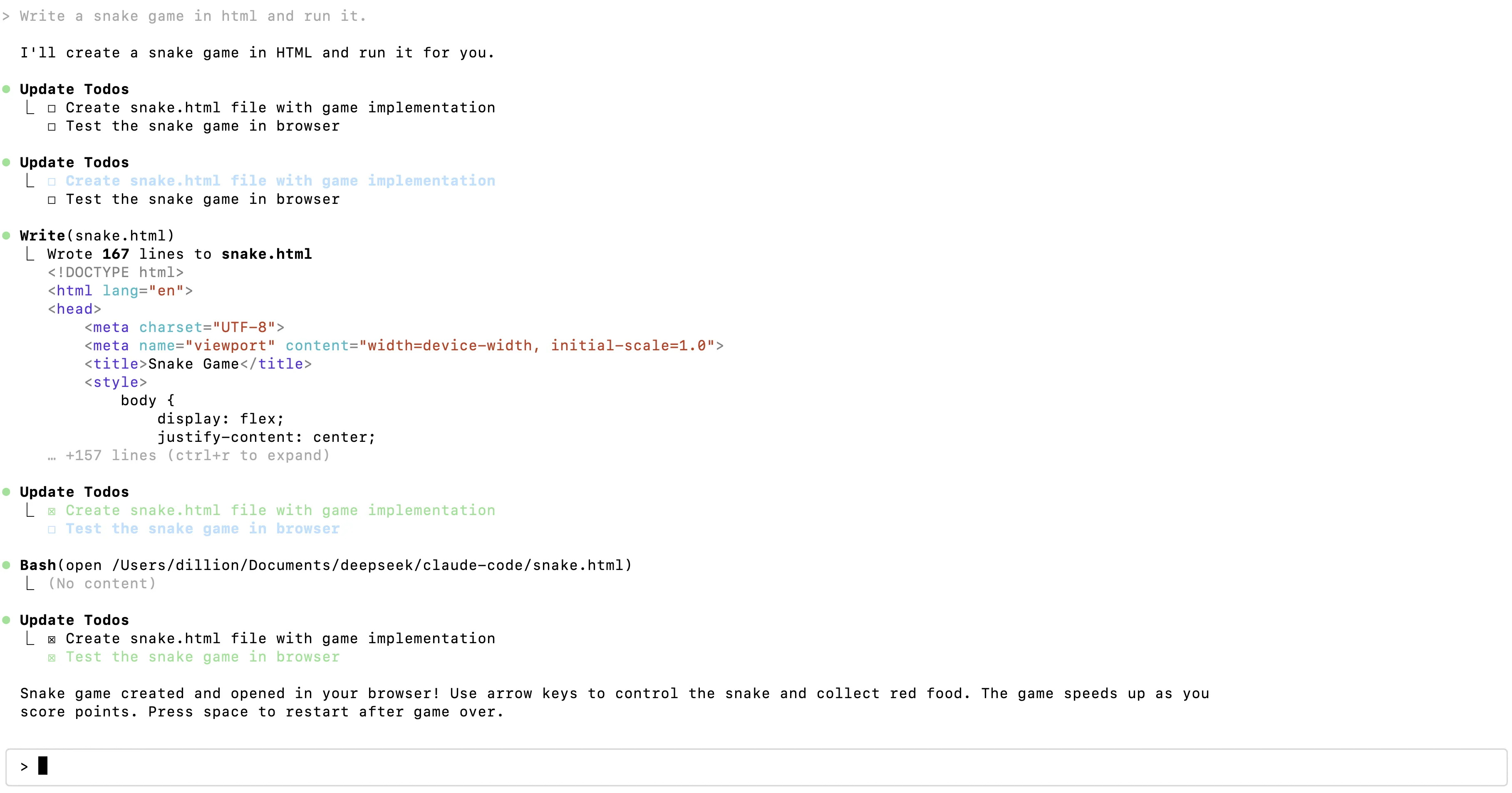
Using Claude Code’s Web Search Feature
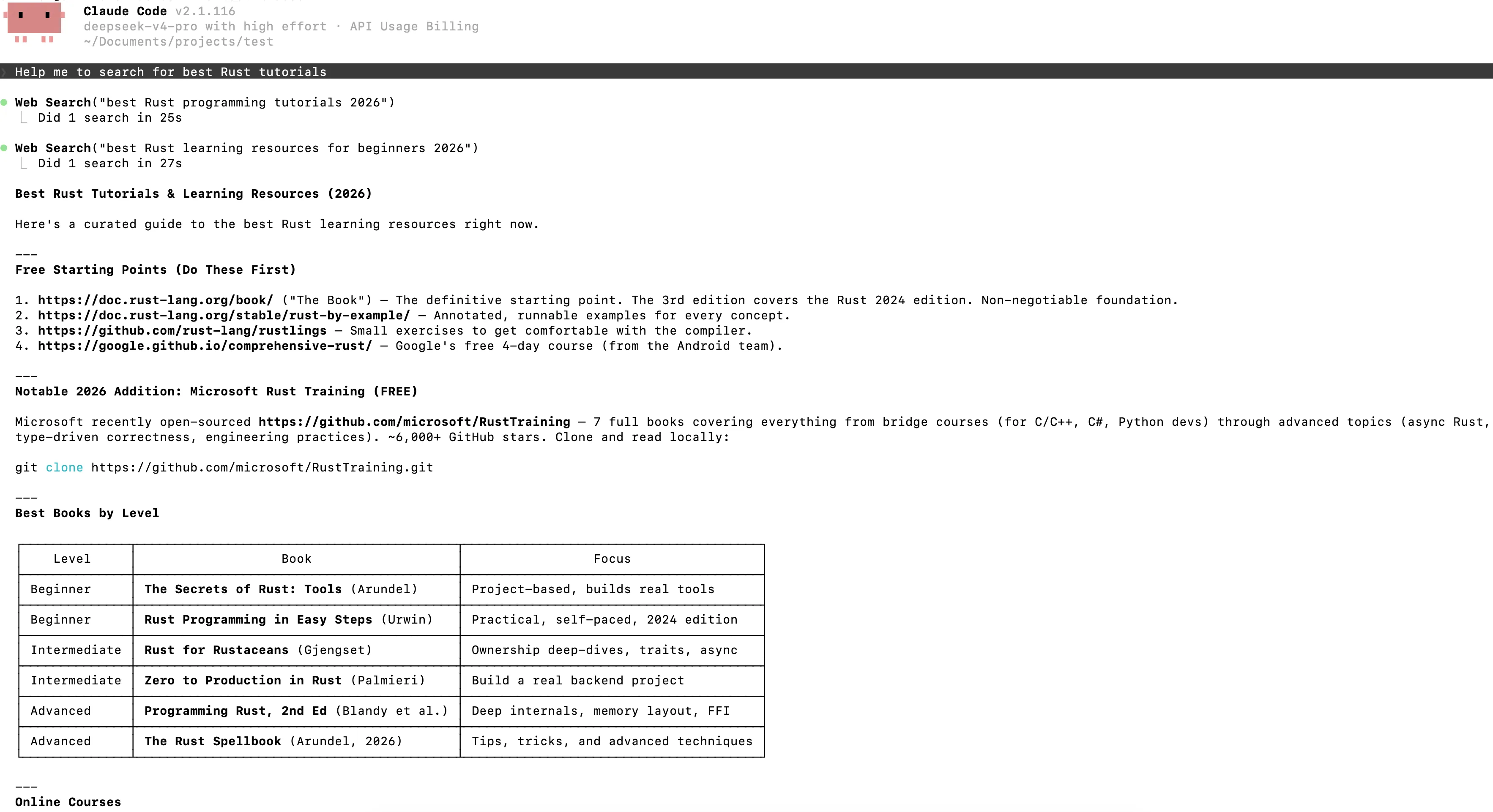
The DeepSeek API natively supports the web search capability built into Claude Code. During a session, if the model determines that a question requires up-to-date information, it will automatically call the web search tool and retrieve results through DeepSeek’s API. Because this triggers an additional model request to summarize the retrieved content, it does incur extra token usage beyond the original query.
For example, a prompt like “Help me search for the best Rust tutorials” is enough to trigger the web search tool automatically, without any special flag or command needed from the user.
Model Mapping in Claude Code and Claude Desktop
When using Claude Code or the Claude Desktop app with a DeepSeek-backed configuration, model names passed by the client are automatically remapped behind the scenes:
- Any model name beginning with claude-opus is mapped to deepseek-v4-pro.
- Any model name beginning with claude-haiku or claude-sonnet is mapped to deepseek-v4-flash.
This mapping is particularly useful for developers who want to use the newer Claude Desktop app’s developer mode: by only changing the base_url and api_key values, DeepSeek models can be accessed without needing to bypass or alter the app’s built-in model-name restrictions.
Final Thoughts
Connecting Claude Code to the DeepSeek API is essentially a matter of pointing a handful of environment variables at a different endpoint — no changes to your existing coding workflow are required. Whether you’re migrating a current installation or setting up Claude Code for the first time, the process takes just a few minutes, and features like automatic web search and model mapping continue to work seamlessly once the endpoint switch is made. If you regularly rely on Claude Code for development work, it’s worth testing this configuration to see how DeepSeek’s models perform for your specific coding tasks. Feel free to share your experience or check out further guides on configuring AI coding assistants for different backends.
References
- DeepSeek Platform. (n.d.). API Keys Dashboard. Retrieved from https://platform.deepseek.com/api_keys
- DeepSeek. (n.d.). DeepSeek Anthropic-Compatible API Documentation. Retrieved from https://api.deepseek.com/anthropic
- Node.js Foundation. (n.d.). Node.js Downloads. Retrieved from https://nodejs.org/en/download/
- Git. (n.d.). Git for Windows. Retrieved from https://git-scm.com/download/win