
AutoCAD Layer States are a powerful productivity feature that allows designers to save, restore, and reuse layer configurations inside a drawing. In complex CAD workflows—especially in architecture, mechanical design, and MEP engineering—managing layer visibility and properties manually can quickly become time-consuming and error-prone. The keyword “[keyword]” is closely tied to this workflow efficiency concept, as it highlights how designers optimize repetitive CAD tasks using built-in tools.
Instead of repeatedly toggling layer visibility or adjusting properties like color, linetype, or freeze states, Layer States let you capture a “snapshot” of your current layer setup. This snapshot can then be applied anytime, ensuring consistency across drawings and saving valuable production time.
Why Layer States Matter in CAD Workflows
In real-world projects, CAD users often work from external base drawings such as architectural floor plans. These files may contain hundreds of layers that are not relevant to every discipline. For example, an HVAC designer might need walls and structural elements but want to hide furniture, annotations, or electrical details.
Without Layer States, users must manually adjust layer visibility each time they open or reference a file. This becomes inefficient when working across multiple floors or linked project files. Layer States solve this by storing:
- Layer visibility (on/off/freeze)
- Color overrides
- Linetype settings
- Lineweight configurations
This ensures that once a clean working environment is created, it can be restored instantly whenever needed.
Visualizing Layer Management in Action
Below is an example of how a layered floor plan appears before applying disciplined layer control for design workflows.
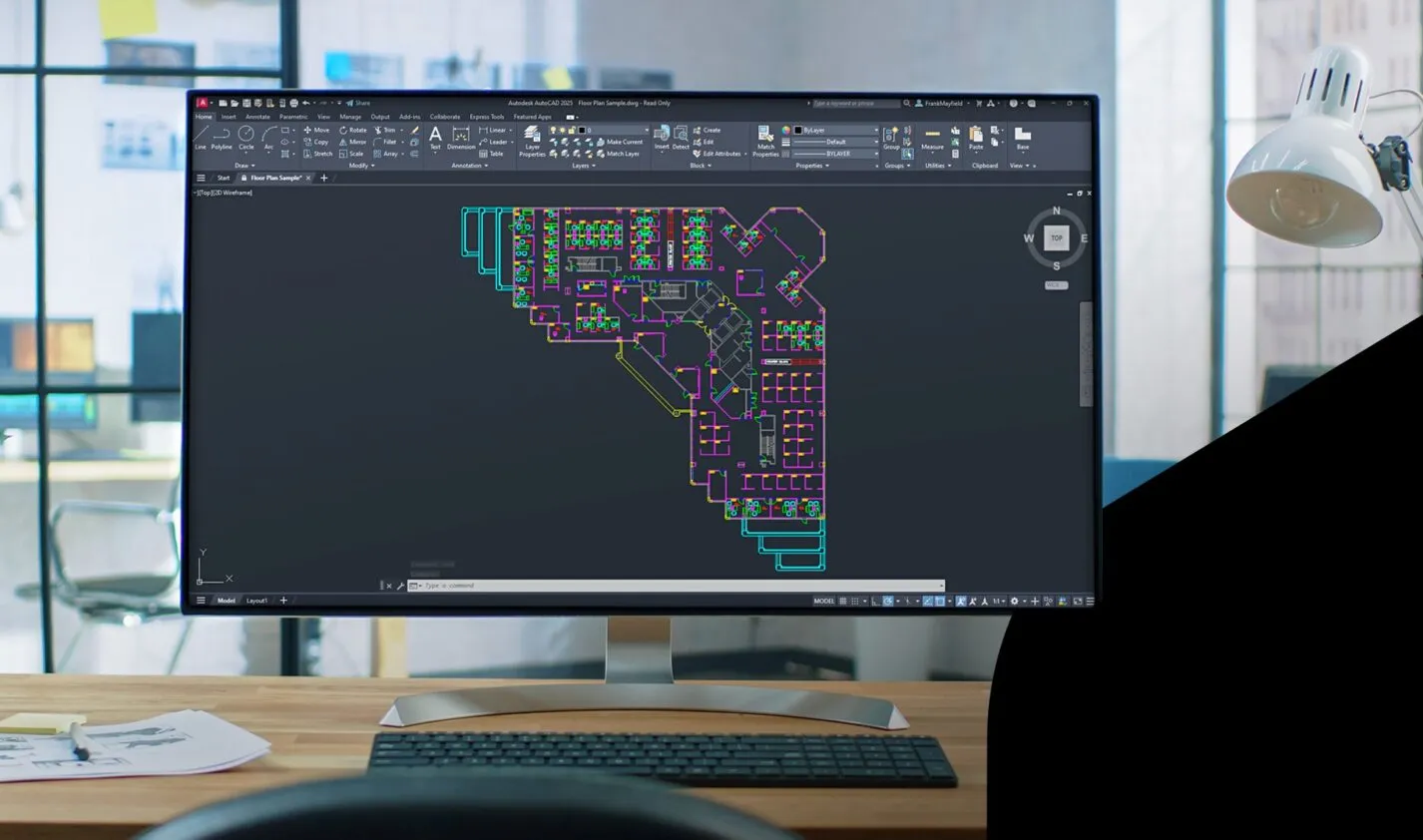
In a typical scenario, designers modify this base drawing by isolating relevant layers and adjusting properties such as graying out architectural elements to prepare a discipline-specific workspace.
Setting Up the Layer States Manager
The Layer States Manager is the central tool for creating and managing saved configurations. It can be accessed directly from the Layer Properties Manager palette.
Once opened, users can define a new state by capturing the current layer settings. This process effectively “freezes” the working environment so it can be restored later without manual adjustments.
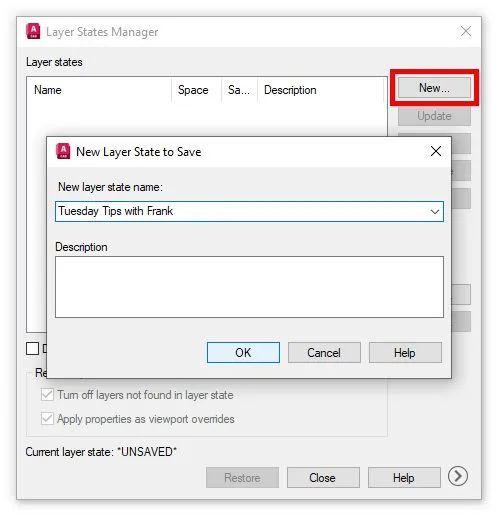
Inside the manager, users can also expand advanced options to determine which properties are included in the saved state. This flexibility is especially useful when different project standards require different levels of control over layer behavior.
Saving and Restoring Layer Configurations
Once a Layer State is created, it becomes part of the drawing file. This means it can be restored at any time—even if other users modify the layer setup.
Restoring a Layer State instantly returns the drawing to the saved configuration. This is particularly useful in collaborative environments where multiple engineers or designers may interact with the same file.
A typical workflow might look like this:
- Configure layers for a specific discipline (e.g., HVAC design)
- Save the configuration as a named Layer State
- Restore it whenever the setup is accidentally changed
- Reuse it across similar projects
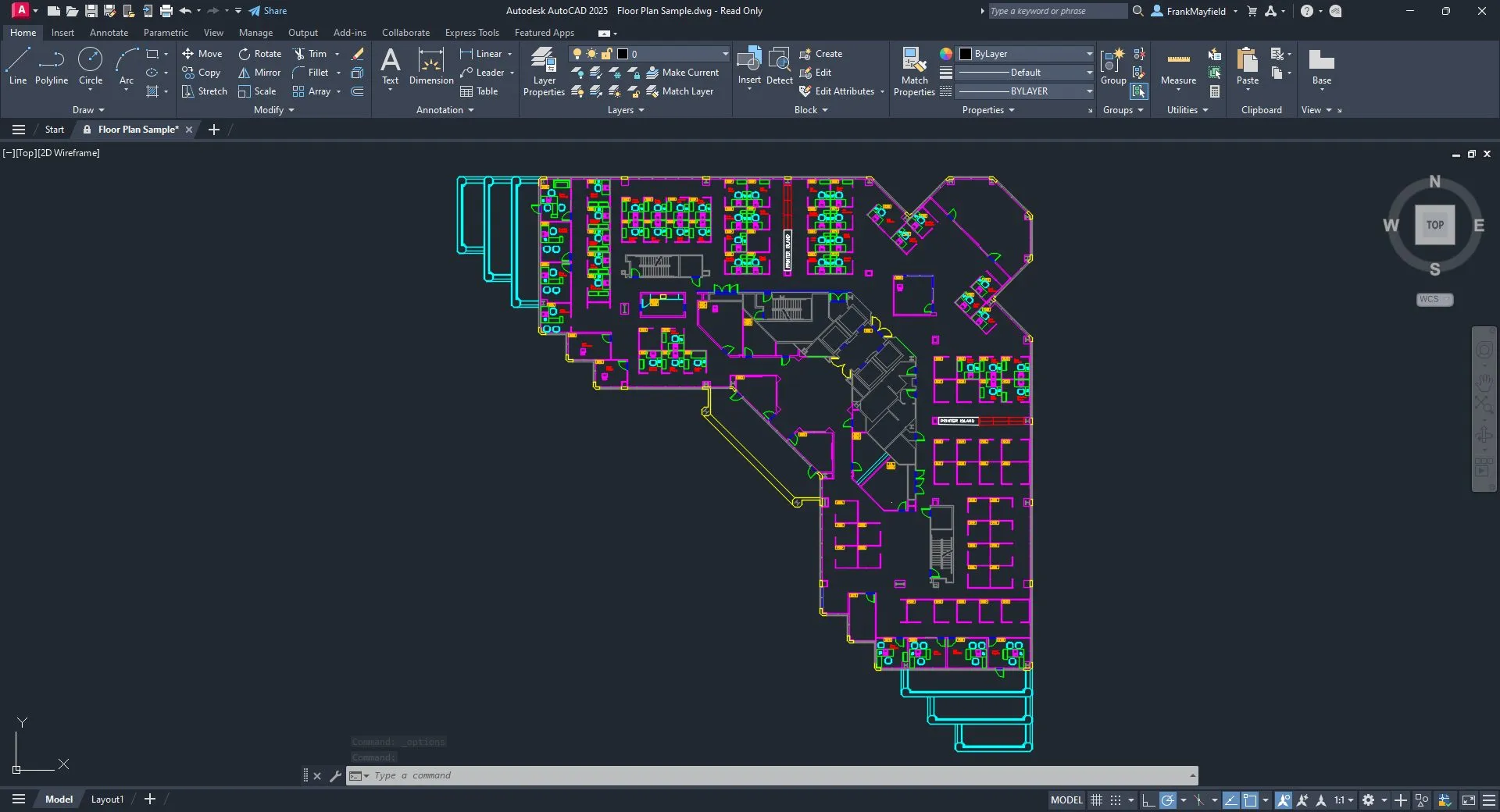
This approach significantly reduces repetitive work and ensures consistency across design iterations.
Importing and Exporting Layer States
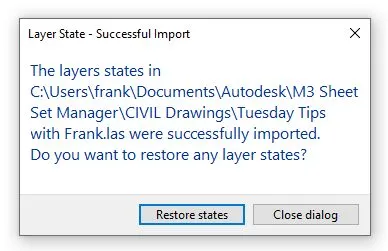
One of the most powerful features of Layer States is portability. Designers can export saved configurations into external .LAS files and reuse them across multiple drawings or projects.
This is especially useful in multi-floor building projects where consistent layer standards are required. Instead of recreating settings from scratch, users can simply import a predefined state.
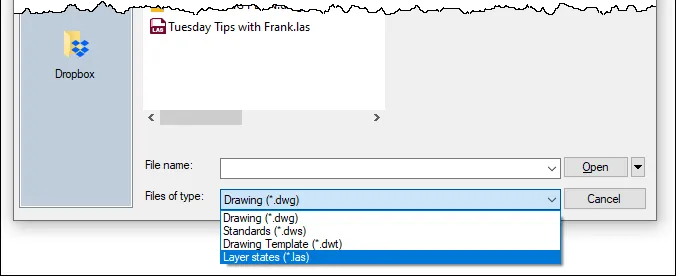 AutoCAD .LAS file extension representation showing exported layer state file format for reuse across projects
When importing, AutoCAD provides a dialog that allows users to select which saved state to apply. This ensures flexibility while maintaining control over the drawing environment.
Best Practices for Using Layer States
To maximize efficiency when working with Layer States in professional CAD environments, consider the following practices:
- Create discipline-specific layer states (e.g., HVAC, structural, electrical)
- Use consistent naming conventions for easy identification
- Store key states in template drawings (DWT files)
- Export
.LASbackups for project reuse - Avoid overwriting critical saved states without versioning
These practices help maintain clean workflows and reduce the risk of layer mismanagement in complex projects.
Internal Workflow Integration
Layer States are most effective when integrated into a broader CAD management strategy, especially when combined with layer filters, standards, and templates.
[internal_links]
Conclusion
AutoCAD Layer States provide a reliable way to manage complex layer setups efficiently, reducing repetitive work and improving consistency across projects. By capturing and reusing layer configurations, designers can focus more on actual design work rather than manual setup tasks.
For professionals working in multi-discipline or multi-floor environments, mastering Layer States is an essential step toward optimizing CAD productivity and maintaining standardized workflows.