
Working with imported drawings, scanned plans, or JPG references in AutoCAD often leads to one common problem: the dimensions are not accurate. Instead of manually calculating a scale factor such as 2x or 0.5x, AutoCAD provides a much faster and more precise solution through the Reference option in the SCALE command.
Many CAD users understand the concept of scaling, but become confused when AutoCAD prompts for a “reference length.” The issue usually comes from misunderstanding how the software calculates the new size. Once the workflow is clear, scaling objects to an exact measurement becomes straightforward and highly efficient.
This guide explains how to use the AutoCAD scale reference option correctly, why it works, and how to avoid the most common mistakes when resizing drawings.
Understanding the AutoCAD Reference Scale Method
The Reference option does not scale objects from a “reference point.” Instead, it scales based on a reference length. AutoCAD needs to know the current measurement and the desired new measurement before it can calculate the proper scaling ratio automatically.
The workflow is built around three essential values:
- The selected objects
- The current known length
- The desired new length
Once these values are provided, AutoCAD handles the math internally.
For example, if a road shown in a JPG image should actually be 6 inches wide, you can use that known dimension as the reference length. AutoCAD will then resize the entire drawing proportionally.
Step-by-Step Guide to Scaling with Reference
Start by selecting the objects you want to scale. These may include imported images, floor plans, linework, or blocks.
After selecting the entities, activate the SCALE command and choose a base point. The base point acts as the anchor during the scaling process.
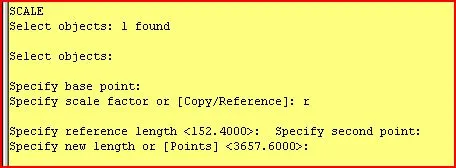
Next, AutoCAD displays the following prompt:
Specify scale factor or [Copy/Reference]
At this point, type:
RThis activates the Reference option.
Now AutoCAD asks for the reference length. This is the step where many users get stuck.
You have two methods available:
- Pick two points that represent the current known distance
- Enter the existing measurement numerically
After defining the reference length, AutoCAD prompts for the new length. Enter the correct target size, and the software automatically scales all selected objects proportionally.
Why Users Commonly Get Stuck
Most problems happen because the reference length is not fully defined. AutoCAD cannot calculate a scale operation unless it understands the original measurement.
For instance:
- If a wall should measure 10 feet
- But the imported drawing currently measures 7.35 feet
You must first tell AutoCAD the existing 7.35-foot distance using two points or numerical input. Then you specify the desired 10-foot length.
Without both values, the SCALE command has no basis for calculation.
After the new length is entered, AutoCAD instantly applies the correct scale factor behind the scenes.
Practical Example with Imported JPG Plans
A common real-world scenario involves scaling architectural drawings or maps imported as image references.
Suppose you import a site plan JPG where a road is known to be exactly 6 inches wide in real-world dimensions. Instead of calculating the scaling ratio manually, you can use the Reference option to align the drawing accurately.
After selecting the image and entering the SCALE command:
- Choose a base point
- Press
Rfor Reference - Select two points across the road width
- Enter the actual width value
- Input the new desired measurement
AutoCAD automatically resizes the entire image proportionally.
This technique is especially useful when working with:
- Scanned blueprints
- PDF underlays
- GIS imagery
- Legacy CAD files
- Hand-drawn sketches converted to digital format
Benefits of Using the Reference Option
Using the AutoCAD scale reference workflow offers several advantages over manual scaling calculations.
Improved Accuracy
Because AutoCAD calculates the ratio automatically, the risk of incorrect scaling is significantly reduced.
Faster Workflow
There is no need to manually divide dimensions or calculate percentages.
Better for Imported Content
Images, PDFs, and non-scaled references can be corrected quickly using known dimensions.
Reduced Human Error
Entering a target measurement is often more reliable than manually computing decimal scale factors.
Best Practices for Accurate Scaling
To achieve the best results when scaling drawings in AutoCAD, follow these recommendations:
Use Precise Snap Points
Enable Object Snap (OSNAP) to ensure accurate point selection when defining the reference length.
Verify Dimensions After Scaling
Always confirm the final size using the DIST or DIM command after scaling operations.
Choose a Logical Base Point
Select a stable and meaningful base point, especially when working with architectural or engineering drawings.
Work with Known Measurements
The more reliable the original measurement, the more accurate the final scaled drawing will be.
Understanding the Logic Behind Reference Scaling
The Reference option essentially performs this calculation automatically:
New Scale Factor = Desired Length ÷ Current LengthInstead of forcing the user to calculate the ratio manually, AutoCAD simply asks for the two measurements and performs the operation internally.
This is why the command is particularly valuable when the original scale is unknown.

Experienced CAD professionals frequently rely on this feature because it speeds up drafting workflows while maintaining dimensional precision.
Common Mistakes to Avoid
Several common errors can lead to incorrect results during scaling.
Selecting Incorrect Reference Points
If the two selected points do not represent the actual known dimension, the scaled output will be inaccurate.
Confusing Scale Factor with Reference Length
The Reference option replaces manual scale factor calculations. Users should focus on dimensions rather than ratios.
Forgetting Unit Consistency
Ensure the current drawing units and target measurements match before scaling.
Scaling the Wrong Objects
Double-check object selection before executing the command, especially in complex drawings.
Final Thoughts
The AutoCAD scale reference option is one of the most practical tools for resizing drawings accurately without manual calculations. By defining an existing measurement and entering a desired new length, users can quickly scale imported images, CAD files, and sketches with precision.
Whether you work with scanned blueprints, architectural layouts, or engineering references, mastering this workflow can dramatically improve both efficiency and accuracy in AutoCAD projects.
If you regularly handle imported drawings or incorrectly scaled files, the Reference option should become part of your standard CAD workflow.
References
- AutoCAD Official Website
- CADTutor Forum
- Autodesk AutoCAD Documentation