
Losing an Excel file can be a stressful experience, especially when it’s not found in the Recycle Bin. However, data deletion doesn’t mean immediate data loss. The space occupied by the deleted file is marked for reuse, but the data often remains recoverable until it’s overwritten. This guide provides three effective methods for Windows 10 users to recover deleted Excel files that are no longer in the Recycle Bin. We will explore built-in Windows tools and reputable third-party software to help you restore your valuable data quickly.
Crucial First Steps for Data Recovery
Before attempting any recovery method, it’s vital to take immediate actions to maximize your chances of success:
- Stop Using Your Computer Immediately: As soon as you realize a file is missing, cease all computer activity that involves writing data. Actions like downloading files, installing software, or even browsing the internet can overwrite the sectors where your deleted file resides, making recovery significantly harder.
- Avoid Saving New Files to the Same Drive: Do not save any new documents, programs, or any other data to the specific folder or drive where the Excel file was originally stored. New data can easily overwrite the deleted file, rendering it permanently lost.
- Utilize Proven Recovery Methods: Fortunately, options are available. The following sections will guide you through three reliable methods to recover Excel files that are not in the Recycle Bin, catering to different user needs and technical comfort levels.
3 Effective Ways to Recover Deleted Excel Files Not in Recycle Bin
Method 1: Recover from Previous Versions Using Windows Features
This method is effective if File History or System Protection was previously enabled on your Windows system. It allows you to restore previous versions of files and folders without needing external software.
Step 1: Navigate to the folder where your Excel file was originally located. Right-click on this folder and select “Properties.”
Step 2: In the folder Properties window, click on the “Previous Versions” tab.
Step 3: You will see a list of available folder versions from previous restore points or File History backups. Browse this list and select a version that likely contains your deleted Excel file.
Step 4: You can either click “Restore” to recover the entire folder to its selected previous version, or click “Open” to browse the contents of that version and manually copy the specific Excel file you need.
Method 2: Retrieve Deleted Excel Files Using File History
File History is a Windows backup feature that continuously saves versions of your files. If you’ve misplaced your Excel file, it might be available in one of your File History backups.
Step 1: Open the Windows search bar by pressing the Windows key and typing “File History.” Select “Restore your files with File History” from the search results.
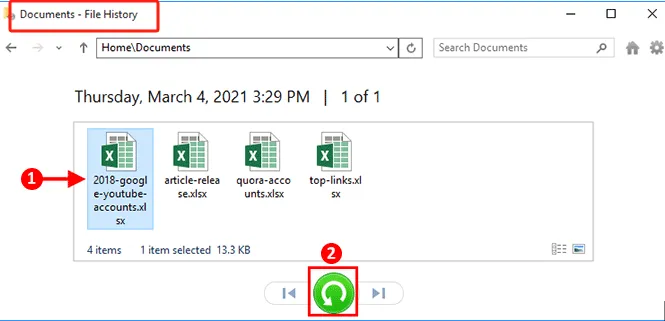
Step 2: The File History window will open. Navigate through the folders (e.g., Documents, Downloads, or the original location of your Excel file) to find the missing file.
Step 3: Use the arrow buttons at the bottom of the window to cycle through different backup dates and versions to locate the specific Excel file you wish to restore.
Step 4: Once you have found the file, select it and click the green “Restore” button (🔄) to recover it to its original location.
Method 3: Restore Permanently Deleted Excel Files with Data Recovery Software
If your Excel file has been permanently deleted (i.e., bypassed the Recycle Bin) and the previous methods haven’t worked, a specialized data recovery tool is your best option. WinfrGUI is a recommended free and user-friendly program designed for recovering deleted files from various storage devices.
Step 1: Download WinfrGUI from its official website and install it on your Windows PC by following the on-screen instructions.
Download WinfrGUI Free
Step 2: Launch WinfrGUI. Select the drive where your Excel file was originally located (e.g., C:, D:, or a USB drive).
Step 3: Click the “Scan” button to initiate the search for lost files on the selected drive.
Step 4: After the scan completes, navigate through the results. You can typically find documents under the “Document” section or use the filter option to search specifically for .xlsx files to locate your Excel file.
Step 5: Select the Excel file(s) you wish to recover. Click the “Recover” button and choose a different drive or location to save the recovered files. Crucially, avoid saving the recovered files to the same drive they were deleted from to prevent overwriting.
Recovering Unsaved Excel Files in Windows 10/8/7
Accidentally closing Excel without saving your work can also lead to data loss. Fortunately, Excel’s AutoRecover feature can often help you retrieve these unsaved files.
Step 1: Open Microsoft Excel. Click on the “File” tab, then select “Info,” and finally click on “Manage Workbook.”
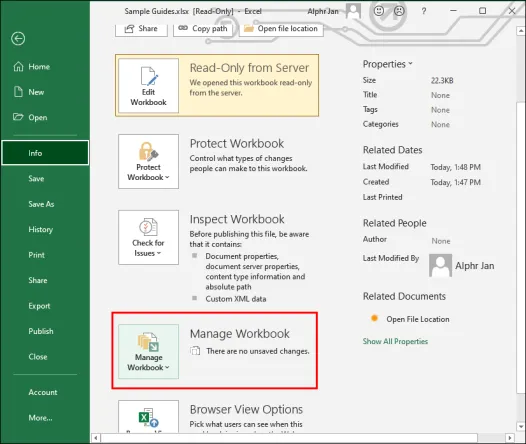
Step 2: From the dropdown menu, choose “Recover Unsaved Workbooks.”
Step 3: Excel will display a list of any unsaved workbooks that it has automatically saved. Click “Open” next to the file you wish to restore.
Step 4: Once the recovered file opens, you will see a yellow warning bar at the top. Click “Save As” to permanently save your workbook and prevent future data loss.
This feature works most effectively if the AutoRecover option is enabled in your Excel settings.
Recover Deleted Excel File Not in Recycle Bin: FAQs
Q1. How can I recover Excel files that were not saved in Windows?
You can use Excel’s “Recover Unsaved Workbooks” feature. Go to File > Info > Manage Workbook > Recover Unsaved Workbooks. Alternatively, check the “Recent” section under the File > Open menu for a clock icon that might lead to unsaved files.
Q2. Is it possible to recover permanently deleted Excel files?
Yes, permanently deleted Excel files can often be recovered if the space they occupied has not been overwritten by new data. It is crucial to stop using the affected drive immediately after data loss. Using a data recovery tool like WinfrGUI is a fast and effective way to scan and restore such files.
Q3. How can I recover deleted Excel files without using third-party software?
First, always check your Recycle Bin. If the file is there, right-click on it and select “Restore.” If it’s not in the Recycle Bin, you can try using Windows’ built-in features like “Previous Versions” or “File History” (as detailed in Methods 1 and 2).
Q4. Where are Excel recovery files typically stored on Windows?
Unsaved Excel files that are recoverable via AutoRecover are usually stored in a temporary location. A common path is C:Users[YourUsername]AppDataLocalMicrosoftOfficeUnsavedFiles. However, accessing this directly might be complex; using the in-app recovery feature (File > Info > Manage Workbook) is generally easier.
By utilizing these suggestions and techniques, you can significantly increase your chances of recovering lost or unsaved Excel files on Windows.
Final Thoughts
While recovering deleted Excel files not present in the Recycle Bin can seem daunting, it is often achievable with the right approach. Whether you opt for Windows’ integrated recovery tools or a dedicated third-party application like WinfrGUI, prompt action and knowledge of the correct procedures are key to successfully restoring your lost data. Remember to act quickly and follow these steps carefully to avoid further data overwriting and ensure the best possible recovery outcome.
🔗 Also Read: How to Recover Files from the Recycle Bin After Empty (Windows 10)