

To download Excel Office 365, sign in to the Microsoft 365 apps portal with your licensed Microsoft account or work or school account. Select Install apps, download the Microsoft 365 apps installer, complete setup, then open Excel and sign in with the same account to activate the application.
If you are trying to use Excel but are unsure which Microsoft 365 download path, account sign-in, or installation option will give you a working app, the process can feel confusing. This guide explains how to download Excel through Microsoft 365, install it on Windows, Mac, or mobile devices, and activate the correct version using your Microsoft account or organization access.
To download Excel Office 365, sign in to the Microsoft 365 apps portal with the account that owns or receives your license, select the option to install Microsoft 365 apps, download the installer, and complete setup. After installation, open Excel and sign in with the same licensed account to activate the desktop application. The exact availability depends on whether you have a personal Microsoft 365 subscription, a work or school account, or only web access.
Downloading Excel through Microsoft 365 starts with the right access
Microsoft 365 is the subscription platform that can provide access to Excel, Word, PowerPoint, and other apps. Having a Microsoft account alone does not always mean you can install the Excel desktop application; the account must be connected to a license that includes desktop apps.
Before you download anything, decide which Excel version matches your need. The download path changes depending on whether you need offline desktop work, browser-based editing, or mobile access.
A safer way to check is to confirm your account type first. If you already redeemed a product key, have an assigned license, or are reinstalling, you can move directly to the sign-in and installation steps.
| If | Then |
|---|---|
| You only need basic spreadsheet editing and access from different locations | Start with Excel for the web through your Microsoft account. |
| You need offline editing, advanced desktop features, or local file management | Install the Excel desktop application through Microsoft 365. |
| You need Excel on a phone or tablet | Install the mobile Excel app from your device app store and sign in with your account. |

The main difference is that downloading Excel is not only a file transfer step. It is an account and license check followed by installation and activation.
Install Excel from Microsoft 365 on your device
The standard path for getting Excel from Office 365 is through the Microsoft 365 apps download area. The correct route depends on the device you are using.
A common mistake is downloading an installer before confirming the account that should activate Excel. The installer can complete successfully while Excel remains unavailable if the signed-in account does not have the required license.
Use this route to avoid choosing the wrong download source:
- Use the Microsoft 365 apps portal for Windows and Mac desktop installations.
- Use the device app store for iPhone, iPad, and Android installations.
- Sign in after installation with the account connected to the Microsoft 365 license.
Windows computer installation steps
To install Excel through Microsoft 365 on a Windows computer, follow these steps:
- Open a browser and go to the Microsoft 365 apps portal.
- Sign in with the Microsoft account or work or school account linked to your Excel access.
- Select the Install apps option.
- Choose Microsoft 365 apps to download the desktop application package.
- Open the downloaded installer and allow it to make changes to your device when prompted.
- Wait for the installation process to finish, then open Excel from the Start menu.
- Sign in inside Excel using the account that owns or receives the license.

If the installer finishes but Excel does not appear, the problem is usually not the download itself. Check whether the installation used the correct account and whether your organization has allowed Microsoft 365 Apps installation.
Mac installation steps and compatibility checks
Mac users can follow a similar Microsoft 365 apps download process, but the installer and account setup occur within the macOS environment.
To install Excel on a Mac:
- Open the Microsoft 365 apps portal in a browser.
- Sign in with the Microsoft account that has Excel access.
- Select Install apps and download the Microsoft 365 installer for Mac.
- Open the installer file and follow the macOS installation prompts.
- Launch Excel and sign in to activate the application.
Mac compatibility should be checked before installation. A current operating system, available storage space, and a supported Microsoft 365 license help prevent setup interruptions.
In practical software setup work, the easy-to-miss step is confirming the account before installing. A Mac can complete the installation process correctly but still show activation messages when Excel is opened with a different account.
Mobile Excel app installation path
The mobile Excel app follows a different workflow from desktop installation because it is distributed through mobile app stores rather than the Microsoft 365 apps portal.
For a phone or tablet:
- Open the official app store on your device.
- Search for the Microsoft Excel app.
- Install the app and open it.
- Sign in with your Microsoft account, work account, or school account.
- Connect OneDrive or another supported storage location if you need cloud file access.
Mobile Excel is designed for reviewing, editing, and managing files while moving between devices. Users who need advanced desktop tools or offline file workflows usually need the installed desktop Excel application instead.
Activate Excel and confirm the installation works
Installing Microsoft 365 apps is only part of the process. Excel must also recognize the account and license that provides access to the desktop application.
After opening Excel for the first time, check that the signed-in account matches the one used during download. A mismatch between accounts is one of the most common reasons a user sees an activation request after installation.
Activation checks after first Excel launch
Use this checklist to confirm Excel is ready:
- Open Excel and confirm it launches without asking you to install the app again.
- Check the account name shown in Excel and verify it matches the Microsoft 365 license account.
- Open the account or subscription information area and confirm the product or subscription status is active.
- Create or open a spreadsheet file to confirm editing is available.
A visible sign of successful activation is that Excel opens normally with editing tools available instead of showing repeated messages asking you to sign in, purchase a license, or activate the product.
If you redeemed a product key earlier, make sure the Microsoft account that redeemed the key is the same account used during activation.
Fix missing Excel after Microsoft 365 setup
Sometimes users complete the Microsoft 365 installation but cannot find Excel afterward. The cause is usually one of three issues: the wrong account was used, the installation did not complete, or the organization controls app availability.
Check these conditions:
- If other Microsoft 365 apps are missing too, check whether the installer completed successfully.
- If Excel appears but asks for activation, sign out and sign back in with the licensed account.
- If you use a work or school account, confirm that your administrator has assigned Microsoft 365 Apps access.
For reinstalling Excel through Office 365, remove the existing installation only after confirming your license information. This avoids creating a second installation problem when the original issue is account-related.
Choose between Excel desktop and Excel for the web
Choosing between browser Excel and the installed Excel application depends on how you work with spreadsheets. The web version is useful for quick access, while the desktop version is better when you need a full local application.
From an editorial review of software setup guidance, the recurring failure mode is treating every Excel user as if they need the same download. The correct choice depends on whether the user needs offline access, advanced features, or simple browser availability.
| Option | Best for | Internet requirement | Key features |
|---|---|---|---|
| Excel for the web | Basic editing, viewing files, and quick access from a browser | Requires an internet connection for access and saving | Browser-based editing, cloud file access, basic spreadsheet features |
| Excel desktop app | Offline work, advanced features, and local file management | Internet needed for download, updates, and account checks | Full desktop tools, offline editing, advanced formatting and analysis features |
| Mobile Excel app | Editing and reviewing files on phones or tablets | Internet usually needed for sign-in and cloud syncing | Touch-friendly interface, mobile file access, account-based features |
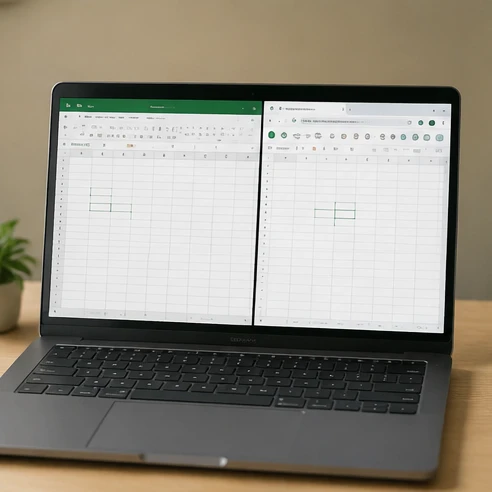
Choose Excel for the web when your main goal is opening files quickly from a browser or collaborating through cloud storage. Choose the desktop app when your workflow depends on local files, offline work, or desktop-only tools.
Install only Excel or the full Microsoft 365 suite
Many users search for how to install Excel from Microsoft 365 because they only want the spreadsheet application. However, Microsoft 365 desktop installation commonly provides a group of apps rather than treating Excel as a completely separate download path.
Whether you can install only Excel depends on the installation options available through your Microsoft 365 account and the setup method provided. Do not assume that every subscription offers an individual Excel-only installer.
If storage space or app selection matters, check the available installation choices before starting setup. A concrete way to verify this is to open the "Install apps" or "Other install options" area of the Microsoft 365 apps portal after signing in: if it lists Excel as a separate entry alongside the full suite bundle, an Excel-only install path exists for that account; if it only shows a single Microsoft 365 apps package, the installer will add the full suite. Some users prefer the complete Microsoft 365 suite because they also need Word, PowerPoint, or other included apps.
A practical decision rule is:
- Choose the full Microsoft 365 apps installation when you expect to use multiple Office applications.
- Check custom installation options if you need to limit installed applications.
- Consider a standalone Excel purchase if your goal is only Excel access and your licensing situation does not require Microsoft 365.
The important step is verifying what your license provides before downloading. Installing the wrong package does not create Excel access if the account does not include the required entitlement.
Check your Microsoft 365 license before downloading
Your Microsoft 365 account determines whether you can install desktop Excel, use only web access, or activate the app after setup. Before starting the download, confirm which account and license type you have.
| Account type | Excel access | Where to download | Activation method |
|---|---|---|---|
| Personal Microsoft account | Access depends on the Microsoft 365 subscription or purchase linked to the account | Microsoft 365 apps portal after sign-in | Sign in with the licensed Microsoft account and confirm subscription status |
| Work or school account | Access depends on organization-provided Microsoft 365 permissions | Organization-approved Microsoft 365 apps portal | Sign in with the assigned work or school account |
| No Excel license account | May use limited web access if available but cannot activate licensed desktop Excel | Microsoft account or subscription purchase page | Obtain a valid license, then sign in during setup |
Verify the account linked to Excel access
The account used for downloading and the account used for activating Excel should normally be the same licensed identity.
Check the following before installation:
- Look for the subscription or license information connected to your Microsoft account.
- If you use a work or school account, confirm the organization assigned Microsoft 365 Apps access.
- If multiple Microsoft accounts are saved in your browser, sign out of the unused accounts before beginning setup.
A simple diagnostic sign is the account shown inside Excel after installation. If it differs from the account that owns the subscription, activation may fail even though the app installed correctly.
Understand available Excel access methods
Excel access can come through several paths:
- A Microsoft 365 subscription that includes desktop apps.
- Web Excel access through a Microsoft account with available online features.
- A separate Excel purchase that provides its own licensing conditions.
When you are unsure how to get Excel with a Microsoft subscription, check the account dashboard first rather than downloading random installers. The account status determines what Excel features become available after sign-in.
Solve common Excel download and installation problems
Excel installation problems usually happen at the connection point between the installer, the account, and the license. Checking those three areas in order can reduce unnecessary reinstall attempts.
Common problems and fixes:
- Installer downloads but Excel is missing: Confirm whether the Microsoft 365 apps installation completed and check the Start menu or Applications folder.
- Excel opens but asks for activation: Sign out and verify that the account matches the Microsoft 365 subscription or assigned license.
- Work or school installation is blocked: Check whether the organization allows Microsoft 365 Apps installation through its administrator settings.
- Reinstallation is needed: Use the same licensed account and reinstall through the official Microsoft 365 apps download path.

If the browser download works but the installer cannot finish, check device permissions, available storage, and whether security software or organization policies are preventing installation.
A useful troubleshooting order is account first, installer second, device third. Many users try reinstalling immediately, but reinstalling does not fix a missing license connection.
Open the Microsoft 365 apps portal today, sign in with the account you plan to use for Excel, and verify your license before downloading so the installation connects to the correct Excel access method the first time.
FAQ
Can I just download Excel from Microsoft 365?
You can download Excel through Microsoft 365 if your account has a license that includes access to the desktop application. Sign in to the Microsoft 365 apps portal, choose the available installation option, complete setup, and then activate Excel by signing in with the licensed account.
Can I download Excel 365 for free?
Excel access depends on your Microsoft account and license status. You may be able to use Excel for the web through available Microsoft account features, but the desktop Excel application requires an account connected to a license that provides desktop apps.
How do I install Excel in Microsoft 365?
To install Excel in Microsoft 365, sign in to the Microsoft 365 apps portal with the account linked to your access, select Install apps, download the Microsoft 365 apps package, complete the installer, and open Excel. Sign in inside Excel with the same licensed account to activate it.
How do I download Excel from Office 365?
Download Excel from Office 365 by opening the Microsoft 365 apps portal, signing in with your Microsoft account or work or school account, selecting the installation option, and downloading the installer. After installation, open Excel and sign in with the account that owns or receives the license.
Is Excel free with Microsoft 365?
Excel availability with Microsoft 365 depends on the subscription or license connected to your account. A Microsoft account by itself does not always include the desktop Excel application. Your account type determines whether you can install desktop Excel, use web access, or activate the app.