
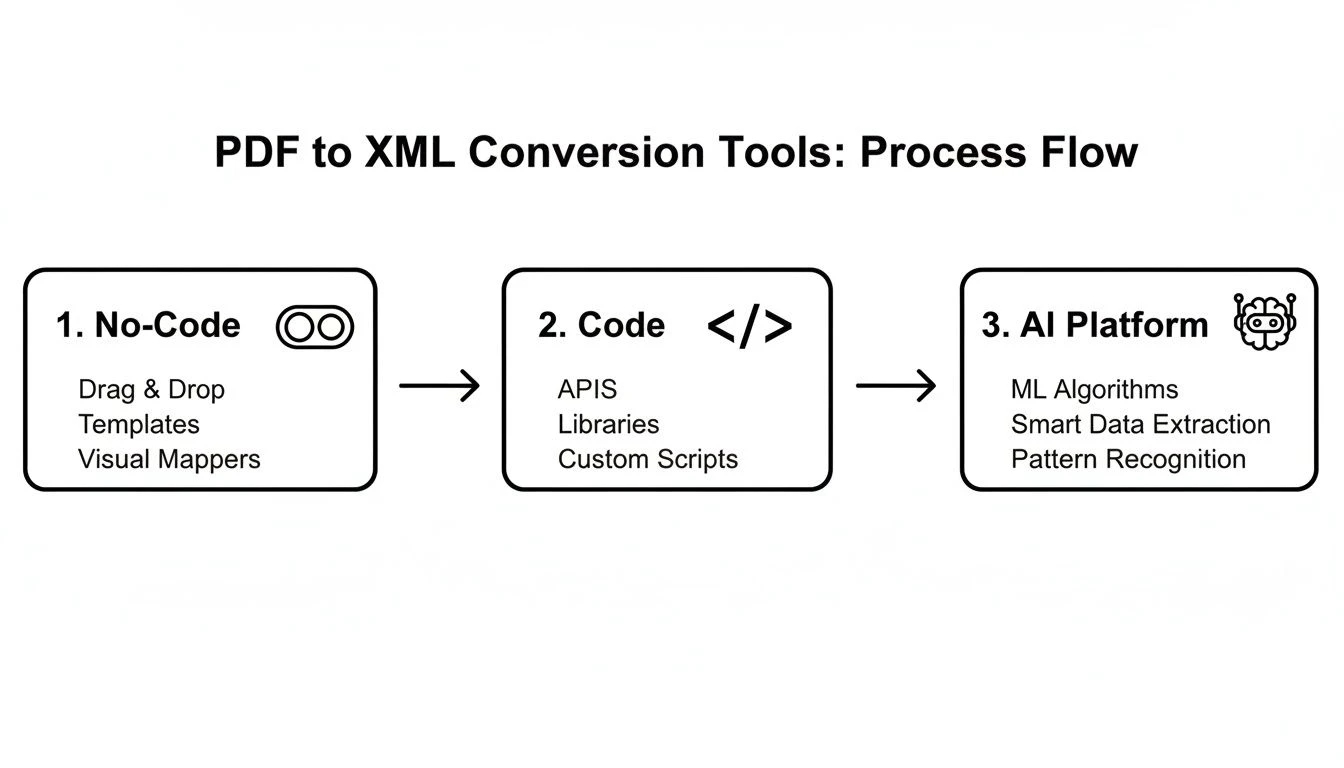
You can convert PDF bank statements to Excel by exporting a CSV or XLSX file from your bank, importing PDF data with Excel tools, using a PDF to Excel converter, or applying OCR for scanned statements. The best method depends on the PDF type, statement layout, and whether you need a one-time or repeatable workflow.
Bank statements often arrive as PDF files, but PDFs are difficult to edit, filter, and analyze compared with an Excel spreadsheet. The challenge is extracting bank transactions without losing dates, descriptions, amounts, or balances. This guide shows how to convert PDF bank statements to Excel, choose the right method for your file type, and verify the extracted financial records before using them.
You can convert a PDF bank statement to Excel by downloading a CSV or XLSX file directly from your bank when available, importing the PDF data with Excel tools, using a PDF to Excel converter, or applying OCR technology to scanned statements. The best method depends on whether the PDF contains selectable text, how complex the statement layout is, and how often you need to process similar files.
Introduction to PDF and Excel for Bank Statements
A PDF bank statement preserves the appearance of a document, while Excel stores data in editable rows and columns. Converting between them is useful when you need to sort transactions, categorize expenses, reconcile accounts, or prepare bookkeeping records.
The conversion process is not only about creating an XLSX spreadsheet. A successful workflow must also confirm that the extracted transaction data matches the original statement. A file that opens correctly in Excel can still contain shifted columns, missing values, or incorrect numbers.
Common PDF types behave differently during extraction:
- Text-based PDFs contain selectable characters and usually convert more reliably.
- Scanned PDFs are image files and require OCR to recognize text.
- Complex statements with multiple tables, headers, and running balances may need additional cleanup after conversion.
Choosing the Right Conversion Method
The right conversion method depends on the source file, the amount of work involved, and the level of accuracy required. A direct export from online banking is usually preferable because the data is already structured before it reaches Excel.
In practical financial data workflows, the easy-to-miss step is identifying the PDF type before choosing a converter. A clean text PDF and a scanned image PDF may look identical when viewed, but they require different extraction approaches.
| If | Then |
|---|---|
| Bank offers a direct CSV or XLSX download | Use the bank export because structured data usually requires less cleanup |
| PDF contains selectable text and simple tables | Use Excel import tools or a PDF converter |
| PDF is scanned, image-based, or has unreadable text | Use OCR or specialized extraction software |

Advantages and Limitations of Each Method
| Method | Speed | Accuracy | File Type Compatibility | Cost |
|---|---|---|---|---|
| Direct bank downloads | Fast | High | CSV, XLSX | Free |
| Excel Power Query | Moderate | High | XLSX | Free |
| PDF converters | Fast to moderate | Variable | XLSX | Free to paid |
| OCR technology | Moderate to slow | Variable depending on scan quality | XLSX | Free to paid |
For one-time conversions, a converter may be practical when the PDF is clean. For repeated monthly processing, a consistent export format or reusable Excel workflow reduces manual correction.
Converting Digital PDF Bank Statements to Excel
A digital PDF is usually the simplest type to convert because the text already exists inside the file. The goal is to preserve transaction rows and separate fields such as date, description, debit, credit, and balance.
A PDF bank statement converter can turn a PDF into XLSX format, but the result should still be reviewed before it is used for reconciliation or reporting. Conversion success depends on the statement layout, not only the tool being used.
One common approach is to use a PDF conversion feature that exports the document into an Excel workbook. Tools such as Adobe Acrobat provide PDF to Excel conversion workflows that transform PDF files into editable XLSX files.
A typical workflow is:
- Open the PDF conversion tool and select the bank statement PDF.
- Choose Excel or XLSX as the output format.
- Export the converted file.
- Open the spreadsheet and compare the extracted rows with the original PDF.
- Correct formatting issues before using the data.
When importing data into Microsoft Excel, watch for problems caused by statement layouts. Some banks place transaction descriptions across multiple lines, while others include repeated page headers that can become unwanted rows.
If you need to extract bank transactions from PDF into Excel for analysis, separate the conversion stage from the verification stage. Creating the spreadsheet is only the first step; confirming the financial data is the step that prevents inaccurate records.
Handling Scanned or Image-Based Bank Statements
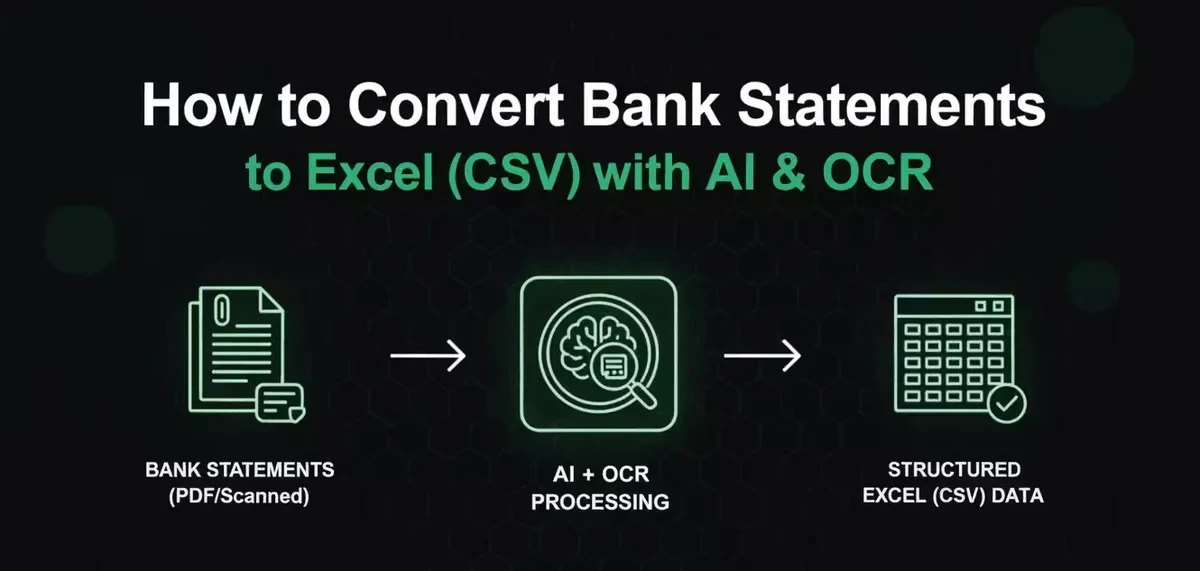
Scanned statements require OCR because Excel cannot directly read transaction text from an image. OCR technology analyzes the image and attempts to recognize characters, numbers, and table structures.
A scanned PDF may need OCR when you cannot highlight words, copy text, or search for a transaction description. Another visible sign is that the PDF behaves like a photograph rather than a document.
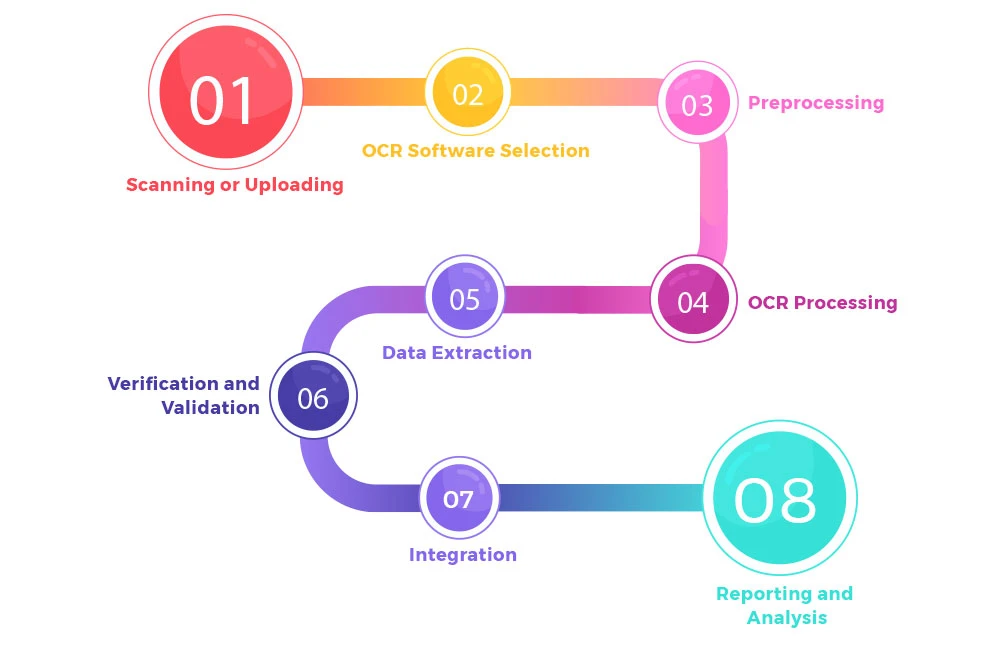
A scanned conversion workflow looks like this:
Situation: A user has a scanned PDF bank statement that needs to become an editable Excel file.
- Open OCR software or an extraction tool that supports scanned PDFs.
- Select the scanned PDF file and start text recognition.
- Review recognized dates, amounts, and descriptions for errors.
- Import the corrected extracted data into Excel.
Result: The spreadsheet contains editable transaction information that can be cleaned and analyzed.
Note: OCR settings should be adjusted for financial documents when available because incorrect recognition can affect numbers, decimal separators, and transaction descriptions.
OCR errors are especially important for bank statements because a single incorrect digit can change an amount. For example, check whether every decimal value matches the source PDF and whether transaction dates remain in the expected format.
From an editorial review of financial document workflows, the recurring failure mode is treating OCR output as final data. OCR creates a draft extraction that still needs verification, especially when the scan is blurry, rotated, or contains complex tables.
Verifying and Cleaning Up Converted Data
After converting financial statements from PDF, review the spreadsheet before importing it into accounting software or using it for reconciliation. The converted file should match the original statement in both structure and content.
A useful verification process checks individual fields instead of only opening the Excel file and assuming the conversion worked.
Verification Checklist
- Check transaction dates against the original statement pages to confirm no dates shifted or disappeared.
- Review transaction descriptions and correct missing words caused by line breaks or OCR mistakes.
- Compare debit and credit amounts with the PDF to catch incorrect digits or decimal placement.
- Confirm running balances follow the original statement sequence.
- Count transactions in Excel and compare the total number of entries with the PDF pages.
A practical cleanup workflow also prepares the spreadsheet for future use:
- Remove repeated page headers that appear inside transaction rows.
- Convert text-formatted numbers into numeric Excel values so calculations work correctly.
- Standardize date formats before sorting or filtering transactions.
- Separate transaction fields into clear columns if the conversion combined them.
Common conversion problems can usually be identified by their symptoms:
| Problem | Diagnostic sign | Fix |
|---|---|---|
| Missing transactions | Excel row count is lower than the PDF | Compare page by page and repeat extraction with a different method |
| Broken columns | Dates, descriptions, and amounts appear in the wrong columns | Use Excel cleanup tools to split and rearrange fields |
| OCR mistakes | Unusual numbers or unreadable descriptions appear | Compare against the PDF image and manually correct affected cells |
| Incorrect decimals | Amounts do not match the source statement | Check number formatting and decimal separators |
When choosing between bank statement to excel transformations and downloading a bank export, prefer the structured download whenever the bank provides one. It avoids many extraction problems because the transaction data is already separated into fields before reaching Excel.
Converted statements can then be used for bookkeeping, expense tracking, or reconciliation after the data has been checked. Do not treat a completed export as proof that every value is accurate.
Create a copy of your original PDF bank statement today, convert it using the method that matches its file type, and compare the first few transaction rows with the source document so you catch extraction problems before they affect your records.
FAQ
Can I convert a PDF bank statement to Excel for free?
Yes. You can convert a PDF bank statement to Excel for free by using a direct CSV or XLSX download from your bank when available, or by using free Excel tools and conversion methods. The best option depends on whether the PDF contains selectable text, has a simple layout, or requires OCR.
What should I check after converting a PDF bank statement to Excel?
After conversion, compare the Excel file with the original PDF. Check transaction dates, descriptions, debit and credit amounts, balances, transaction counts, and number formatting. Also remove repeated headers, fix split columns, and confirm that extracted values match the source statement before using the data.
How can I handle scanned bank statements for conversion?
Scanned bank statements require OCR because they contain image data instead of selectable text. Use an OCR-enabled extraction tool, review recognized dates and amounts, and correct any errors before importing the extracted transaction data into Excel. OCR results should be verified because recognition mistakes can affect financial values.