
Working with percentages in Excel is one of the most common office productivity tasks, whether you are managing budgets, calculating taxes, analyzing test scores, or tracking business performance. Understanding how to calculate percentages correctly can save time, reduce errors, and improve spreadsheet accuracy.
This guide explains several practical methods for calculating percentages in Excel using simple formulas. You will learn how to calculate a percentage of a number, determine percentages from two values, reverse-calculate original amounts, and measure percentage changes between numbers.
Calculate an Amount Based on a Percentage
One of the most frequently used Excel percentage formulas is calculating a portion of a value based on a percentage rate.
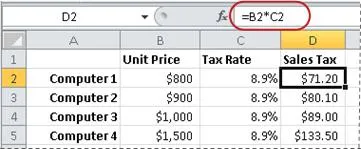
For example, imagine you purchase equipment for $800 and the sales tax is 8.9%. You need to determine how much sales tax you must pay.
If:
- Cell B2 contains the price
- Cell C2 contains the sales tax percentage
You can use the following Excel formula:
excel
=B2*C2
This formula multiplies the original amount by the percentage value stored in decimal format.
After entering the formula, Excel calculates the tax amount automatically.
Why This Formula Works
Excel stores percentages as decimal values behind the scenes. For example:
- 8.9% = 0.089
- 25% = 0.25
- 100% = 1.0
So, multiplying 800 by 0.089 gives the correct tax amount.
This technique is widely used for:
- Sales tax calculations
- Commission tracking
- Discount calculations
- Budget allocation
- Financial forecasting
Calculate a Percentage from Two Numbers
Another essential Excel skill is determining what percentage one number represents compared to another.
Suppose a student answered 42 questions correctly out of 50 total questions. You want to calculate the percentage score.
If:
- Cell B2 contains the correct answers
- Cell C2 contains the total possible answers
Use this formula:
excel
=B2/C2
The formula divides the achieved value by the total value to generate the percentage result.
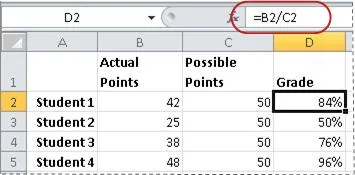
After entering the formula, apply Percentage Format from the Excel toolbar to display the result as a percentage instead of a decimal.
Tips for Formatting Percentages in Excel
To display results properly:
- Select the formula cell
- Open the Home tab
- Click the Percent Style (%) button
- Adjust decimal places if necessary
This approach is useful for:
- Exam score analysis
- Performance reports
- Completion rates
- Conversion metrics
- Attendance tracking
Find the Original Number Before a Percentage Reduction
In many office and business situations, you may know the discounted price but need to calculate the original price before the discount was applied.
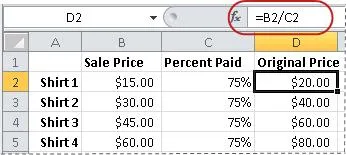
For example, imagine a shirt is currently selling for $15, which represents a 25% discount from the original price.
Since the customer pays only 75% of the original value, you can calculate the original price using division.
If:
- Cell B2 contains the sale price
- Cell C2 contains 0.75 (representing 75%)
Use this formula:
excel
=B2/C2
Excel divides the discounted price by the remaining percentage to recover the original amount.
Common Uses for This Formula
This Excel percentage method is especially valuable for:
- Retail pricing analysis
- Discount recovery calculations
- Profit margin reviews
- Invoice adjustments
- Procurement management
When working with discounts, always remember:
Original Price × Remaining Percentage = Sale Price
Therefore:
Sale Price ÷ Remaining Percentage = Original Price
Calculate Percentage Difference Between Two Numbers
Tracking percentage growth or decline is extremely important in business reporting and data analysis.
For example, suppose department profits were:
- $2,342 in November
- $2,500 in December
You want to calculate the percentage change between the two months.
If:
- Cell B2 contains November profits
- Cell C2 contains December profits
Use the following formula:
excel
=(C2-B2)/ABS(B2)
This formula subtracts the original value from the new value and divides the result by the absolute value of the original number.
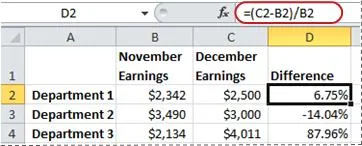 Excel formula calculating percentage increase between monthly profit values
Understanding the ABS Function
The ABS function returns the absolute value of a number, meaning it removes negative signs.
This helps ensure the percentage calculation remains accurate even if the starting number is negative.
Practical Applications
Percentage change formulas are commonly used for:
- Revenue analysis
- Financial reporting
- Sales growth tracking
- KPI monitoring
- Trend analysis
- Inventory comparisons
Best Practices for Percentage Calculations in Excel
To avoid errors and improve spreadsheet reliability, follow these Excel tips:
Use Consistent Cell Formatting
Always format percentage results using Excel’s percentage formatting tools rather than manually typing the % symbol.
Double-Check Decimal Values
Remember:
- 5% = 0.05
- 50% = 0.50
- 150% = 1.50
Incorrect decimal conversion is one of the most common spreadsheet mistakes.
Use Cell References Instead of Hardcoded Numbers
Instead of typing fixed numbers directly into formulas, reference cells whenever possible. This makes spreadsheets easier to update and maintain.
Example:
excel
=B2*C2
is better than:
excel
=800*0.089
Test Formulas with Sample Data
Before applying formulas to large datasets, test them with small sample values to confirm accuracy.
Conclusion
Learning how to calculate percentages in Excel is an essential skill for office productivity, financial analysis, reporting, and everyday spreadsheet management. By mastering a few simple formulas, you can quickly calculate taxes, analyze scores, reverse discounts, and measure percentage changes with confidence.
The techniques covered in this guide provide a strong foundation for working with Excel formulas more efficiently and accurately. Practice these methods regularly to improve your spreadsheet skills and streamline your daily workflow.