
Editing dimension text is a common CAD task that improves drawing clarity and communication. This guide walks through rotating, repositioning, restoring, and replacing dimension text in CAD software, focusing on commands and practical tips for experienced users. The primary keyword for this article is “dimension text,” and the content targets technical users who need concise, reliable procedures and troubleshooting advice.
Quick overview
This article covers:
- Commands to rotate, move, and edit dimension text
- How to restore original text values or home positions
- Reassociating dimensions with new geometry
- Best practices, examples, and troubleshooting
The instructions assume familiarity with the CAD interface (ribbon, menus, toolbars) and command-line entry.
Rotate dimension text
When you need text aligned to a custom angle relative to the dimension line:
Invoke the rotate-text function:
- Ribbon: Annotate > Rotate Dimension Text (Dimensions).
- Menu: Dimensions > Rotate Dimension Text.
- Dimensioning toolbar: Rotate Dimension Text tool.
- Or type the command (example: dimedit), press Enter, then choose Rotate Text.
Enter the rotation angle (degrees) and press Enter.
Select the dimension(s) to rotate, then press Enter. All selected dimensions update simultaneously.
Notes:
- The text angle is measured relative to the dimension line.
- If the rotation is set to 0, the displayed angle follows the dimension type and style.
- Use small angle increments for minor alignment tweaks; larger changes may indicate a need to adjust the dimension style instead.
Reposition (move) dimension text
To place dimension text at a custom location without changing its rotation:
Invoke the reposition-text function:
- Ribbon: Annotate > Reposition Dimension Text (Dimensions).
- Menu: Dimensions > Reposition Dimension Text.
- Dimensioning toolbar: Reposition Dimension Text tool.
- Or type dimtedit and press Enter.
Select the target dimension(s) whose text you want to move.
Click the new text position. The dimension updates immediately.
Tips:
- Repositioning is ideal when text overlaps leaders, other annotations, or tight geometry.
- Prefer snapping to logical anchor points (midpoints, offset lines) to keep consistent placement across similar dimensions.
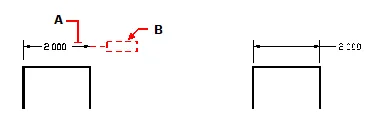
Restore dimension text to home position
If manual moves or edits have made placement inconsistent, restore text to the home position defined by the active dimension style:
Invoke the restore function:
- Ribbon: Annotate > Restore Text Position (Dimensions).
- Menu: Dimensions > Restore Text Position.
- Dimensioning toolbar: Restore Text Position tool.
- Or type dimedit, press Enter, then choose Restore Text.
Select the dimension text to restore, then press Enter.
When to use:
- After bulk edits or copying dimensions between drawings.
- When you want uniform placement governed by the dimension style settings.
Replace existing dimension text
Replace the displayed dimension text (for custom labels, tolerances, or notes) without changing the measured value:
Invoke edit-text:
- Ribbon: Annotate > Edit Dimension Text (Dimensions).
- Menu: Dimensions > Edit Dimension Text.
- Dimensioning toolbar: Edit Dimension Text tool.
- Or type dimedit and press Enter, then choose Edit Text.
Type the new text and press Enter.
Select the dimension(s) whose text you want to replace, then press Enter.
Guidance:
- Use replacement text carefully to avoid losing implied measured values. Include the measurement token when necessary (for example, keep ‘<>’ or the software-specific field for dimension value).
- For notes like “TYP” or “SEE SPEC,” keep a consistent format across the drawing.
Reset text to original value
If the displayed text was manually changed and you need to restore the numeric value shown by the dimension:
Use the reset-text function:
- Ribbon: Express Tools > Reset Dimension Text (Dimension).
- Menu: Express Tools > Dimensions > Reset Dimension Text.
- Or type dimreassoc (or the equivalent reset command), press Enter.
Select the dimension text to reset, then press Enter.
When this helps:
- Recover the automatic measurement after manual overrides.
- Clean up dimensions before final plotting or publishing.
Reassociate dimensions with new geometry
When geometry changes (moved or replaced), reassociate dimensions to maintain correct linking:
Invoke reassociate:
- Ribbon: Annotate > Reassociate Dimensions (Dimensions).
- Menu: Annotate > Reassociate Dimensions.
- Or type dimreassociate and press Enter.
Select the dimensions to reassociate, then press Enter.
Follow prompts to select the new entity or point on an entity. Prompts vary by dimension type.
Best practices:
- Reassociate immediately after major geometry edits to avoid stale measurements.
- Validate reassociated dimensions by checking a few key values.
Examples and practical workflows
- Batch rotate: Select multiple parallel dimensions and rotate them together to maintain consistent text orientation across a drawing area.
- Alignment cleanup: After importing geometry from another CAD system, use Restore Text Position across all dimensions to enforce the local dimension style.
- Annotated callouts: Replace text to add tolerances such as “Ø5.00 ±0.05” while keeping the underlying dimension measured value intact.
- Reassociate after move: If a referenced part was translated, use Reassociate Dimensions and then Reset Dimension Text where manual overrides were previously applied.
Troubleshooting
- Text still overlaps: Check dimension scale and text offset in the dimension style; increase text offset or change text placement rules.
- Value token disappeared after edit: Reinsert the dimension value token (software-specific placeholder like “<>”) instead of typing a static number.
- Commands not found: Confirm you have the required toolset/ribbon enabled (Express Tools or Dimensioning toolbars).
- Reassociate prompts unclear: Switch to object snap modes (endpoint, midpoint) to select precise points during reassociation.
Best practices summary
- Prefer style-based adjustments when possible; manual edits are useful for exceptions but can cause inconsistency.
- Use batch selection for uniform changes to multiple dimensions.
- Keep automatic value tokens when replacing text that should still reflect measured values.
- Reassociate and reset dimensions after significant geometry edits.
- Document any manual overrides in drawing notes to aid reviewers.
References
- Official CAD documentation for dimension editing tools and commands.
- Express Tools reference for reset and batch operations.
- Community forums and workflow guides for advanced dimensioning techniques.
Would you like a condensed checklist or a printable quick-reference with the exact command names for a specific CAD package (AutoCAD, BricsCAD, etc.)?