

Revit 2025 recommended system requirements include a 64-bit Windows 10 or Windows 11 system, a 2.5 GHz or higher CPU, 16 GB RAM minimum, 32 GB RAM for typical professional workflows, a DirectX 11 graphics card with Shader Model 5 support and 4 GB video memory, plus 30 GB free disk space.
Deciding whether your current computer can run Autodesk Revit 2025 depends less on meeting baseline specifications and more on matching your hardware to the size and complexity of the models you work with. This article helps you understand Revit 2025’s official system requirements, translates them into practical workstation configurations for small, medium, and large BIM projects, and provides actionable guidance for upgrading or selecting a computer that will actually perform well under your typical workload. For a broader overview of hardware, software, and setup considerations, see this Revit requirements 2025 guide.
Revit 2025 officially requires a 64-bit Windows 10 or Windows 11 operating system, a CPU with a base clock of 2.5 GHz or higher (Intel i-Series, Xeon, AMD Ryzen, or Ryzen Threadripper PRO), a minimum of 16 GB RAM for entry-level use, 32 GB for typical professional workflows, or 64 GB for large federated models. The software requires a DirectX 11-capable graphics card with Shader Model 5 support and at least 4 GB of video memory, plus 30 GB of free disk space for installation. However, these official minimums and recommendations represent thresholds for launching the software—not necessarily for working comfortably with the models that real architects and engineers routinely handle. Understanding the gap between minimum launch requirements and productive workstation specs is essential before you buy or upgrade.
Revit 2025 System Requirements at a Glance
Autodesk publishes Revit 2025 requirements across three configuration tiers: Minimum (entry-level), Value (balanced), and Performance (large models). All three tiers share the same CPU family baseline—Intel i-Series, Xeon, AMD Ryzen, or Ryzen Threadripper PRO at 2.5 GHz or higher—but differ significantly in RAM allocation and recommended GPU capacity.
The Minimum configuration is designed for single models up to approximately 300 MB on disk and requires 16 GB RAM. This tier supports basic display-adapter-capable graphics or advanced DirectX 11 capable graphics with 4 GB VRAM. In practice, this configuration can launch Revit and handle small projects, but it leaves little headroom for model growth, concurrent plugin work, or background processes like cloud sync.
The Value configuration targets typical BIM workflows involving coordinated or multi-discipline models and recommends 32 GB RAM. This tier assumes models up to approximately 600 MB and requires a DirectX 11-capable graphics card with at least 4 GB VRAM. This is often the sweet spot for professional architectural and engineering use in firms working with standard-size projects and basic coordination tasks.
The Performance configuration is built for large, complex enterprise models—approximately 1 GB or larger on disk—and specifies 64 GB RAM. This tier emphasizes high-speed storage (10,000+ RPM hard drives or SSDs for point cloud work) and the same 4 GB minimum VRAM as lower tiers, though in practice professionals at this tier often choose dedicated workstation GPUs with 8 GB or more.
An important operational detail: Revit 2025 requires .NET 8 and DirectX 12 compatibility on your graphics driver. Many users upgrading from older workstations discover their GPU drivers are outdated and do not report DirectX 12 support, causing viewport artifacts or crashes even when the card’s raw VRAM appears sufficient. Updating your graphics driver from your GPU vendor (NVIDIA, AMD) to the latest Recommended version—not necessarily the Game Ready or WHQL version—is often the fastest performance win before considering hardware upgrades.
Matching Workstation Specs to Your BIM Project Size
Moving from Autodesk’s official tiers to your specific purchasing decision requires matching CPU, RAM, GPU, and storage to the kinds of models and workflows your role typically demands.

Small residential and single-discipline projects
Small residential models, single-discipline schematic designs, and smaller institutional projects often run comfortably on entry-level or value-tier components. A processor with 6–8 cores running at 3.5 GHz base clock (Intel Core i5-13th generation or newer, AMD Ryzen 5 7000-series) paired with 8–16 GB RAM handles typical small-model workflows well. Storage of 256 GB SSD plus 50 GB free space is usually sufficient because these projects rarely accumulate years of revisions or large asset libraries.
The GPU question is more nuanced for small work. Integrated graphics (Intel UHD 770, AMD Radeon integrated in Ryzen chips) technically meet DirectX 11 requirements but often lack dedicated VRAM—graphics-intensive viewport operations like smooth orbit and complex section views will stutter. An entry-level dedicated GPU like the NVIDIA GTX 1650 or RTX 3050 with 4 GB VRAM eliminates that bottleneck for under $200 and makes the difference between a frustrating editing experience and a responsive one.
Small teams or solopreneurs on a tight budget can run small Revit models on a laptop with a mobile i5 or Ryzen 5, 16 GB RAM, and integrated graphics, but should expect periodic freezes during complex view operations—acceptable for occasional site visits or home office work, less so for daily production.
Medium multi-discipline BIM projects
Medium BIM projects—building coordination across architectural, structural, MEP, and specialty disciplines with linked files and shared coordinates—demand more resources. An 8–12 core processor at 3.7 GHz base clock (Intel Core i7 or Xeon E-series, AMD Ryzen 7 or Threadripper PRO) paired with 16–32 GB RAM is the professional standard. 32 GB becomes necessary when you are opening large linked files simultaneously or running multiple Revit sessions, which is common during inter-disciplinary coordination workshops.
For GPU, a mid-tier dedicated card such as the NVIDIA RTX 4060 or RTX 4070 Super (6–8 GB VRAM, DirectX 12 compatible) ensures smooth 3D navigation through coordinated models and reasonable performance during rendering or walkthrough export. These cards often cost $400–$800 and represent a significant but justifiable investment for workstations used 40+ hours per week.
Storage at 512 GB SSD with 100 GB free is typical because medium projects accumulate backups, linked assets, and revision history. An NVMe SSD (faster than SATA SSD) reduces file-open times noticeably when you are working with multiple linked models.
Large or complex enterprise BIM models
Large federated models—multiple large linked files, complex structural grids, point clouds, high-polygon rendering assets, and full MEP systems—demand high-core-count processors and substantial RAM. A 12+ core workstation CPU at 4.0 GHz or higher base clock (Intel Xeon W-series, AMD Threadripper PRO 5000 or 7000-series) combined with 64 GB RAM (and often 96+ GB for true large-model work) is standard. These processors cost $1,500–$5,000+ but justify themselves through dramatically reduced regeneration, sync, and coordinate-extraction times.
A professional-grade GPU such as the NVIDIA RTX 4890 or RTX 6000 Ada (12–24 GB VRAM) is worth considering at this tier. ISV-certified professional cards often outperform consumer RTX cards in Revit’s specific workloads and benefit from driver optimizations Autodesk directly supports.
Storage is 1 TB NVMe SSD minimum plus 150+ GB free space. Large projects demand speed for project open/save and sufficient free space for Windows virtual memory, temp autosaves, and cloud worksharing cache (which can require up to 3x the model file size).
Project Size Comparison
| Project Size | CPU | RAM | GPU | Storage |
|---|---|---|---|---|
| Small residential and single-discipline projects | 6–8 core, ≥3.5 GHz base (Intel Core i5 / AMD Ryzen 5) | 8–16 GB | Integrated or entry-level dedicated (4 GB VRAM) | 256 GB SSD + 50 GB free |
| Medium multi-discipline BIM projects | 8–12 core, ≥3.7 GHz base (Intel Core i7 / AMD Ryzen 7) | 16–32 GB | Mid-tier dedicated (4–8 GB VRAM, DirectX 12 compatible) | 512 GB SSD + 100 GB free |
| Large or complex enterprise BIM models | 12+ core, ≥4.0 GHz base or workstation CPU (Intel Xeon / AMD Threadripper) | 64 GB or higher | Professional-grade (8+ GB VRAM, ISV certified) | 1 TB NVMe SSD + 150 GB free |
Priority Hardware Upgrades for a Struggling Revit 2025 PC
When a current workstation feels slow under Revit use but replacing the entire system is not an option, knowing which component to upgrade first—and recognizing the difference between a temporary slowness and a fundamental bottleneck—saves both money and frustration.
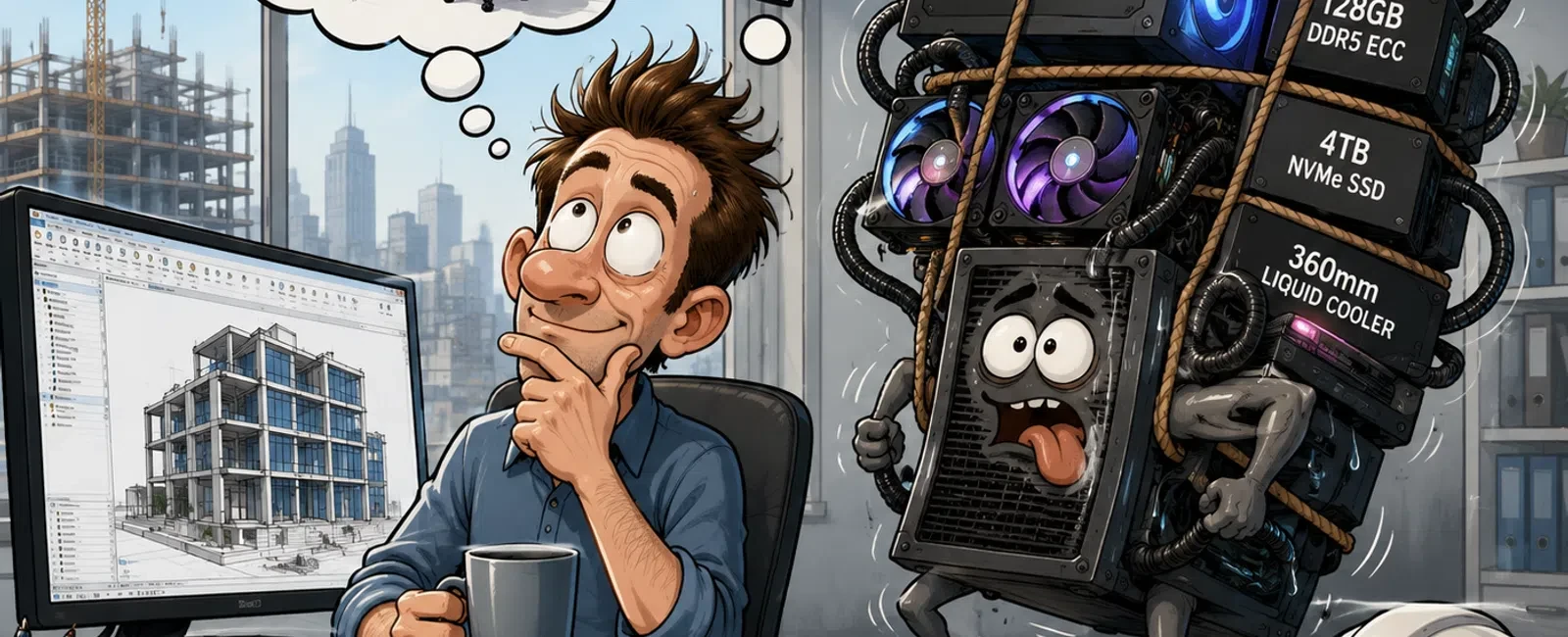
RAM exhaustion is the primary killer of model responsiveness. If Task Manager shows memory usage at 90% or higher when you open a large model or during save operations, and Revit becomes unresponsive or switches to using virtual memory on disk, the solution is adding RAM. Open the file properties of a large RVT file you work with. If the file is 600 MB or larger and you are seeing memory usage above your installed RAM during open, you are already using your hard drive as emergency memory—which is thousands of times slower than physical RAM. Adding RAM to the maximum supported by your motherboard before upgrading CPU or GPU is always the first move. On a desktop, upgrading from 16 GB to 32 GB costs $50–$100 and often produces the most dramatic performance improvement you can make.
If file open times feel reasonable and memory usage stays below 70%, but orbiting, panning, or zooming the 3D view is choppy, the problem is GPU-bound, not CPU or RAM. This appears as low CPU usage and low RAM usage but stuttering viewport. The fix is upgrading to a dedicated GPU with higher VRAM. Ensure you also check your GPU driver version: an outdated driver often masks the capability of a newer card. Update to the latest Recommended driver from NVIDIA or AMD (not necessarily the newest Game Ready build) and test again. If stuttering persists, swap to a card with at least 8 GB VRAM and DirectX 12 Ultimate support.
Synchronization times, regeneration times, and coordination-extract operations are CPU-bound. If Revit reports "Syncing with Central" for 15+ minutes, or if running Manage Links > Reload All takes 5+ minutes, your processor is the constraint. Replacing the CPU with a higher-core-count model (12+ cores, base clock 3.7 GHz or higher) and restarting Revit typically cuts these times by 40–60%. However, this is also the most expensive single-component upgrade and requires BIOS and sometimes motherboard replacement.
From a practical prioritization standpoint: upgrade RAM first when memory usage is above 80%, GPU second when viewport is choppy with low memory/CPU usage, CPU third when background operations (sync, regeneration) dominate your workflow.
Upgrade Priority Guide
| Symptom | Diagnosis | Priority Upgrade |
|---|---|---|
| Model takes minutes to open or save; Task Manager shows memory at 90%+ during these operations | Memory exhaustion; Revit using virtual memory on disk | Add RAM to motherboard’s maximum capacity (usually 64–128 GB on recent boards). Most cost-effective improvement for large models. |
| 3D orbit, pan, zoom consistently choppy; CPU and RAM usage low | GPU bottleneck; viewport rendering cannot keep pace | Upgrade to dedicated GPU with 8 GB+ VRAM, DirectX 12 Ultimate. Verify driver is latest Recommended version from GPU vendor. |
| Syncing with Central, Manage Links reload, or coordinate extraction takes 15+ minutes | CPU bottleneck; background calculations not parallelizing efficiently | Replace CPU with 12+ core processor at 3.7 GHz+ base clock. Most expensive upgrade; consider first only if RAM/GPU are already at recommended levels. |
Choosing a Laptop or Mobile Workstation for Revit 2025
Laptops trading portability for raw processing power require different trade-offs than desktop workstations. The Revit 2025 official specs do not distinguish between laptop and desktop components, but in reality, mobile processors and integrated graphics behave very differently under sustained load.
CPU and RAM priorities for laptop mobility
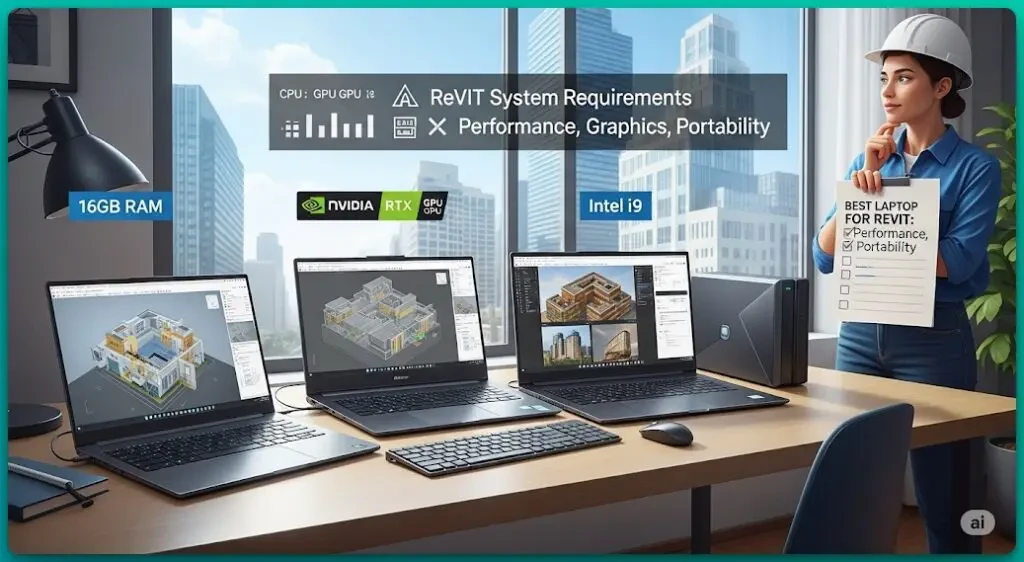
A mobile Revit workstation must have at least an Intel Core i7 (H-series) or AMD Ryzen 7 (H-series) processor—8 cores with a base clock of 3.0 GHz or higher. Entry-level laptops marketed with i5 U-series (low-power) processors or Ryzen 5 throttle under the continuous load of large model regeneration, causing visible slowdowns and thermal shutdowns. The H-series mobile processors are built for sustained work; the U-series are built for battery life, and Revit demands the former.
16 GB RAM is the minimum acceptable for professional work; 32 GB is strongly recommended. Crucially, verify that the RAM is upgradeable (dual SO-DIMM slots) rather than soldered to the motherboard. Soldered RAM cannot be expanded later, and many modern thin laptops use this design to save millimeters of thickness—a terrible trade-off for Revit users. If a laptop has soldered 16 GB RAM and a base clock under 3.5 GHz, it will start to feel sluggish within 6–12 months of regular use as your project files grow.
Dedicated versus integrated laptop graphics
Integrated graphics—like Intel Iris Xe integrated in mobile CPUs or AMD Radeon integrated in mobile Ryzen—do not have dedicated VRAM. Instead, they borrow system RAM, which is slower and competes with Revit’s own memory needs. Integrated graphics also often lack DirectX 12 Ultimate support, causing viewport artifacts or crashes in Revit’s advanced view modes.
A dedicated GPU—NVIDIA RTX 4050 or better, AMD Radeon Pro—with at least 6 GB VRAM is non-negotiable for professional daily Revit use on a laptop. A laptop with integrated graphics only will work for small models but will stutter during 3D navigation and fail on typical medium-sized BIM files. The performance difference is so significant that integrated-graphics laptops are worth avoiding entirely if you have a budget over $1,000.
Display, cooling and battery trade-offs
A high-resolution display (1440p minimum, 2560×1600 preferred) gives you more viewport real estate for complex architectural plans and helps reduce eye strain during long coordination sessions. However, high-resolution displays consume more power and reduce battery life.
Thermal performance is crucial. Thin, fanless or single-fan laptop designs often thermally throttle when Revit renders or regenerates large models, causing performance to drop 20–50% as the processor backs off to manage heat. Seek reviews that mention dual-fan designs or vapor-chamber cooling for laptops you are considering. Test the thermal behavior before committing: open a large model and run Manage Links for a sustained minute to see if the fan ramps up and the case gets warm (normal) or if the laptop stays silent and then suddenly becomes unresponsive (thermal throttle).
Battery life under Revit work is typically 3–4 hours on a full charge for mobile workstations, even with high-capacity batteries. Expect to plug in for serious modeling work; the laptop is best used for site visits, client presentations, or remote work supplemented by a desk-side power adapter.
Laptop Priority Specifications
| Priority | Recommended Spec | Why it matters for Revit |
|---|---|---|
| CPU | Intel Core i7 or AMD Ryzen 7 (H-series), 8+ cores, base clock ≥3.0 GHz | High core count speeds up regeneration and sync; mobile U-series processors throttle under sustained load and cause unexpected freezes during workflows. |
| RAM | 16 GB minimum, 32 GB recommended with upgrade slots (dual SO-DIMM, not soldered) | 16 GB handles most standalone models; 32 GB gives headroom for linked files. Soldered RAM cannot be expanded, locking you into today’s memory budget. |
| GPU | Dedicated NVIDIA RTX or AMD Radeon Pro with 6+ GB VRAM | Integrated graphics lack dedicated VRAM and DirectX 12 Ultimate support, causing stutter and viewport crashes. Dedicated GPU eliminates this risk entirely. |
| Storage | 512 GB NVMe SSD minimum, upgradeable M.2 slot preferred | NVMe speeds reduce open/autosave times; upgrade slots allow expanding storage as projects accumulate. Avoid laptops with soldered storage if possible. |
| Display & cooling | 15–17" 1440p+ IPS screen, dual-fan or vapor-chamber cooling | High resolution aids precision work; active cooling prevents throttle during rendering. Passive or single-fan designs often overheat under Revit load. |
A practical three-step approach to filtering laptop options: first, eliminate any model with fewer than 8 cores, a base clock under 3.0 GHz, or soldered RAM below 16 GB. Second, cross off any laptop without a dedicated GPU that has at least 6 GB VRAM and DirectX 12 support. From the remaining shortlist, prioritize models with NVMe storage, a high-refresh IPS display, and known good cooling from professional tech reviews.
Pre-Installation Readiness Checklist for Revit 2025
Before launching the Revit 2025 installer, verifying that your system meets five critical prerequisites prevents frustrating installation failures and licensing issues.

Confirm Windows 10 version 20H2 or later, or Windows 11 version 21H2 or later, running on a 64-bit operating system. Open Settings > System > About to check your Windows version and build number. Revit 2025 will not run on 32-bit Windows or on Windows 10 builds older than 20H2. If you are on an older build, run Windows Update to bring your OS current before installing.
Verify at least 30 GB free disk space on the drive where you plan to install Revit. Also reconfigure virtual memory (paging file) to system-managed size rather than a fixed value. Revit performs better when Windows can dynamically allocate virtual memory, especially for large models. Go to Control Panel > System > Advanced system settings > Performance Options > Advanced tab > Virtual memory, and check "Automatically manage paging file size for all drives."
Update your graphics driver to the latest Recommended version from your GPU vendor. For NVIDIA, download from the NVIDIA GeForce Experience app or NVIDIA Driver Downloads (select Studio Driver, not Game Ready). For AMD, use AMD Radeon Software. After installing the new driver, restart your computer. Verify DirectX 12 compatibility by opening DirectX Diagnostic Tool (type dxdiag in Start menu), clicking the Display tab, and confirming "DirectX 12" appears in the Driver Model row.
Ensure .NET Framework 4.8 or newer and all Visual C++ Redistributables are installed. Download and run the Autodesk Prerequisites Checker from the Revit installation media or the Autodesk support website. This tool automatically detects missing components and installs them without user intervention. Do not skip this step; missing redistributables cause cryptic installer errors.
Connect to the internet (temporarily disable VPN or corporate proxy if you encounter sign-in errors). Revit 2025 requires an active internet connection for license activation the first time you run the software. If you are behind a corporate proxy, add an exception for Autodesk licensing servers or disable the proxy temporarily during first launch.
A worked example demonstrates the process for a typical new system. You are setting up a new Windows 11 desktop with an Intel Core i7-13700K, 32 GB RAM, NVIDIA RTX 4070 Super, and a 1 TB NVMe SSD.
Check Windows version: open Settings > System > About, verify "Windows 11 Pro" and a build number ≥ 22000. If the build is older, go to Settings > Update & Security > Windows Update and run Check for updates to bring the system current.
Confirm free storage: open This PC, right-click the C: drive, select Properties, and note the "Free space" value. If it is less than 30 GB, delete temporary files using Disk Cleanup (search "Disk Cleanup" in Start menu) or delete old download folders.
Update GPU driver: open NVIDIA GeForce Experience, click the drivers tab, and install the latest Studio Driver (not Game Ready). Restart the computer. Once the system is back online, open DirectX Diagnostic Tool (Start menu > dxdiag), click Display tab, and confirm the Driver Model shows "DirectX 12."
Install prerequisites: run the Autodesk Prerequisites Checker from your Revit install media or downloaded setup file. Let it install .NET Framework 4.8 and Visual C++ Redistributables if prompted. No restart is needed if only redistributables are added, but do restart if the tool reports that .NET Framework was installed.
Test activation: open any web browser, navigate to your Autodesk Account page, and log in. This confirms your internet connection is working and your Autodesk account is accessible. Revit will use this same connection for license verification during first launch.
Result: your system now passes all Revit 2025 requirements without warnings, the installer completes without errors, and license activation succeeds immediately on launch.
One additional note: if your laptop has dynamic graphics switching (Intel integrated + NVIDIA discrete, or AMD integrated + Radeon discrete), set the dedicated GPU as the preferred processor for Revit.exe in your GPU control panel before installation. Open NVIDIA Control Panel or AMD Radeon Settings, navigate to GPU usage settings, add Revit.exe, and select "High Performance GPU." This prevents the operating system from occasionally switching to integrated graphics during Revit work, which would cause viewport stuttering.
Now that you have confirmed your hardware baseline and verified installation readiness, the next step is to run the Autodesk Prerequisites Checker immediately before downloading the installer—this single tool often prevents the 80% of installation failures that stem from missing .NET or graphics driver issues, and it takes less than five minutes to complete.
FAQ
Does Revit require a powerful computer?
Revit does not require the highest-end computer for every project, but hardware should match your model size. Small projects can run on entry-level systems, while medium and large BIM workflows benefit from 32 GB to 64 GB RAM, dedicated graphics, faster storage, and stronger processors.
Is Revit RAM heavy?
Yes, RAM has a major impact on Revit performance, especially with large models and linked files. Revit 2025 recommends 16 GB RAM for minimum use, 32 GB for typical professional workflows, and 64 GB for large federated models.
What are the minimum requirements for Revit 2026?
The provided specifications focus on Revit 2025, not Revit 2026. For Revit 2025, the minimum requirements include a 64-bit Windows 10 or Windows 11 system, a compatible CPU, 16 GB RAM, DirectX 11 graphics support, 4 GB video memory, and sufficient storage space.
How much does an Autodesk Revit 2025 subscription cost?
Subscription pricing is not covered by the system requirements information. Revit 2025 hardware decisions should focus on the CPU, RAM, GPU, storage, and workload requirements needed to run your projects effectively.
Does Revit 2025 support multiple monitors?
The provided Revit 2025 system requirements do not specify multiple monitor support. Hardware selection should focus on meeting the required CPU, RAM, GPU, graphics support, and storage specifications for your workload.
Can Revit 2025 run on a Mac?
The provided requirements specify Windows 10 and Windows 11 64-bit operating systems for Revit 2025. They do not list macOS as a supported operating system requirement.