
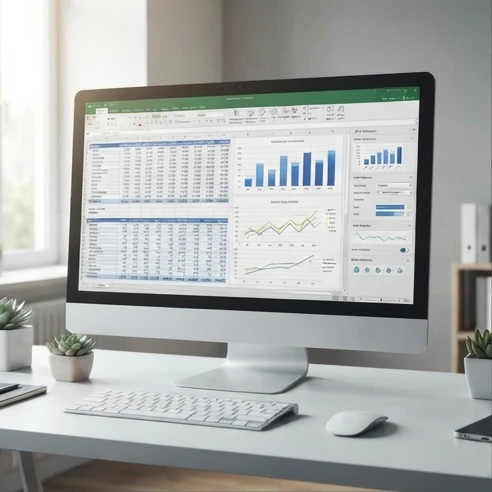
Microsoft Office 2019 Excel is the desktop spreadsheet application included in Microsoft Office 2019. It lets users create workbooks, use formulas, build charts, analyze data with PivotTables, and prepare data with Power Query through a one-time purchase Office license rather than a Microsoft 365 subscription.
Microsoft Office 2019 Excel remains a common choice for users who need a desktop spreadsheet program but are unsure whether this fixed release still matches their workflow. The main decision is whether Excel 2019 provides the functions, compatibility, and licensing model needed for current spreadsheet tasks without requiring features that are only available in newer releases.
Microsoft Excel 2019 is the desktop spreadsheet application included in Microsoft Office 2019. It allows users to create Excel workbooks, calculate data with formulas, build charts, analyze information with PivotTables, and prepare data with tools such as Power Query. It is available through a one-time purchase Office license rather than the ongoing feature updates provided through Microsoft 365.
Microsoft Office 2019 Excel explained for spreadsheet users
Excel 2019 is designed for users who want a fixed desktop version of spreadsheet software. It is part of Microsoft Office 2019 alongside applications such as Microsoft Word 2019, Microsoft PowerPoint 2019, and Microsoft Outlook 2019. The Excel component focuses on creating, editing, and analyzing spreadsheet files stored on a local computer or shared through compatible services.
The key distinction is the licensing approach. Office 2019 uses a perpetual license model, meaning the user pays once for a specific version rather than subscribing for continuous updates. This can suit people who prefer stable software and do not need every new Excel function as soon as it appears.
Microsoft Excel 2019 is not free. Users need a legitimate paid license through an Office 2019 edition that includes Excel or another authorized license arrangement. Microsoft 365 provides Excel through a subscription model instead of a one-time purchase.
However, a fixed version also creates limits. New features added to later Excel releases or Microsoft 365 may not arrive in Excel 2019, so users should compare their spreadsheet requirements before choosing it.
Excel 2019 features and spreadsheet capabilities
Excel 2019 includes the core tools most users expect from a desktop spreadsheet application. It supports workbook creation, formulas, formatting, charts and visualization, PivotTables, and data preparation workflows.
A useful way to evaluate Excel 2019 is to separate everyday spreadsheet tasks from advanced data workflows. Basic calculations and reporting can work well, while newer formula systems and cloud-focused collaboration may require a newer version.
Core functions for everyday spreadsheet work
For everyday users, Excel 2019 provides a broad collection of formulas for calculations, text handling, dates, logical decisions, and lookup tasks. Users can organize information into worksheets, create tables, apply filters, and build reusable workbook templates.
Lookup and reference functions remain important for many business spreadsheets. However, users working with files designed around newer functions may encounter compatibility problems. A workbook created with modern Excel features may need adjustments before it works correctly in Excel 2019.
Common workflows that fit Excel 2019 include:
- Tracking budgets and expenses with formulas and charts.
- Managing lists of products, customers, or inventory records.
- Creating reports from structured spreadsheet data.
- Building recurring templates for offline use.
In practical spreadsheet work, the easy-to-miss step is checking the origin of a workbook. A file that looks like a normal spreadsheet may depend on functions or automation features introduced after Excel 2019.
Data analysis tools for advanced users
Excel 2019 also includes tools for users who need more than simple calculations. PivotTables help summarize large sets of data by categories, totals, and filters. Power Query helps import and transform data from different sources before analysis.
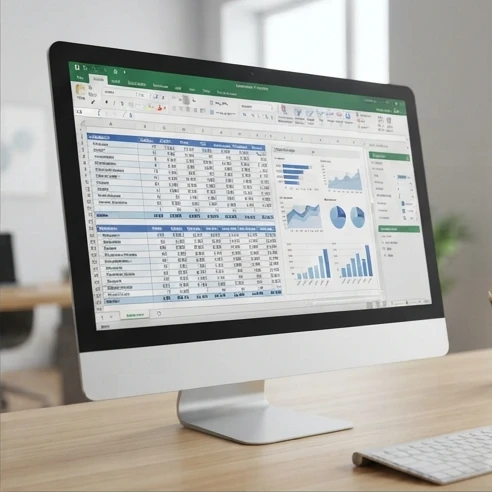
For example, a user can bring external data into a workbook, clean inconsistent values, and create a report structure without manually editing every row. The advantage is repeatability: a prepared workflow can be refreshed instead of rebuilt from the beginning.
Charts and visualization tools are another important part of Excel 2019. They help users turn worksheet data into graphs that make trends, comparisons, and patterns easier to understand.
Excel 2019 licensing, access, and download choices
Microsoft Excel 2019 is not a free standalone product. Access normally comes through a paid Office 2019 edition or another legitimate license arrangement that includes Excel.
Legitimate access depends on the license type. Some Office 2019 editions include Excel as part of a bundled purchase, while Microsoft 365 provides Excel through a subscription model with continuously updated applications and services such as OneDrive cloud storage.
Users searching for an Excel 2019 download should avoid websites offering unauthorized copies, modified installers, or activation tools. These sources can create security risks and may not provide a valid license.
A safer installation path is to use the Microsoft account connected to the purchased license and obtain the Office installation files through official account access. A one-time purchase version of Office is generally tied to one licensed installation rather than unlimited device use.
Excel 2019 system requirements and compatibility factors
Before installing Excel 2019, users should check whether their computer, operating system, and license match the software requirements. Compatibility problems often happen when someone focuses only on the application name and ignores the surrounding setup.
Microsoft Office 2019 Excel system requirements depend on the supported Windows or macOS environment. Users should confirm their current operating system version, available storage, and whether their Office license supports the planned installation.
A practical compatibility check includes:
- Confirm that the operating system supports the Office 2019 installation requirements before downloading files.
- Check available storage space so the installation process does not fail because of limited disk capacity.
- Verify the Microsoft account or activation details connected to the purchased license.
- Match the Office edition with the legitimate installation source used for setup.

Installation checks before using Excel 2019
Installing Excel 2019 is usually straightforward when the license and device are prepared first. The main risks are not the spreadsheet features themselves but mismatched licenses, unsupported systems, or attempts to install from unreliable sources.
Before starting installation, check three areas: the device, the account, and the license. The device must meet the software requirements, the account should connect to the purchased Office product, and the license should match the edition being installed.
Activation is also an important step. A successful installation does not automatically mean the software is properly licensed for continued use.
Sharing Excel 2019 files across versions
Excel 2019 can open many workbook files created in other Excel versions, but compatibility depends on the features used inside the file. A simple workbook containing common formulas may transfer smoothly, while a workbook using newer functions may require changes.
A useful check is to identify whether the workbook depends on features introduced after Excel 2019. Signs of possible problems include formulas that display errors, missing calculations, or unexpected behavior when opened on another version.
When sharing files, confirm:
- Whether the workbook uses functions unavailable in Excel 2019.
- Whether charts, formulas, or data tools behave correctly in the receiving Excel version.
- Whether collaboration features require newer cloud-connected workflows.
Excel 2019 compared with newer Excel versions
Choosing between Excel 2019, Excel 2021, and Microsoft 365 depends on how often the user needs new features, collaboration tools, and subscription services.
Table comparing Excel versions
| Version | License model | Key features | Best for |
|---|---|---|---|
| Excel 2019 | One-time purchase desktop license | Desktop workbook creation, formulas available in 2019, PivotTables, Power Query | Users who mainly work offline and want ownership of a fixed Excel version |
| Excel 2021 | One-time purchase desktop license | Updated desktop features compared with Excel 2019, including newer workflow improvements | Users who want a newer perpetual desktop Excel release |
| Microsoft 365 Excel | Subscription access | Continuously updated features, newer functions, cloud-connected collaboration | Users who need the latest Excel capabilities and online teamwork |
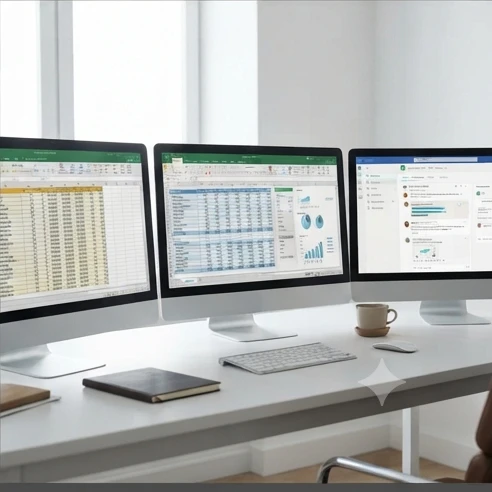
Excel 2019 compared with newer versions comes down to feature needs rather than only age. A user who creates invoices, personal budgets, or standard reports may not notice missing functions. A user sharing advanced workbooks with teams using newer Excel versions may notice limitations quickly.
The main decision factor is the workbook environment. For example, a spreadsheet using XLOOKUP, XMATCH, or dynamic arrays may require a newer Excel version, while a budget workbook using established formulas may continue working in Excel 2019.
Newer Excel capabilities missing from Excel 2019
The biggest difference between Excel 2019 and newer Excel versions is the availability of newer productivity features. Users deciding whether to upgrade should focus on the specific tasks they perform rather than the release number alone.
Table of newer capabilities
| Capability | Excel 2019 availability | Compatibility consideration |
|---|---|---|
| XLOOKUP | Not available as a built-in Excel 2019 function | Workbooks using XLOOKUP may require changes or a newer Excel version |
| XMATCH | Not available as a built-in Excel 2019 function | Newer lookup workflows may not transfer directly |
| LET and dynamic arrays | Not available as newer Excel 2019 features | Modern formula designs may need alternative approaches |
Dynamic arrays matter when users work with formulas designed to automatically spill results into multiple cells. Without these newer features, a workbook may need older formula patterns or additional manual steps.
Newer lookup functions also affect workflow design. A spreadsheet created around XLOOKUP or XMATCH may be easier to maintain in newer versions, while Excel 2019 users may need alternative lookup methods.
Cloud collaboration is another factor. Microsoft 365 is built around regularly updated applications and online services, while Excel 2019 provides a fixed feature set. Users who need frequent updates or teamwork through connected services should evaluate whether a perpetual license creates unnecessary limits.
Deciding whether Excel 2019 still fits your needs
Excel 2019 can still be suitable for users whose spreadsheet needs are stable. The right choice depends on the tasks performed every week, the files exchanged with others, and the importance of having the newest functions.
| If | Then |
|---|---|
| You mainly create spreadsheets offline and use established Excel formulas | Choose Excel 2019 if a one-time ownership model matches your software needs |
| You regularly exchange workbooks using newer Excel-only features | Consider a newer Excel version to reduce compatibility limitations |
| You need continuously updated functions and cloud-first collaboration tools | Choose Microsoft 365 Excel instead of a fixed Excel 2019 release |
Users who can continue with Excel 2019 often have predictable workflows: financial tracking, personal administration, classroom spreadsheets, or internal reports that do not depend on recent functions.
Users who should consider upgrading usually have one or more clear signals: they receive workbooks with unsupported formulas, need real-time collaboration, or depend on features added after Excel 2019.
Open an important workbook today and check whether it uses functions or tools unavailable in Excel 2019. That compatibility check will show whether keeping your current version supports your actual workflow or whether upgrading would remove a specific limitation.
FAQ
Is Microsoft Excel 2019 free?
No, Microsoft Excel 2019 is not free. Users need a legitimate paid license through an Office 2019 edition that includes Excel or another authorized license arrangement. Microsoft 365 provides Excel through a subscription model instead of the one-time purchase approach used by Office 2019.
Where can users legally download Excel 2019?
Users can obtain Excel 2019 installation files through the Microsoft account connected to their purchased Office license and official account access. Downloads from unauthorized sources, modified installers, or activation tools may not provide a valid license.
Is Excel 2019 still supported?
Excel 2019 remains a fixed desktop version with a feature set based on its release. New features added to later Excel releases or Microsoft 365 may not arrive in Excel 2019, so users should compare their needs with the available capabilities.
Can Excel 2019 run on Windows computers?
Yes, Excel 2019 can run on supported Windows computers when the operating system, available storage, and Office license meet the required installation conditions. Users should confirm their device setup before installing the software.
Does Excel 2019 work with newer Excel files?
Excel 2019 can open many workbook files created in other Excel versions, but compatibility depends on the features used inside the file. Workbooks using newer functions or tools may require adjustments to work correctly.